An accessible website works for everyone, including people who use a keyboard instead of a mouse, a screen reader, zoom or high-contrast settings. Many of the most common accessibility problems can be found in a few minutes with tools already built into your browser.
This guide shows how to check website accessibility in your browser, step by step, and which issues to look for first. It's a practical starting point, not a replacement for a full audit against the Web Content Accessibility Guidelines or testing with people who use assistive technology.
1. Run an automated check
Automated tools catch common, clear-cut problems quickly:
- Open Chrome DevTools (
F12) and go to the Lighthouse panel. - Tick Accessibility, then click Analyze page load.
- Work through the failed audits. Each one names the elements involved and links to guidance.
Typical findings include images without alt text, form fields without labels, buttons and links without accessible names, low color contrast and incorrect ARIA attributes.
Automated tools find only part of the picture. A page can score well and still be hard to use, which is why the next steps matter.
2. Test with the keyboard only
Put your mouse aside and use the page with the keyboard:
TabandShift+Tabmove between links, buttons and form fields.Enterfollows links and activates buttons;Spacetoggles checkboxes and buttons.- Arrow keys move within menus, tabs and radio groups.
Escshould close dialogs and menus.
Check that:
- Every interactive element is reachable and works.
- Focus is always visible. You can see where you are on the page at all times.
- The order makes sense, following the visual layout.
- Nothing traps you. You can always tab out of a widget or dialog.
- Dialogs move focus into the dialog when they open and back when they close.
- A "skip to content" link lets you jump past long navigation.
3. Check color contrast
Low-contrast text is one of the most common accessibility problems. In Chrome DevTools:
- Inspect a piece of text.
- Click the color swatch next to its
colorin the Styles pane. - The color picker shows the contrast ratio and whether it passes AA and AAA, with a line showing where the color would need to be to pass.
WCAG AA asks for a contrast ratio of at least 4.5:1 for normal text and 3:1 for large text. Chrome's CSS Overview panel can also list low-contrast text across the whole page. If you're picking new colors, our guide to finding the fonts and colors on any website shows how to see a page's whole palette.
4. Inspect the accessibility tree
Screen readers don't read the visual page; they read the accessibility tree the browser builds from the HTML. To see it:
- Chrome: in the Elements panel, open the Accessibility pane to see an element's computed role, name and properties. You can also turn on the full accessibility tree view.
- Firefox: use the Accessibility panel in DevTools, which can also check for issues.
Look for buttons with no name, images announced as file names, and elements whose role doesn't match what they do (for example, a clickable div with no button role).
5. Simulate vision deficiencies and preferences
In Chrome's Rendering tab (open it from the Command Menu with Ctrl+Shift+P):
- Emulate vision deficiencies such as blurred vision or different types of color blindness. Information conveyed only by color is easy to spot this way.
- Emulate
prefers-reduced-motionto check that animations calm down for people who've asked for less motion. - Emulate
prefers-color-schemeto check dark mode contrast.
Also zoom to 200% (Ctrl and +) and check that content reflows without overlapping or needing sideways scrolling.
6. Use an accessibility extension
Extensions add more detailed checks inside DevTools. axe DevTools is a widely used option that flags issues with explanations of how to fix them. See the best Chrome extensions for web developers for more.
Edit Page includes 8 accessibility checks in its free Analyze tab: alt text, accessible names, form labels, WCAG contrast, landmarks, duplicate IDs and tab order, plus a heading outline. Click any finding to select the element, then fix it with the visual editor to see the improvement. Its Inspect view also shows each element's role, name and ARIA attributes. Add Edit Page to Chrome to try it, or see the features on our home page.
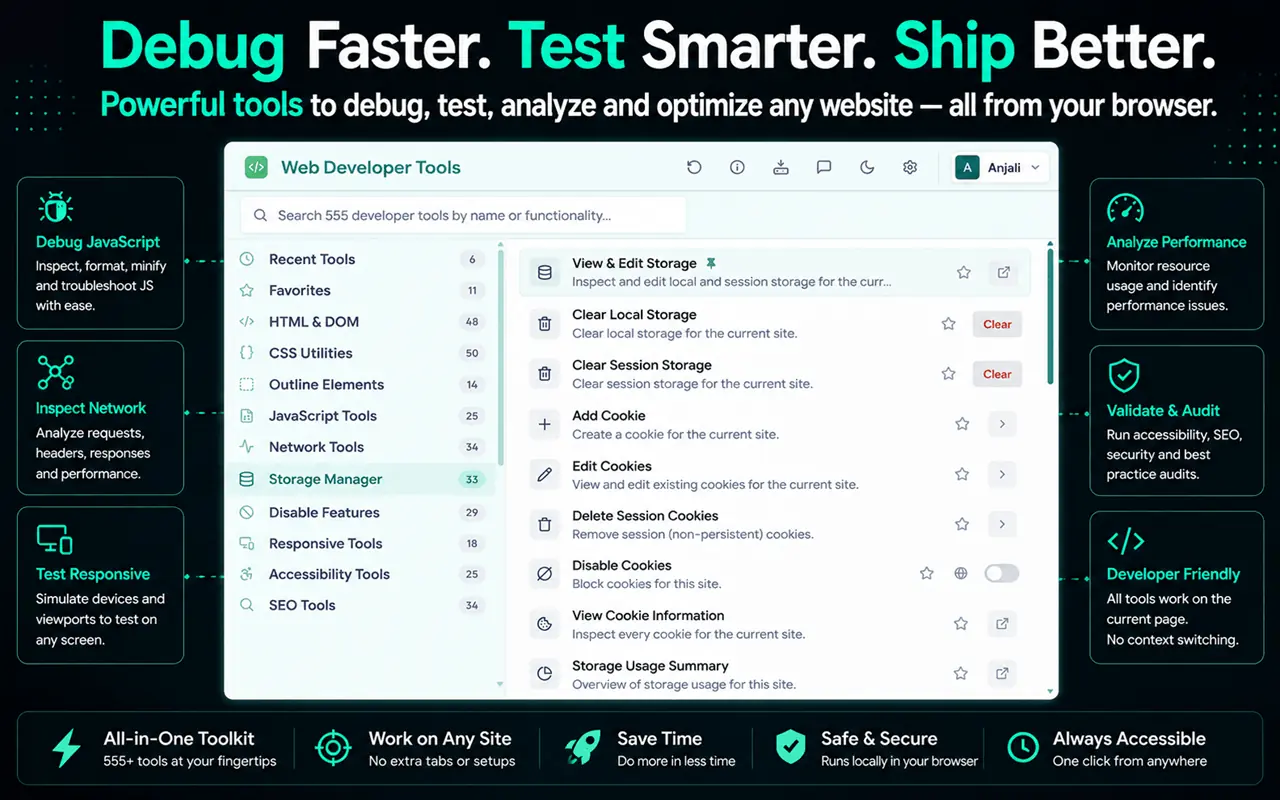
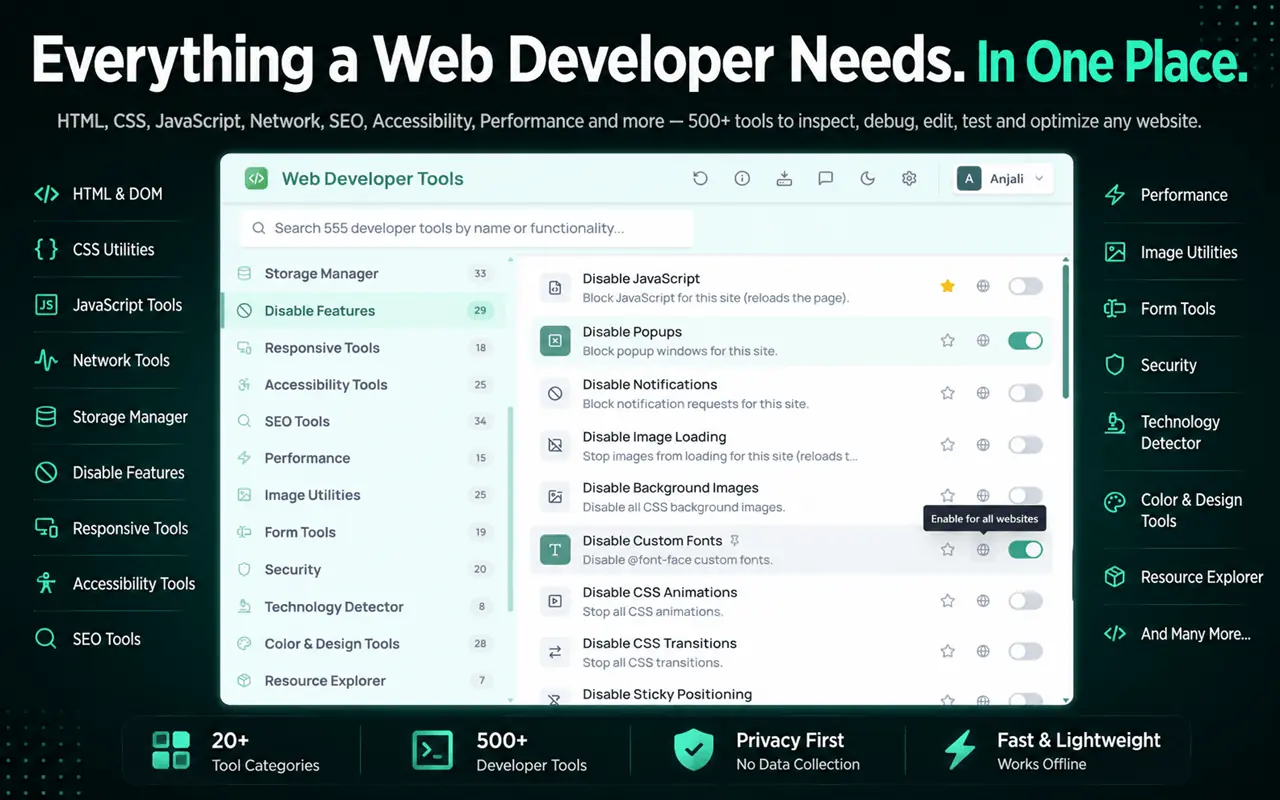
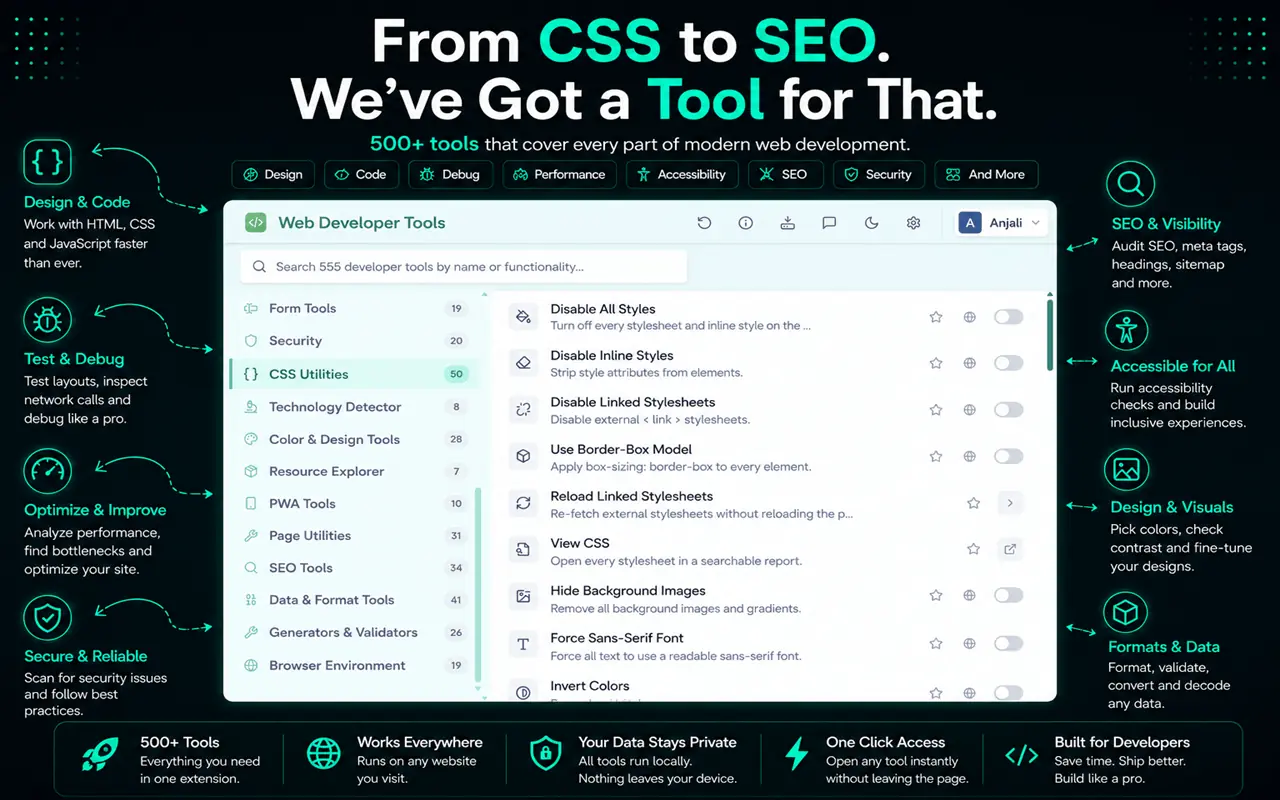
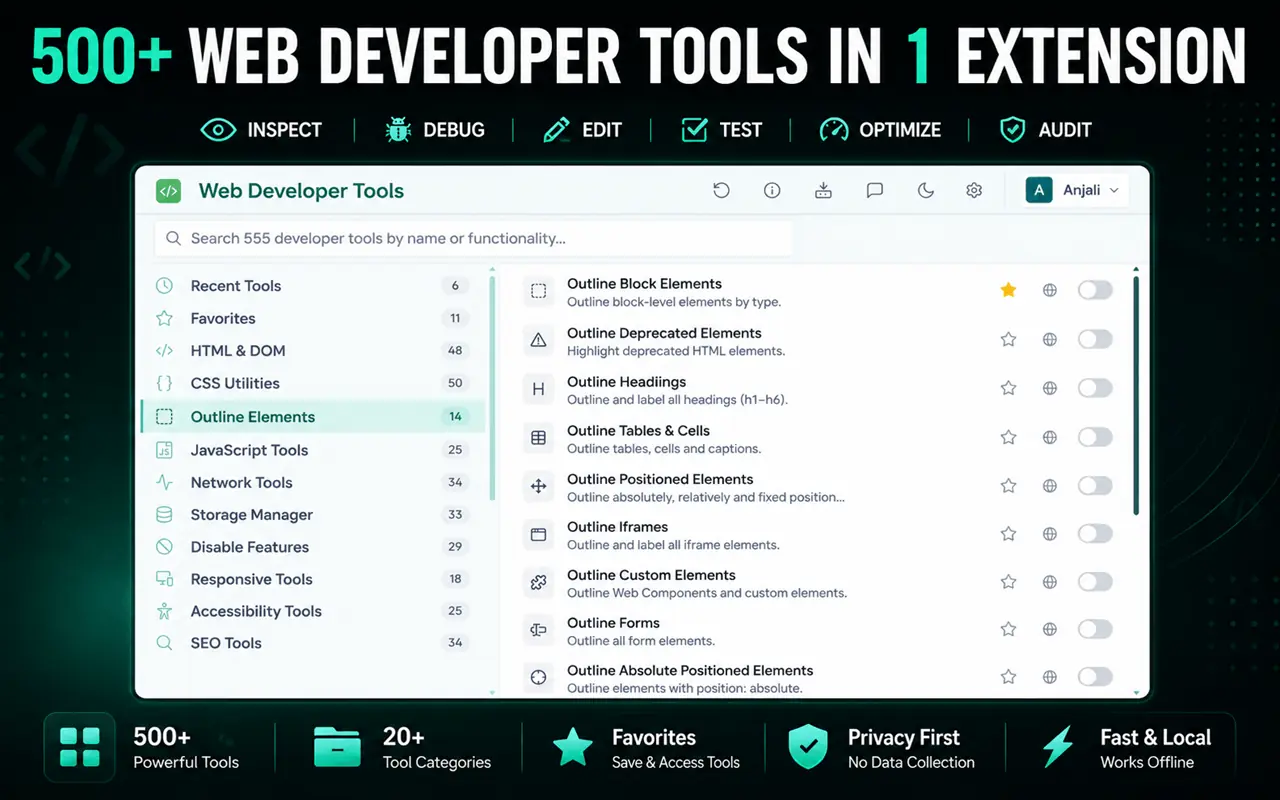
Web Developer Tools adds one-click accessibility helpers too: outline images with missing alt text, highlight unlabeled form fields, show ARIA roles and find duplicate IDs. It's available for Chrome, Edge and Firefox.
A quick accessibility checklist
| Check | How |
|---|---|
| Images have useful alt text | Lighthouse, Edit Page Analyze |
| Form fields have labels | Lighthouse, Accessibility pane |
| Text contrast passes AA | DevTools color picker, CSS Overview |
| Everything works with a keyboard | Tab, Enter, Space, Esc |
| Focus is always visible | Keyboard test |
| Headings form a logical outline | Edit Page Analyze, Console |
| Page works at 200% zoom | Ctrl and + |
| Motion respects user preference | Rendering tab emulation |
Accessibility and SEO overlap a lot: clear headings, descriptive links and alt text help both. Our guide to checking a website's SEO in your browser covers the SEO side.
Frequently asked questions
How can I check if my website is accessible for free?
Run Lighthouse's accessibility audit in Chrome DevTools, test the page with the keyboard only, check color contrast with the DevTools color picker and review the accessibility tree. These free steps catch many common problems.
Is a Lighthouse accessibility score of 100 enough?
No. Automated tools can only detect some issues. Keyboard testing, screen reader testing and review against WCAG are needed for a complete picture.
What contrast ratio do I need for WCAG AA?
At least 4.5:1 for normal text and 3:1 for large text (roughly 24px regular or 18.5px bold and above).
What's the most common accessibility issue?
Low-contrast text, missing alt text, unlabeled form fields and links or buttons without accessible names are among the most frequently found problems.