You don't need an expensive SEO platform to find most on-page problems. Your browser can show you everything a search engine sees on a page: the title, the meta description, the headings, the links, the image alt text and the structured data.
This guide walks through a free, practical on-page SEO check you can run in Chrome, Edge or Firefox in about ten minutes per page.
What this covers: on-page and technical basics that you can see in the page itself. Rankings, backlinks and keyword data need other tools, such as Google Search Console for your own site.
1. View the page's source
Press Ctrl+U (Cmd+Option+U on a Mac) to view the HTML the server sends. This is roughly what a crawler receives before any JavaScript runs. Use Ctrl+F to find the tags below.
If important content only appears after JavaScript runs, it's worth checking that search engines can still see it. Compare the source with what you see in the Elements panel of DevTools, which shows the page after scripts have run.
2. Check the title and meta description
Find <title> and <meta name="description"> in the source.
- Title: unique to the page, describes it accurately and puts the main topic early. Titles that are too long get cut off in results, so keep the important words at the start.
- Meta description: a clear one or two sentence summary that makes someone want to click. Search engines don't always use it, but a good one helps.
- One of each: duplicates or missing tags are common mistakes, especially on templates.
3. Check the canonical and robots tags
<link rel="canonical" href="...">tells search engines the preferred URL for the page. It should usually point to the page itself, with the correct protocol and domain.<meta name="robots" content="noindex">keeps a page out of search results. Make sure it isn't on pages you want found. It's a classic leftover from a staging site.- Open
/robots.txton the domain to check that important sections aren't blocked, and that it points to a sitemap.
4. Check the heading structure
A clear heading outline helps readers and search engines understand the page:
- One
<h1>that matches the page's main topic. <h2>for main sections,<h3>for sub-sections, without skipping levels for styling.- Headings that describe their section rather than saying "Overview" everywhere.
To see the outline quickly, run this in the Console:
$$("h1, h2, h3").map((h) => `${h.tagName} ${h.textContent.trim()}`).join("\n");5. Check images and links
- Alt text: informative images need a short
altdescription. Decorative images should have an emptyalt="". - File sizes: in the Network panel, filter by Img and sort by size to find oversized images that slow the page.
- Internal links: important pages should be linked from other relevant pages with descriptive anchor text, not "click here".
- Broken links: links that return errors waste visitors' time and crawl budget.
6. Check structured data
Structured data (usually JSON-LD in a <script type="application/ld+json"> tag) helps search engines understand what a page is: an article, a product, a FAQ, a breadcrumb trail. Find it in the source, then test it with Google's Rich Results Test or the Schema Markup Validator. Only mark up content that's actually visible on the page.
7. Check speed and accessibility basics
Slow, hard-to-use pages lose visitors, whatever their rankings. Two quick checks:
- Speed: in the Network panel, reload the page and look at the total transfer size and the largest files. The essential browser tools for web developers guide explains the Network and Performance panels.
- Accessibility: clear headings, descriptive link text and alt text help both screen reader users and search engines. See how to check website accessibility in your browser.
8. Run Lighthouse
Lighthouse, built into Chrome DevTools, has an SEO category that checks many basics automatically: a title and meta description, a valid hreflang, crawlable links, a successful status code, legible font sizes and more. Its Performance and Accessibility categories are worth running too, because speed and usability matter to visitors.
- Open DevTools, then the Lighthouse panel.
- Choose the categories and Mobile or Desktop.
- Click Analyze page load.
Run it in an incognito window for cleaner results. For field data from real users, use PageSpeed Insights. The Lighthouse documentation explains each audit.
Check SEO faster with Edit Page
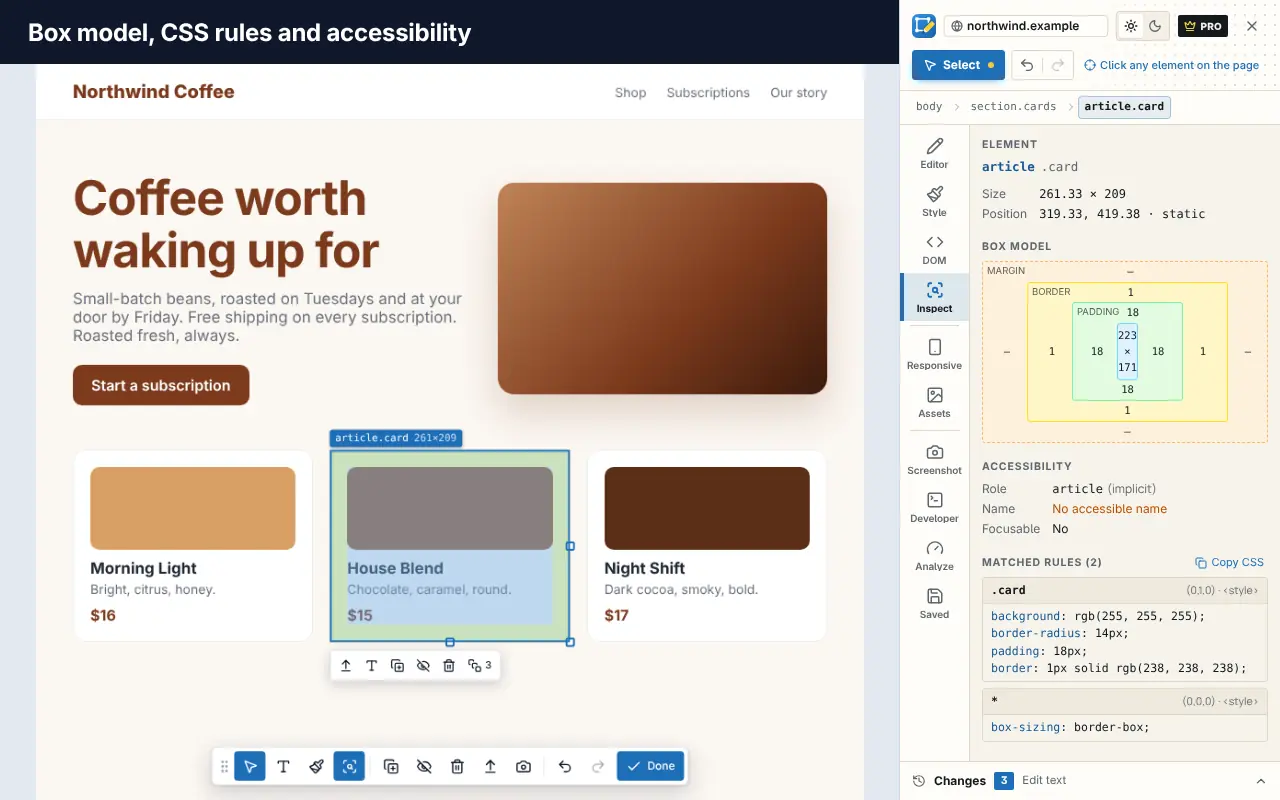
Edit Page has an Analyze tab that runs a quick on-page report from its side panel:
- 11 SEO checks: title and meta description length, a single
<h1>, heading order, canonical,noindex, viewport, Open Graph and Twitter card tags, structured data, and empty links. - 8 accessibility checks, including alt text, labels and contrast.
- A heading outline of the page.
- Detected technologies, such as the framework or CMS.
- Page stats such as element count, word count, links and requests.
Click a finding to select the element on the page and fix it right there with the visual editor. The analysis is free; exporting the report as JSON or Markdown is part of Pro. Add Edit Page to Chrome to try it.
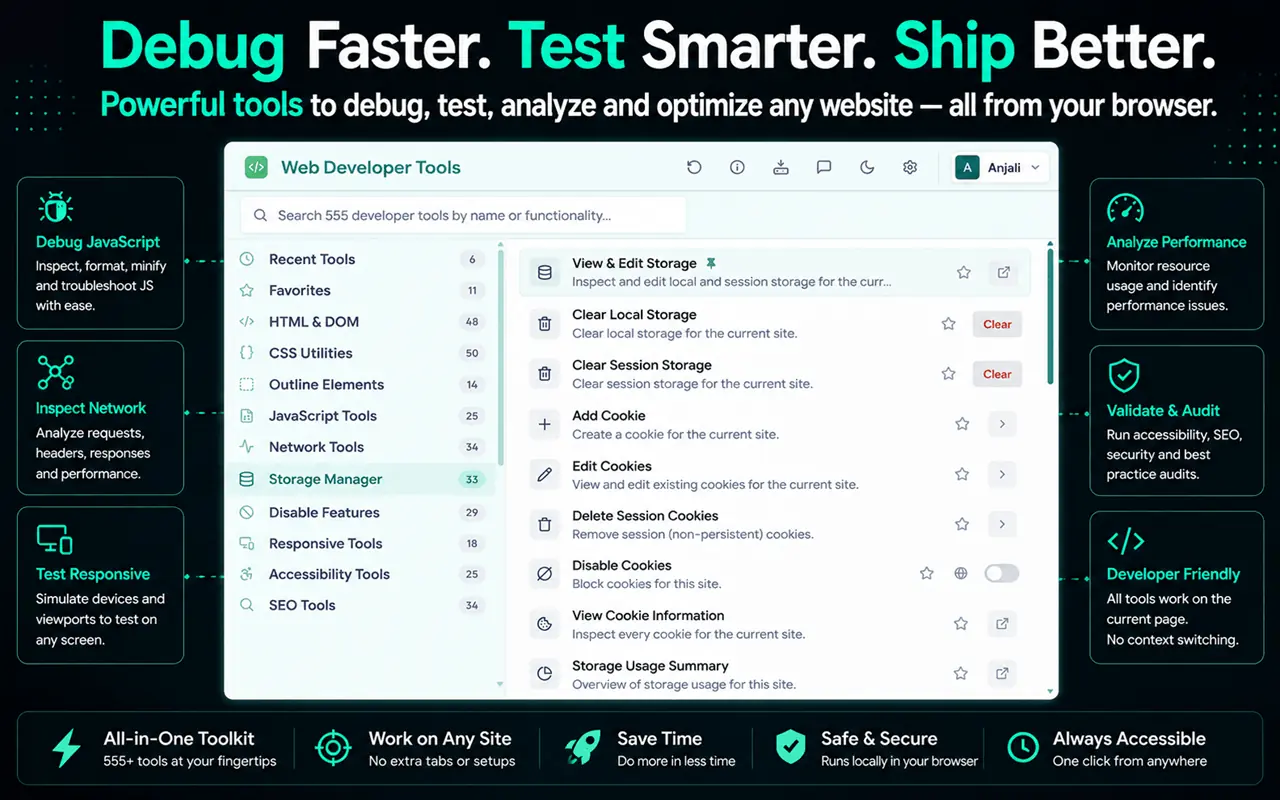
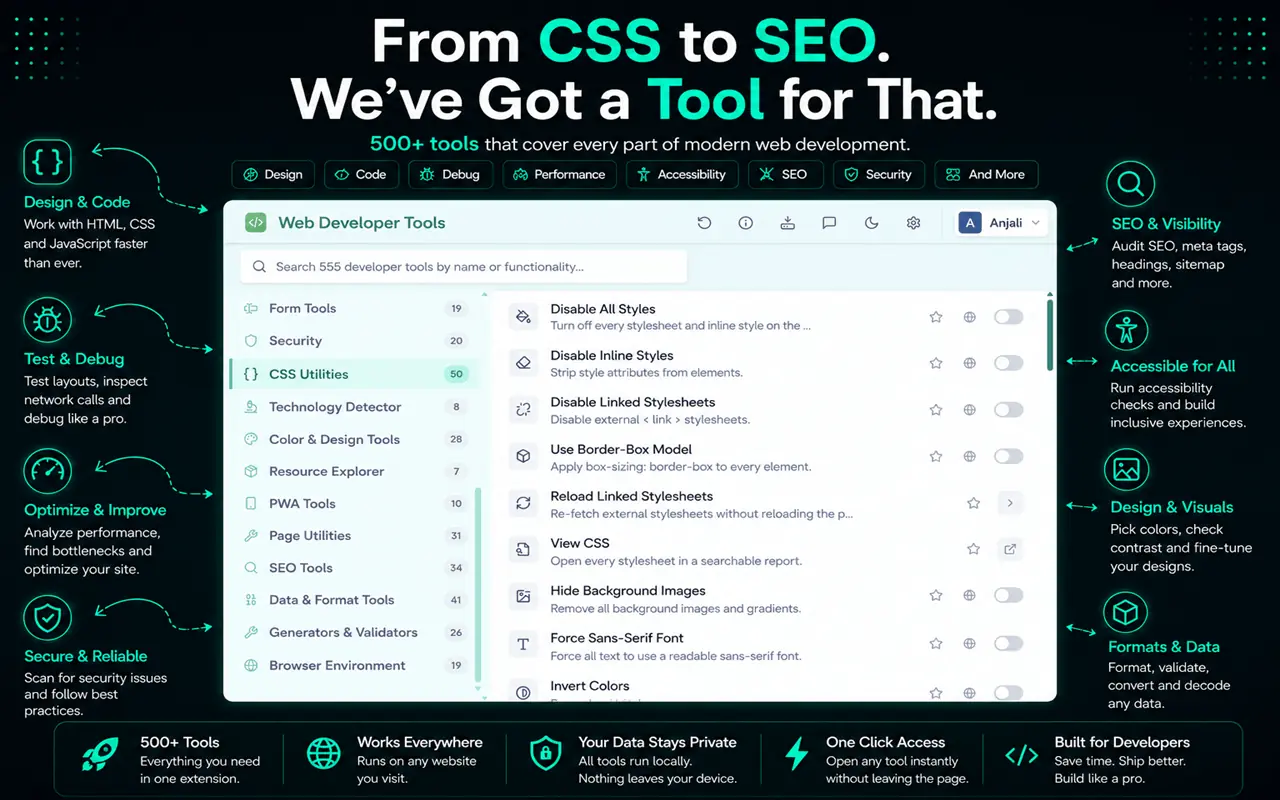
For a deeper toolbox, Web Developer Tools includes SEO auditing and metadata analysis among its 500+ tools, plus HTML and CSS validators, link details and a document outline. Get it for Chrome, Edge or Firefox.
Check what changed
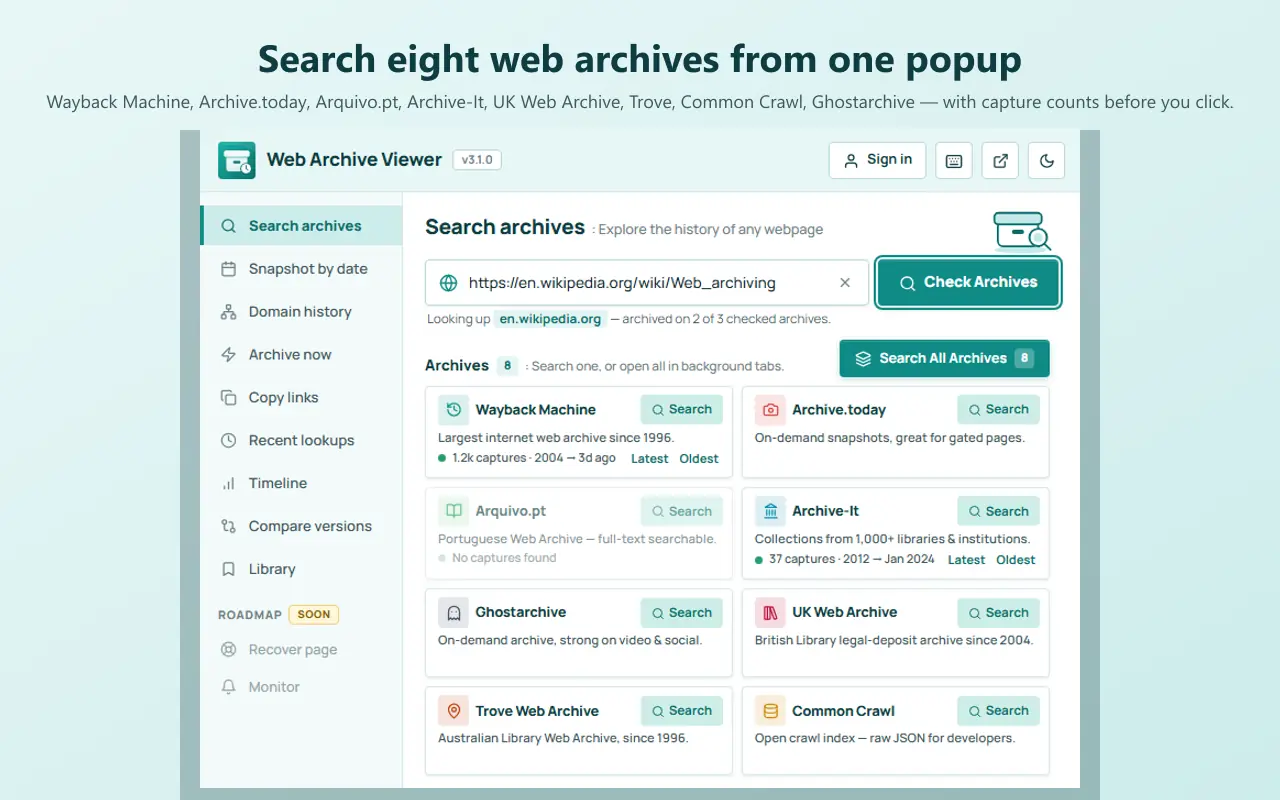
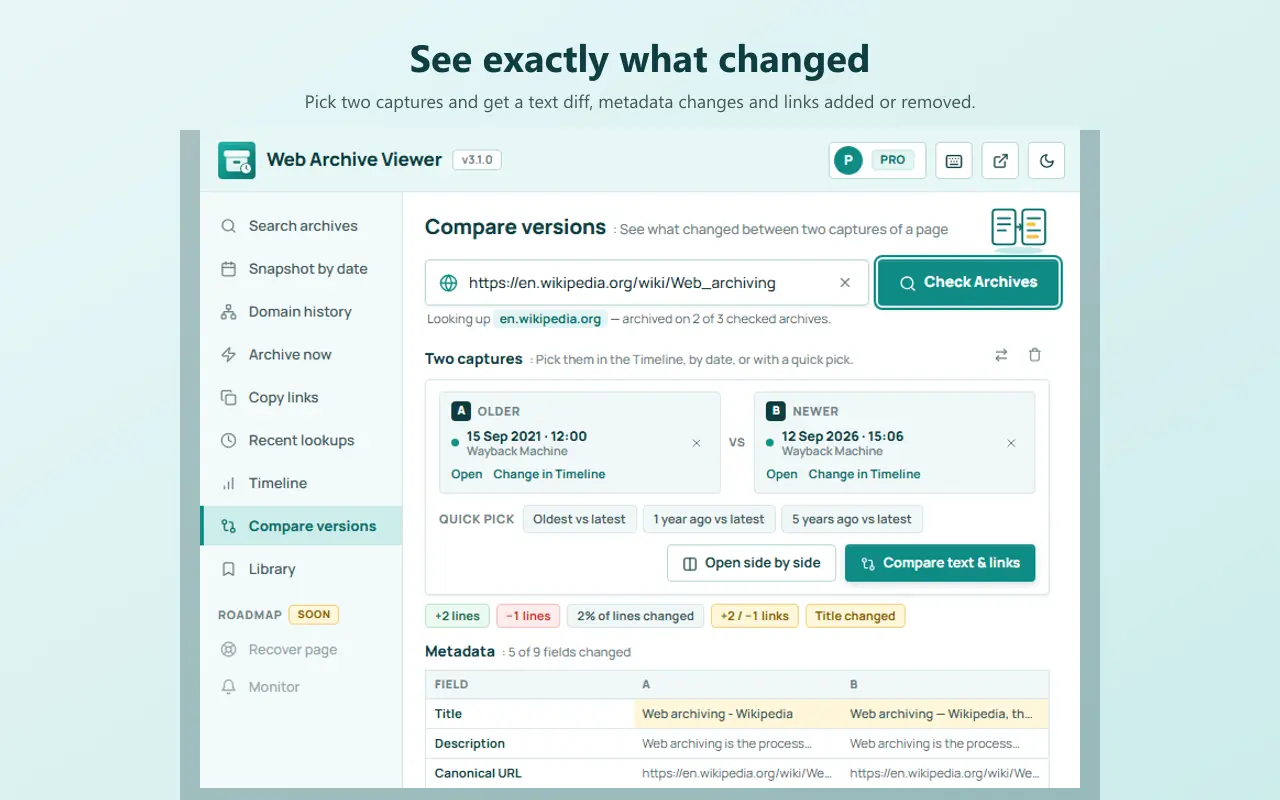
If a page's rankings dropped, it helps to see what it looked like before. The Wayback Machine and Web Archive Viewer extension let you look up archived versions of a page so you can compare titles, headings and content over time. Our guide on how to view old versions of a website explains how.
Keep your audit organized
An SEO audit means many tabs: the pages, their sources, Lighthouse reports and tools. Save each audit as a named session with Super Session Manager so you can pick it up later, and read how to manage too many open tabs for more ways to stay organized.
Frequently asked questions
How can I check a website's SEO for free?
View the page source to check the title, meta description, canonical and robots tags, review the headings, images and links, test structured data with Google's Rich Results Test, and run the Lighthouse SEO audit in Chrome DevTools.
How do I see a page's meta tags?
Press Ctrl+U to view the source and search for <title> and <meta. In DevTools, you can also expand the <head> element in the Elements panel.
Is a Lighthouse SEO score of 100 enough?
No. It means the basic technical checks pass. Rankings also depend on content quality, relevance, links and many other factors Lighthouse doesn't measure.
What's the most common on-page SEO mistake?
Duplicate or missing titles and meta descriptions, and stray noindex tags left over from staging, are among the easiest to make and to fix.