You spot a website with a beautiful heading font or a perfect shade of blue, and you want to know exactly what it is. Good news: the answer is always in the page. Every font and color a browser shows comes from the page's CSS, and your browser can tell you precisely what's being used.
This guide shows how to find the fonts and colors on any website, from a single element to a page's whole palette.
Find the font of a specific element
In Chrome or Edge
- Right-click the text and choose Inspect.
- In the right-hand pane, open the Computed tab.
- Look at font-family to see the font stack the CSS asks for.
- Scroll to the bottom of the Computed tab to Rendered Fonts. This shows the font the browser actually used, which matters because the first font in a stack isn't always available.
While you're there, note font-size, font-weight, line-height and letter-spacing. They're often what makes a typeface look the way it does.
In Firefox
- Right-click the text and choose Inspect.
- In the Inspector's side panel, open the Fonts tab.
- You'll see the fonts used by the selected element, with a preview, and where each font file comes from. The All Fonts on Page section lists every font the page uses.
Get the exact color of anything
From the CSS
Select the element in DevTools and look in the Styles pane for color, background-color or border-color. Click the small color swatch to open the color picker, where you can switch between HEX, RGB and HSL formats with the arrows or by clicking the value.
With the eyedropper
To grab the color of any pixel, including images and gradients:
- Open the color picker by clicking any color swatch in the Styles pane.
- Click the eyedropper icon.
- Click anywhere on the page. The picker shows that pixel's color, ready to copy.
Firefox has an eyedropper too: click the eyedropper button in the Inspector's toolbar, then click anywhere on the page to copy that color.
See a page's whole palette and type system
Clicking element by element is slow if you want the big picture. Chrome's CSS Overview panel summarizes a page in one report:
- Open DevTools and press
Ctrl+Shift+P(Cmd+Shift+Pon a Mac). - Type CSS Overview and choose Show CSS Overview.
- Click Capture overview.
You get every color grouped by text, background, fill and border, the font families with sizes and weights, unused declarations and media queries. Click a color to see which elements use it.
Find fonts and colors with Edit Page
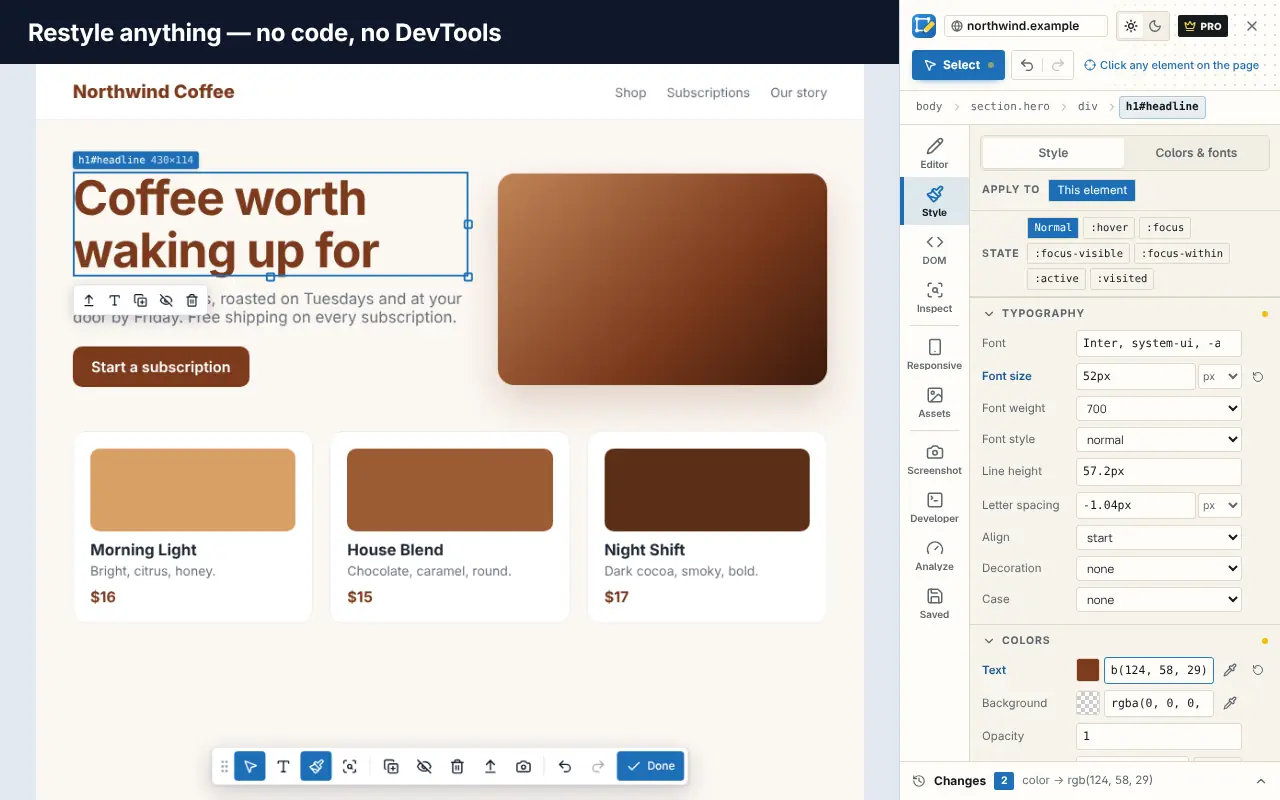
Edit Page has a Colors & fonts tool that does this without DevTools:
- Every color on the page, ranked by how often it's used, split into text, background and border.
- Every font, with the sizes and weights the page uses.
- CSS variables defined on
:root, which is often how a site's design tokens are stored. - Contrast pairs for text, with WCAG AA and AAA results.
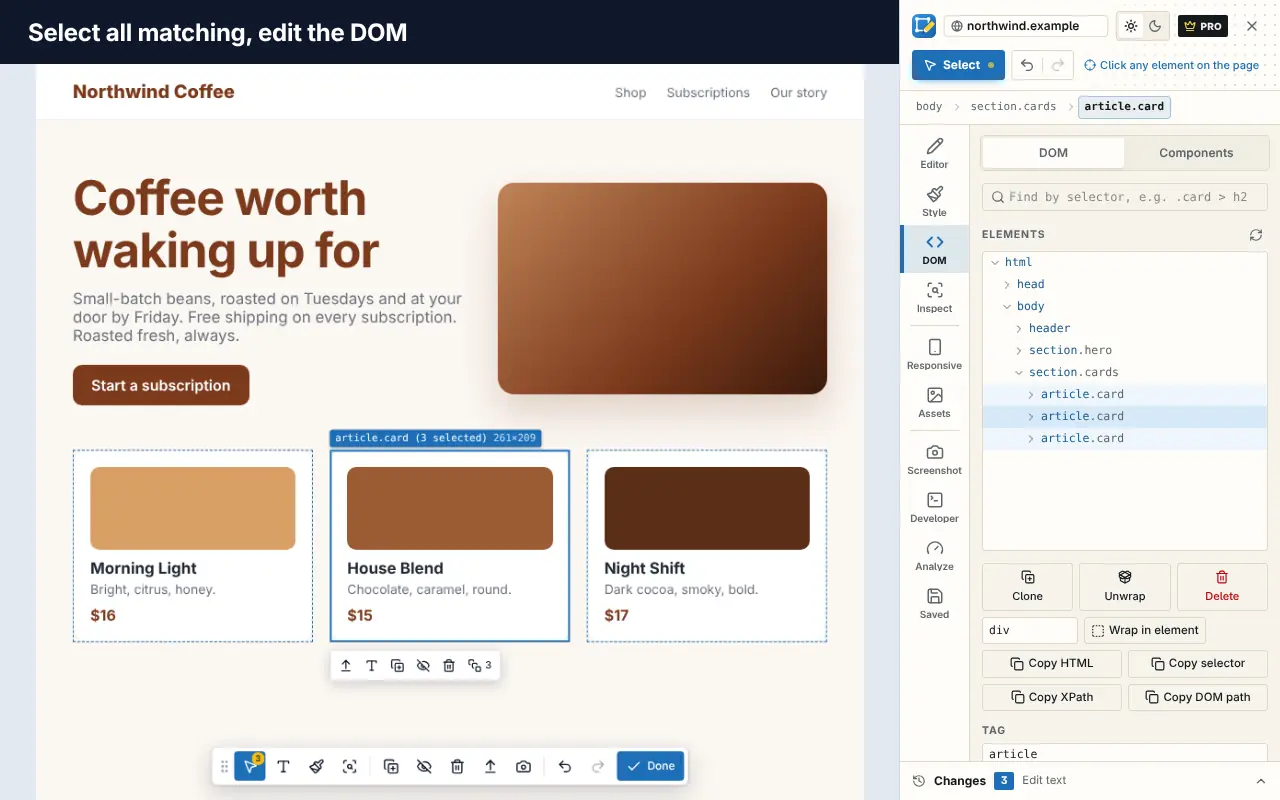
- Hover a color or font to highlight where it's used, or select every element that uses it.
It also has an eyedropper and a color picker in its style panel. On Pro, you can replace a color or font everywhere on the page in one step, which is a quick way to preview a rebrand. Add Edit Page to Chrome or try it first in your browser.
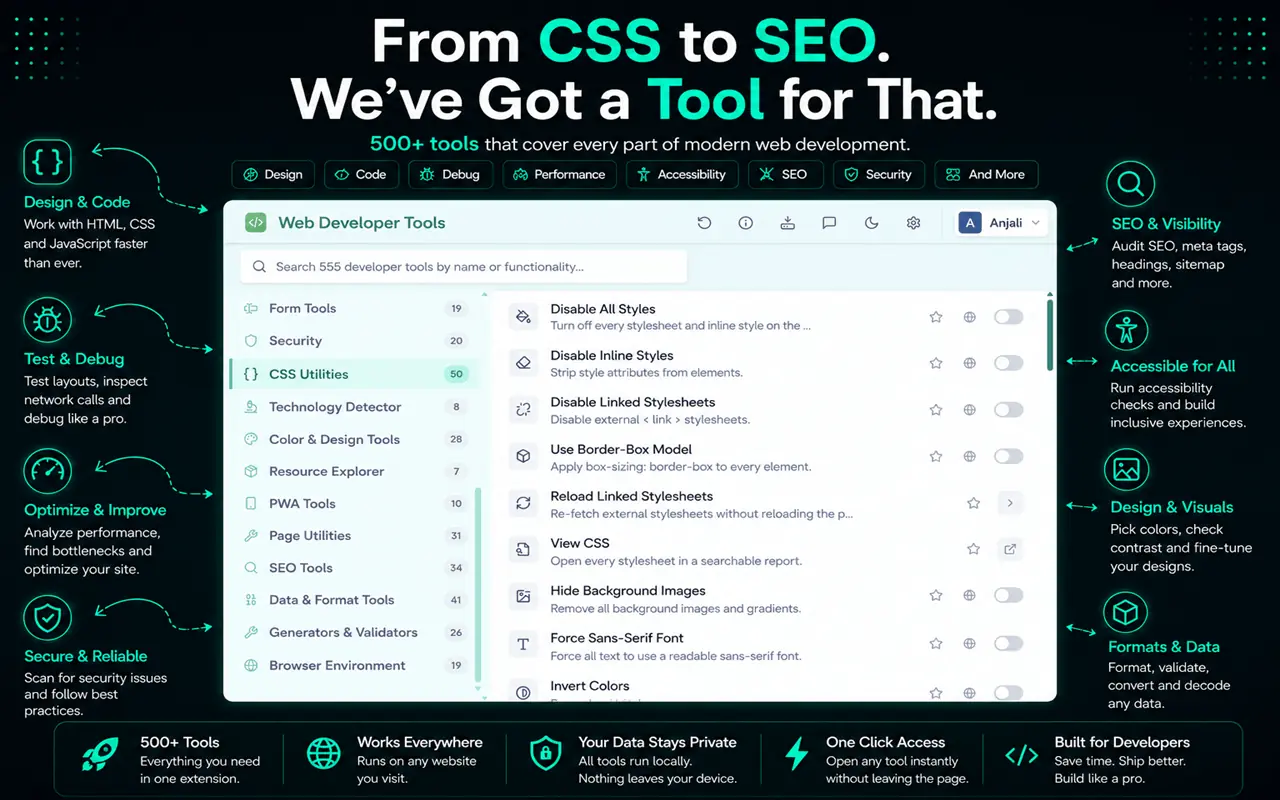
Web Developer Tools also has a color picker, a page colors view and a ruler among its 500+ tools, for Chrome, Edge and Firefox.
Once you know a site's fonts, our guide to changing the font on any website shows how to try them elsewhere.
Turn what you find into a mini style guide
Once you've collected a site's fonts and colors, a short style guide makes them easy to reuse and discuss:
- List the typefaces with their roles: headings, body text, buttons, code.
- Write down the type scale: the font sizes, weights and line heights you saw for each heading level and body text.
- Group the colors into brand colors, text colors, backgrounds, borders and states such as hover and error.
- Note the CSS variables if the site uses them. Names like
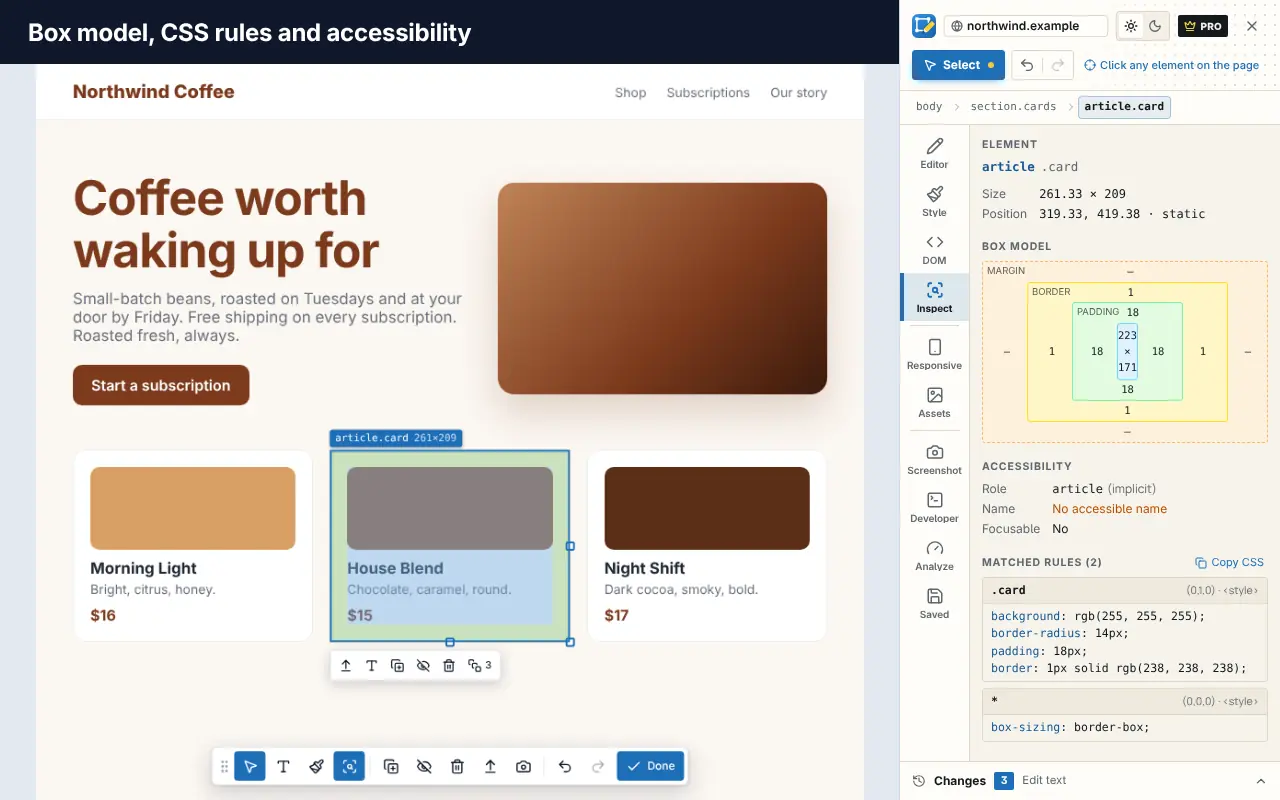
--color-primarytell you how the designers think about the palette. - Check contrast for every text and background pair you plan to use. Our guide to checking website accessibility in your browser shows how.
To experiment with what you found, edit the styles live in DevTools, as explained in how to inspect and edit HTML and CSS, or visually with Edit Page.
Can you use the font you found?
Finding a font isn't the same as having the right to use it. Check its license:
- Open-source fonts (for example, many on Google Fonts) are free to use, including commercially, under licenses such as the SIL Open Font License.
- Commercial fonts need a license from the foundry, even if the file is downloadable from the site.
- Custom fonts made for a brand usually aren't available at all. Look for a similar open-source alternative.
Colors aren't copyrightable in the same way, but a brand's overall look can be protected as trade dress, so take inspiration rather than cloning a design wholesale.
Save your findings
If you're researching design inspiration across many sites, keep the tabs together as a named session with Super Session Manager so you can return to the same set of pages. For more research habits, see browser productivity tips for developers.
Frequently asked questions
How do I find out what font a website is using?
Right-click the text, choose Inspect, open the Computed tab and look at Rendered Fonts at the bottom (Chrome and Edge), or use the Fonts tab in Firefox's Inspector.
How do I get the hex code of a color on a website?
Inspect the element and click the color swatch in the Styles pane to see its value, or use the color picker's eyedropper to sample any pixel on the page.
Why does DevTools show several fonts in font-family?
font-family is a list of fallbacks. The browser uses the first one available. Check Rendered Fonts in the Computed tab to see which one it actually used.
Can I find the colors of a whole website at once?
Yes. Use Chrome's CSS Overview panel or Edit Page's Colors & fonts tool to see every color on the current page. Repeat on a few key pages for a full picture.