Chrome DevTools cover the fundamentals, but the right extensions shave minutes off tasks you repeat every day: tweaking a design, debugging a component, checking accessibility or getting back to the twenty tabs you had open yesterday.
This list groups the best Chrome extensions for web developers by job. We've kept it short on purpose. Every extension you install can read some of your browsing, so each one should earn its place.
Note: extension features change, so check each store listing before you install.
Quick picks
| Need | Extension | Notes |
|---|---|---|
| Edit any page visually | Edit Page | Text, CSS, HTML, inspect, screenshots |
| Developer utilities | Web Developer Tools | Companion toolkit |
| Classic developer toolbar | Web Developer (Chris Pederick) | Long-standing toolbar of utilities |
| Debug React | React Developer Tools | Official, by the React team |
| Debug Vue | Vue.js devtools | Official, by the Vue team |
| Detect a site's tech stack | Wappalyzer, or Edit Page's Analyze tab | Frameworks, CMS, analytics |
| Pick colors | ColorZilla, or Edit Page's color tools | Eyedropper and palettes |
| Accessibility testing | axe DevTools | Automated checks inside DevTools |
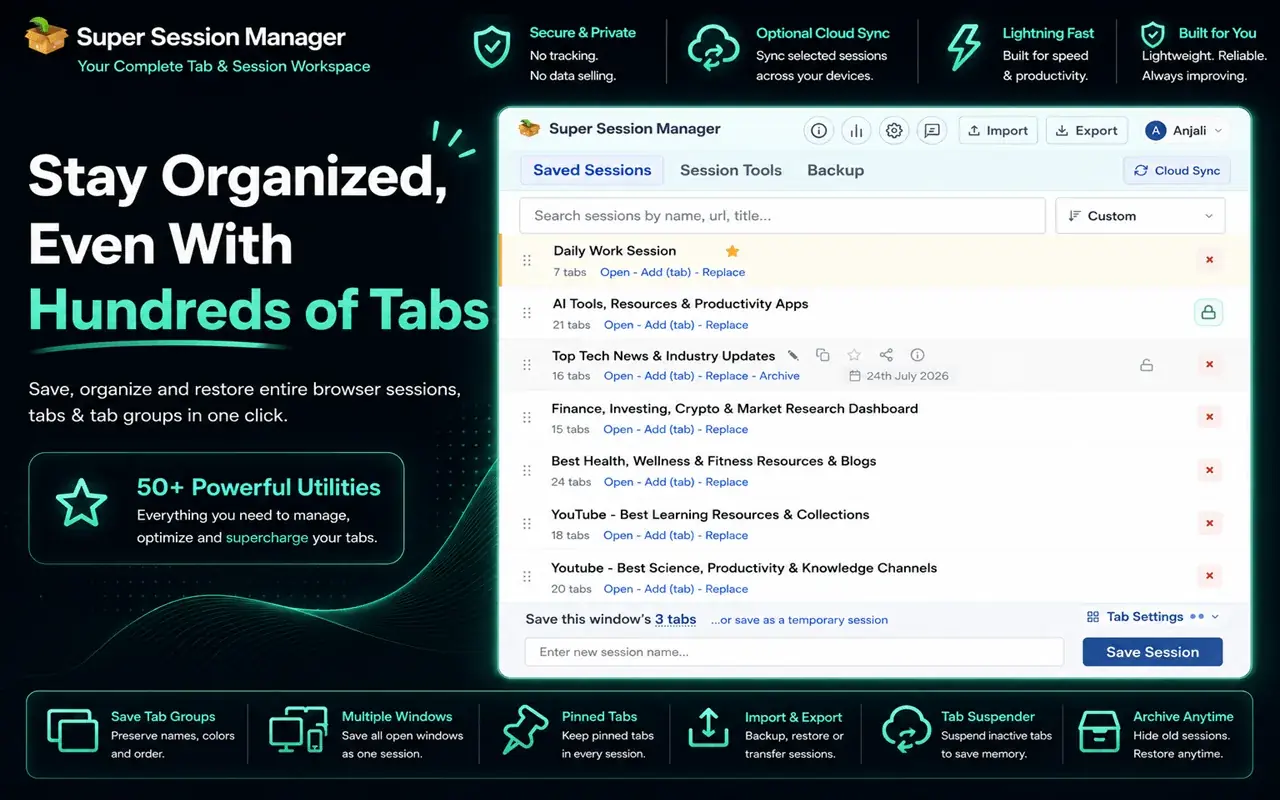
| Keep research tabs | Super Session Manager | Save and restore sessions |
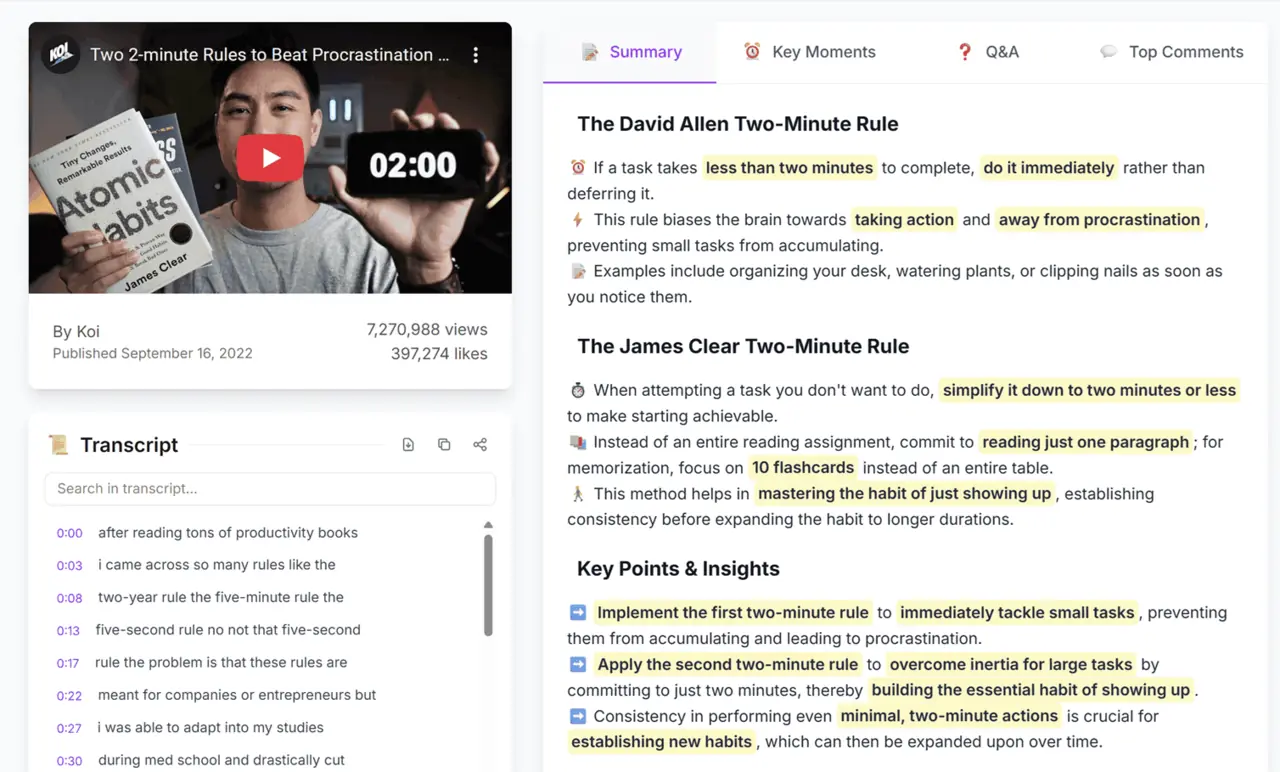
| Learn from video faster | SummaryTube | Summaries of YouTube videos |
Visual editing and inspection
Edit Page
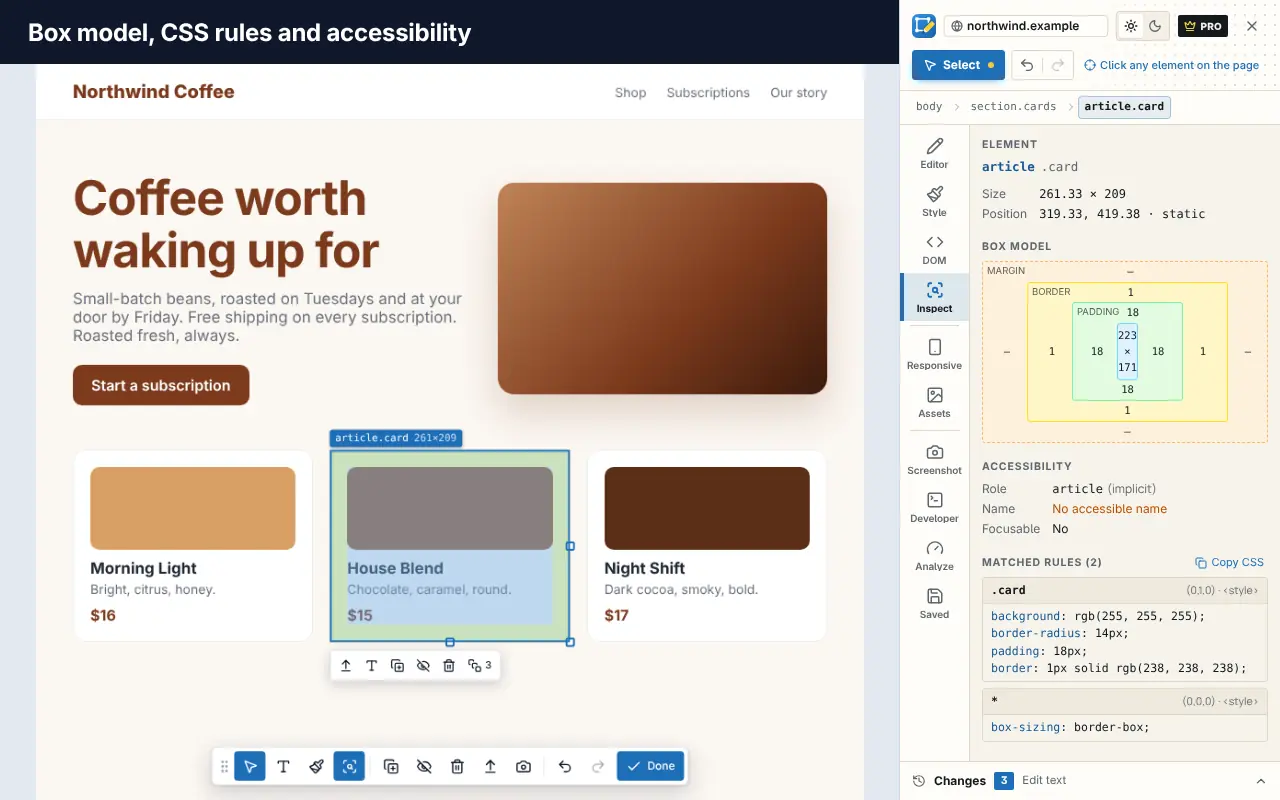
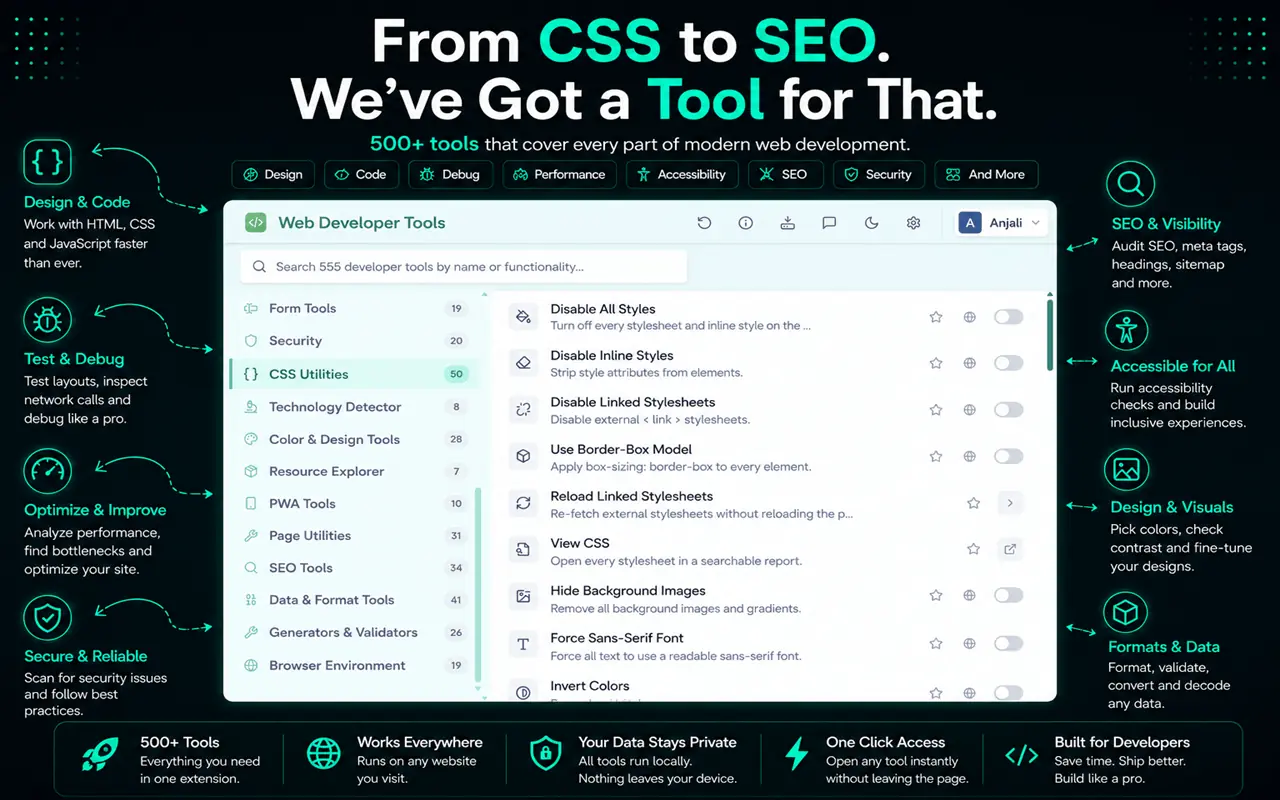
Edit Page turns any webpage into something you can edit visually. Select an element and change its text inline, adjust typography, colors, spacing, borders and layout from a style panel, or edit its HTML. Its inspect view shows the box model, matched CSS rules with specificity, computed styles and accessibility information.
A few things that make it useful for developers in particular:
- Bulk selection: select every element that matches the current one, or every element using a color or font.
- Page analysis: detected technologies, a heading outline, and a set of SEO and accessibility checks.
- Colors and fonts: every color on the page ranked by usage, fonts with sizes and weights,
:rootCSS variables and contrast checks. - Responsive presets: preview common device sizes from the panel.
- Saved changes: keep edits for a website so they're reapplied on every visit.
The free plan covers editing, inspecting, analysis and saved changes for one site. Pro adds unlimited saved sites, full-page screenshots with annotations, and copying code as CSS, HTML, React, Vue or Tailwind. Add Edit Page to Chrome or try it in your browser first.
If you're new to visual editing, start with how to edit a webpage in your browser.
Web Developer Tools
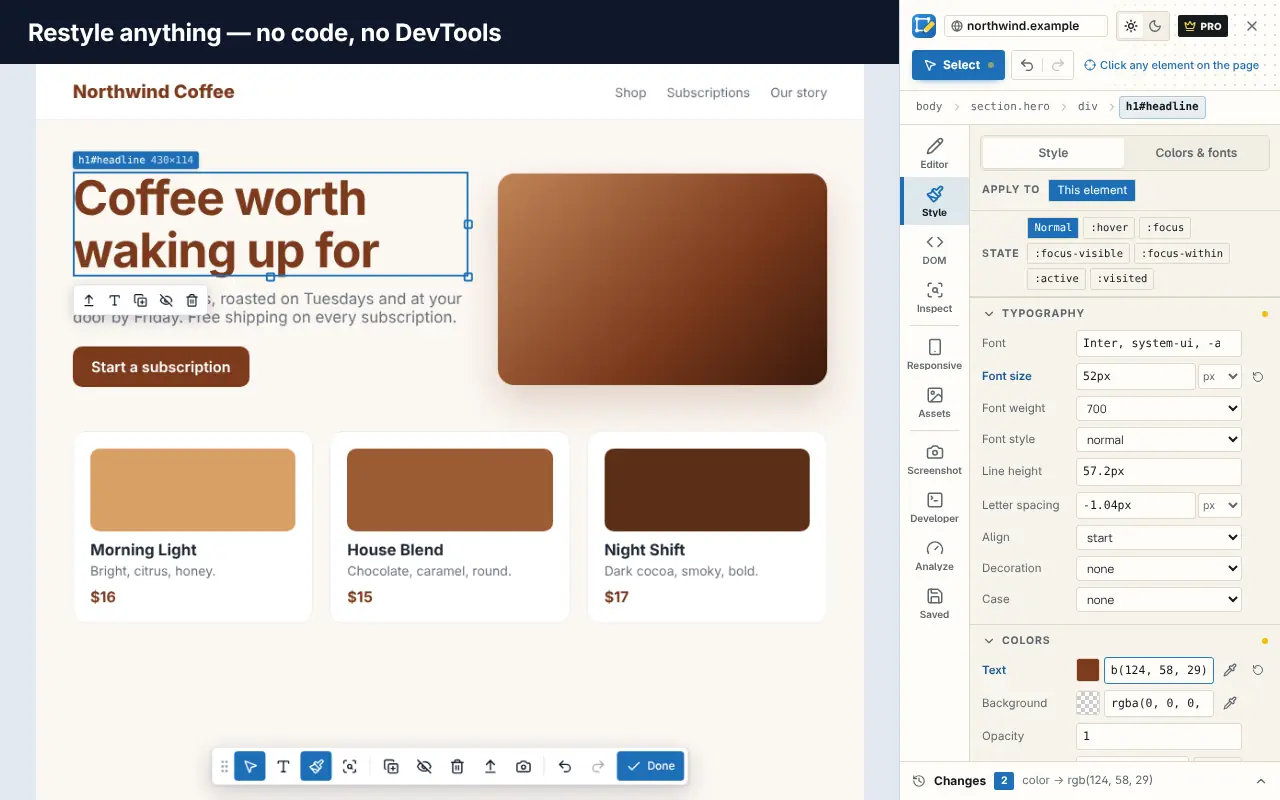
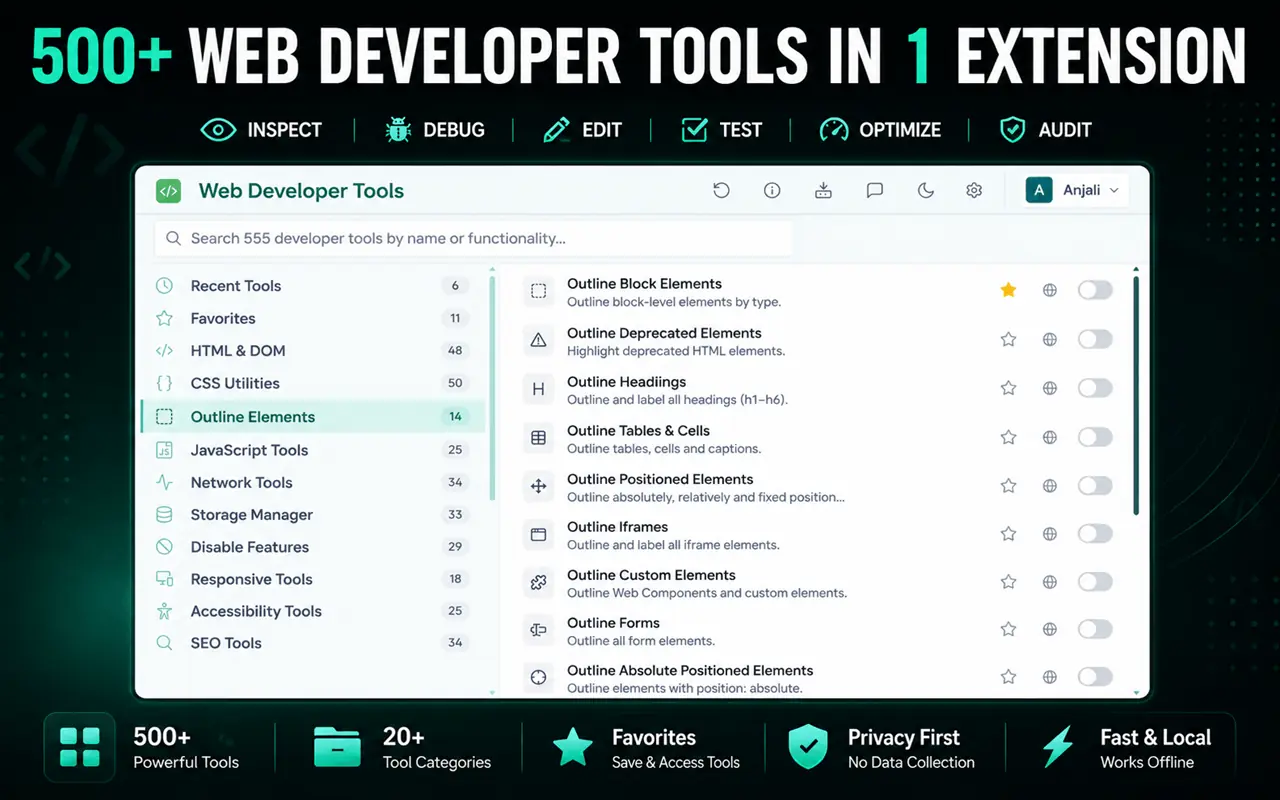
Web Developer Tools packs 500+ tools into one searchable popup, grouped into categories such as HTML and DOM, CSS, JavaScript, network, storage and cookies, responsive, accessibility and SEO. It's a modern, Manifest V3 take on the classic developer toolbar, and it runs entirely on your device. Install it for Chrome, Edge or Firefox.
Web Developer (Chris Pederick)
Web Developer is one of the longest-running developer extensions. It adds a toolbar with a wide range of utilities for working with CSS, forms, images, cookies and more, and it's available for Chrome, Firefox and Opera.
Framework debugging
React Developer Tools
The official React Developer Tools add Components and Profiler tabs to DevTools. Inspect the component tree, read and edit props and state, and record renders to find slow components. If you build with React, this one is essential.
Vue.js devtools
Vue's official devtools extension does the same for Vue apps: browse the component tree, inspect state and track events. Install the version that matches your Vue major version.
Tech detection, colors and fonts
Wappalyzer is a popular extension for identifying the technologies a site uses, such as its framework, CMS, analytics and hosting. It's handy for competitive research or quick "how did they build this?" questions.
ColorZilla is a long-standing color picker with an eyedropper, a color history and a gradient generator. You can also do a lot with no extension at all: see how to find the fonts and colors on any website.
If you already use Edit Page, its Analyze tab detects technologies and its Colors & fonts tool lists a page's palette and type, so you may not need separate extensions for these. Fewer extensions means fewer permissions to think about.
Accessibility
axe DevTools by Deque adds an automated accessibility scanner to Chrome DevTools. It flags issues such as missing labels, low contrast and invalid ARIA, and explains how to fix them.
Automated tools only catch part of the picture; our guide to checking website accessibility in your browser covers the manual checks. Pair them with keyboard-only testing (can you reach and use everything with Tab and Enter?) and Lighthouse's accessibility audit, built into DevTools.
Productivity for developers
Super Session Manager
Development work produces piles of tabs: documentation, issue threads, staging and production. Super Session Manager saves your windows and tabs as named sessions you can restore later, so you can close a project's tabs at the end of the day and bring them all back tomorrow. It's available for Chrome, Edge and Firefox.
We compare it with other options in the best session manager extensions for Chrome.
SummaryTube
A lot of developer learning happens on YouTube: conference talks, framework walkthroughs, tutorials. SummaryTube summarizes YouTube videos, with key moments, Q&A and the transcript side by side, so you can decide whether a 40-minute talk covers what you need before you commit to watching it.
How to choose safe Chrome extensions
Extensions can be powerful, so be picky:
- Read the permissions. "Read and change all your data on all websites" is broad. Prefer extensions that ask for access only when you use them, or only on specific sites.
- Check who publishes it. Look for a real website, a privacy policy and a support contact.
- Look at recent updates. Extensions that haven't been updated in years may break or miss security fixes.
- Read recent reviews, not just the average rating.
- Keep a lean setup. Remove extensions you haven't used in a month. Fewer extensions also means faster browsing and cleaner Lighthouse runs.
- Use a separate profile for development if you need lots of tools, so your everyday browsing stays lean.
For reference, Edit Page runs on a page only after you click its icon or use its shortcut, and asks for access to a website only when you choose to save changes for it. Our privacy policy explains each permission.
Build your own toolkit
You don't need every extension on this list. A solid starting set for most web developers:
- Edit Page for visual tweaks, inspection and screenshots.
- Your framework's devtools (React or Vue).
- axe DevTools or Lighthouse for accessibility.
- Super Session Manager to keep each project's tabs.
Pair them with the free tools in best free web developer tools in 2026 and the built-in panels in essential browser tools for web developers.
Frequently asked questions
What is the best Chrome extension for web developers?
It depends on your work. For visual editing and inspecting any page, Edit Page is a strong choice. React or Vue developers should install their framework's official devtools first. Most developers end up with a small set of three to six extensions.
Are Chrome extensions for developers safe?
Most are, but every extension gets some access to your browsing. Check permissions, the publisher and recent updates before installing, and remove extensions you don't use.
Do Chrome extensions work in Edge?
Microsoft Edge can install extensions from the Chrome Web Store, and many developers also publish to Edge Add-ons. Check each extension's listing.
Do developer extensions slow down Chrome?
Each extension adds a little overhead, and some run on every page. Keeping only the ones you use, or using a separate development profile, keeps Chrome fast.