You closed the wrong window, the browser crashed or an update restarted your computer, and the tabs you'd collected all week are gone. Don't panic, and don't open lots of new tabs and windows yet. In most cases your tabs can still be recovered.
This guide goes from the quickest fixes to the last resorts, for Chrome, Edge and Firefox.
Before you start: avoid closing and reopening the browser repeatedly. Each restart can overwrite the "last session" the browser is holding on to.
1. Reopen the last closed tab or window
The fastest fix works in every major browser:
- Windows / Linux:
Ctrl+Shift+T - Mac:
Cmd+Shift+T
Each press reopens the most recently closed tab, or a whole window if that's what you closed last. Press it repeatedly to keep going back through what you closed, in order.
You can also right-click an empty part of the tab strip and choose Reopen closed tab (Chrome and Edge) or Reopen Closed Tab (Firefox).
2. Use the "Recently closed" list
If the tab you want was closed a while ago, the history menu shows recently closed tabs and windows:
Chrome
- Open the Chrome menu (three dots) and hover over History.
- Under Recently closed, click a tab, or a window entry to restore every tab in it.
Edge
- Open the menu (three dots) and choose History, or press
Ctrl+H. - Open the Recently closed section and choose the tab or window.
Firefox
- Open the menu (three lines) and choose History.
- Choose Recently closed tabs or Recently closed windows.
Restoring a window entry is the quickest way to get back a window you closed by accident with dozens of tabs in it.
3. Restore your previous session after a restart or crash
Chrome and Edge usually offer a Restore button after a crash. If you missed it:
- In Chrome,
Ctrl+Shift+Tright after starting can reopen the previous session's windows. - Check History → Recently closed for the windows from your last session.
To avoid this in future, turn on Settings → On startup → Continue where you left off in Chrome, or Open tabs from the previous session in Edge's start-up settings.
Firefox has the most explicit option:
- Open the menu and choose History.
- Click Restore previous session.
If Firefox crashed, it may show a "Restore Session" page when it reopens, where you can choose which windows and tabs to bring back.
4. Search your full browsing history
If the tab isn't in "Recently closed", it's almost certainly still in your history:
- Press
Ctrl+H(Cmd+Yin Chrome on a Mac) to open your history. - Search by a word from the page title or the site name.
- Look around the time you remember having the tab open.
Chrome's history page also has a Tabs from other devices section if you're signed in with sync on, which helps if you had the tab open on your phone or another computer.
Incognito and private windows are the exception. Tabs from private windows aren't saved to history, and once a private window is fully closed, its tabs can't be recovered.
5. If the page itself has changed or disappeared
Sometimes you recover the address but the page has been edited, moved or taken down. Two places to look:
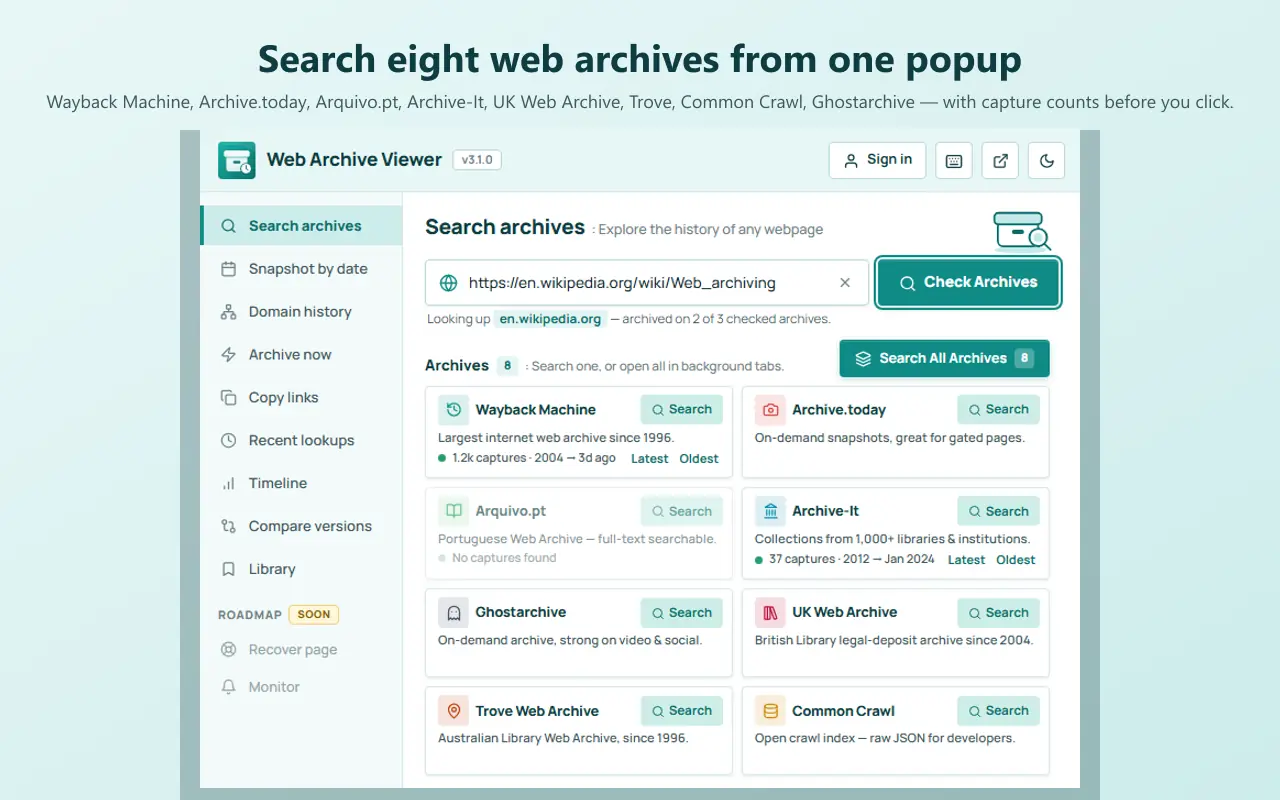
- The Wayback Machine at the Internet Archive keeps snapshots of many public pages over time. Paste the URL to see captures by date.
- Web Archive Viewer is a browser extension that searches the Wayback Machine and seven more web archives for the current page in one click. Get it for Chrome, Edge or Firefox.
Archived copies aren't guaranteed to exist for every page, especially recent, private or logged-in pages, but they're well worth checking. Our guide on how to view old versions of a website explains the archives in detail.
6. Prevent it from happening again
Recovery works most of the time, but prevention is far less stressful. Three layers of protection:
- Turn on session restore in your browser's start-up settings (see step 3).
- Save important sets of tabs before you close them. Bookmark all tabs with
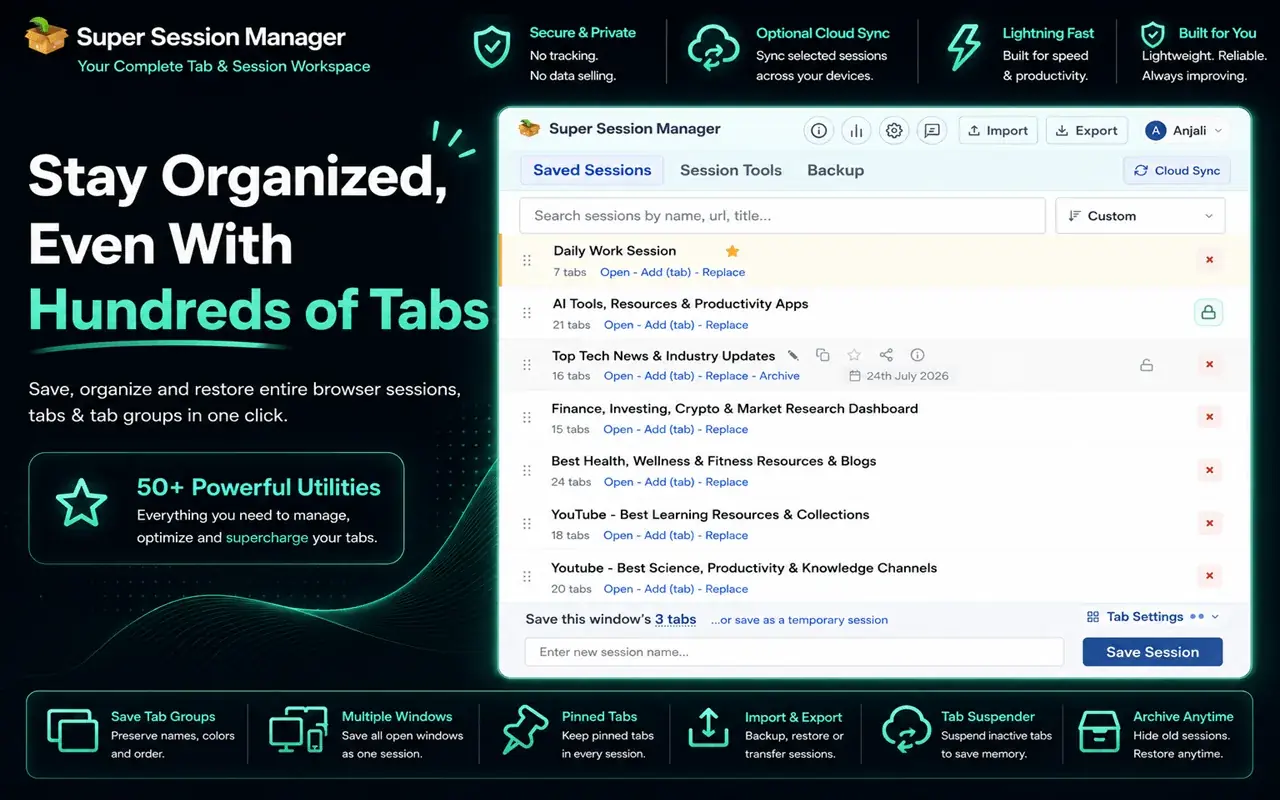
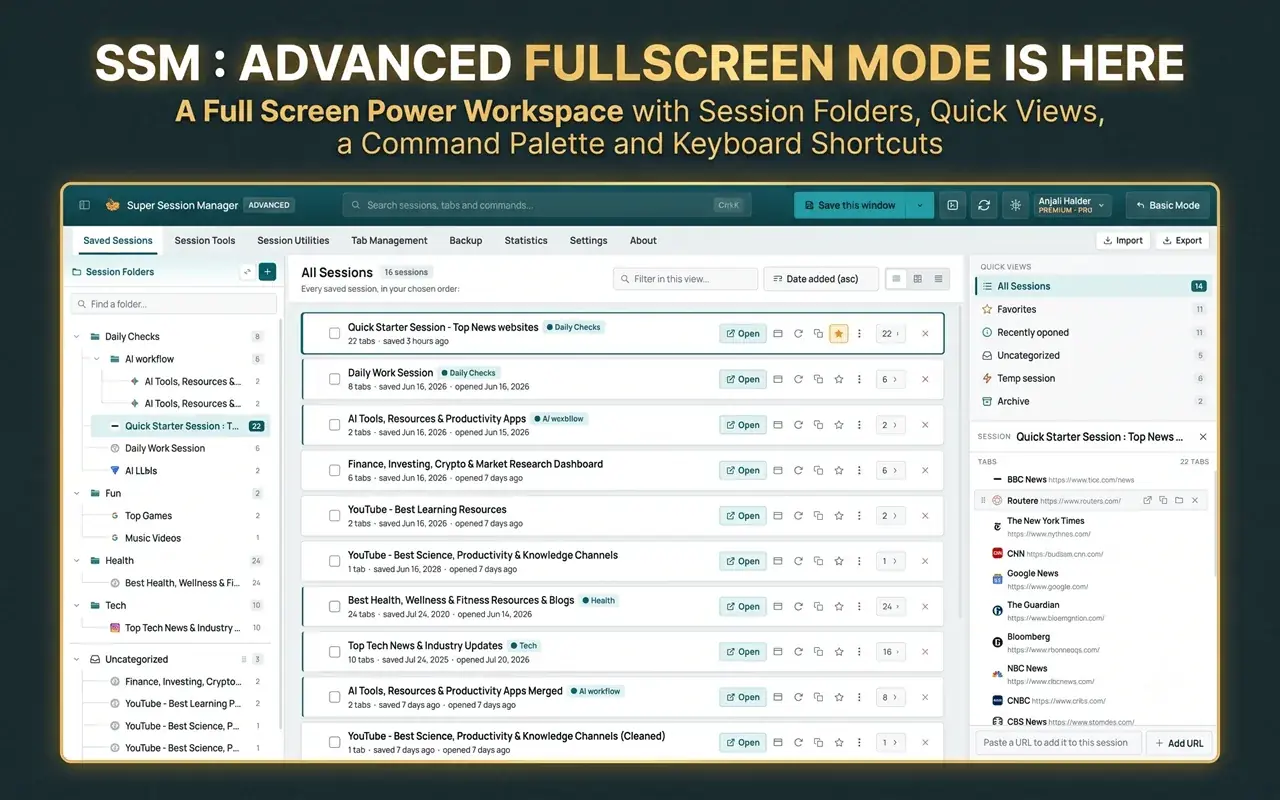
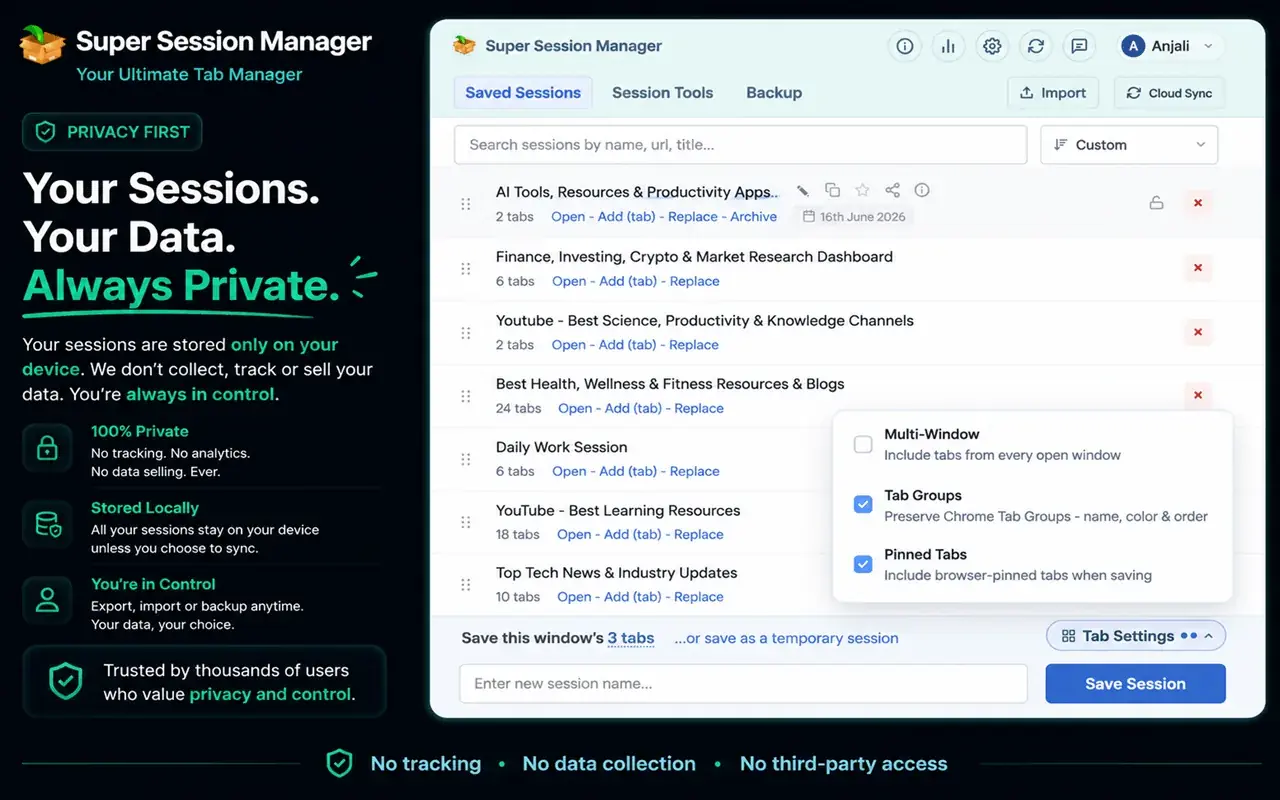
Ctrl+Shift+D, or use a session manager. - Use a session manager with a backup. Super Session Manager saves your windows and tabs as named sessions you can restore later, and keeps them on your device by default. It's available for Chrome, Edge and Firefox.
For a step-by-step setup, see how to save and restore browser tabs and sessions. To compare tools, read the best session manager extensions for Chrome. And if dozens of open tabs are part of the problem, how to manage too many open tabs will help.
Quick reference
| Situation | Try this first |
|---|---|
| Closed one tab by mistake | Ctrl+Shift+T / Cmd+Shift+T |
| Closed a whole window | Ctrl+Shift+T, or History → Recently closed |
| Browser crashed | The Restore prompt, then Recently closed |
| Firefox restarted without your tabs | History → Restore previous session |
| Tab closed days ago | Search history with Ctrl+H |
| Page now changed or gone | The Wayback Machine or Web Archive Viewer |
| Private window closed | Not recoverable from the browser |
Frequently asked questions
How do I reopen a closed tab?
Press Ctrl+Shift+T on Windows or Linux, or Cmd+Shift+T on a Mac. Repeat to reopen earlier closed tabs and windows in order.
How do I restore my tabs after Chrome crashes?
Click Restore if Chrome offers it after restarting. Otherwise open the Chrome menu, go to History and use the Recently closed list, where a whole window can be restored at once.
Can I recover tabs after restarting my computer?
Usually, yes. If your browser is set to continue where you left off, they'll come back on their own. If not, check Recently closed in the history menu, or Restore previous session in Firefox.
Can I recover tabs from an incognito window?
No. Private and incognito windows don't save history, so their tabs can't be recovered once the window is closed.
How can I make sure I never lose my tabs again?
Turn on session restore in your browser settings and save important tab sets as sessions with a session manager such as Super Session Manager, so you always have a copy that doesn't depend on the browser closing cleanly.