Websites change constantly. Prices update, articles get edited, product pages disappear and whole sites go offline. Sometimes you need to see what a page said last month or five years ago: to check a quote, research a competitor, recover lost content or understand why a page's search traffic changed.
This guide explains how to view old versions of a website, which archives to try and what to do when the page you need was never saved.
How web archives work
Web archives are services that visit public webpages and save copies, or "snapshots", at different times. When you look up a URL, you see the snapshots that exist for it, by date.
A few things to know up front:
- Coverage is uneven. Popular pages are captured often; small or new pages may have few or no snapshots.
- Private pages aren't archived. Anything behind a login, a paywall or blocked from crawlers usually isn't saved.
- Snapshots can be incomplete. Images, styles or scripts may be missing, so a page can look broken even though its text is there.
- Search engine caches are no longer a reliable option. Google retired its public cached-page links in 2024, so web archives are now the main way to see older copies.
Method 1: The Wayback Machine
The Internet Archive's Wayback Machine is the largest public web archive.
- Go to the Wayback Machine.
- Paste the full URL of the page (or just the domain) into the search box.
- Pick a year on the timeline, then a highlighted date on the calendar. Darker or larger dots usually mean more snapshots.
- Hover a date and choose a time to open that snapshot.
Inside a snapshot, links usually take you to other archived pages from around the same date, so you can browse the old site as it was.
Tip: to save a copy of a page today, use the Wayback Machine's Save Page Now option. It's a good habit before citing a page that might change.
Method 2: Web Archive Viewer
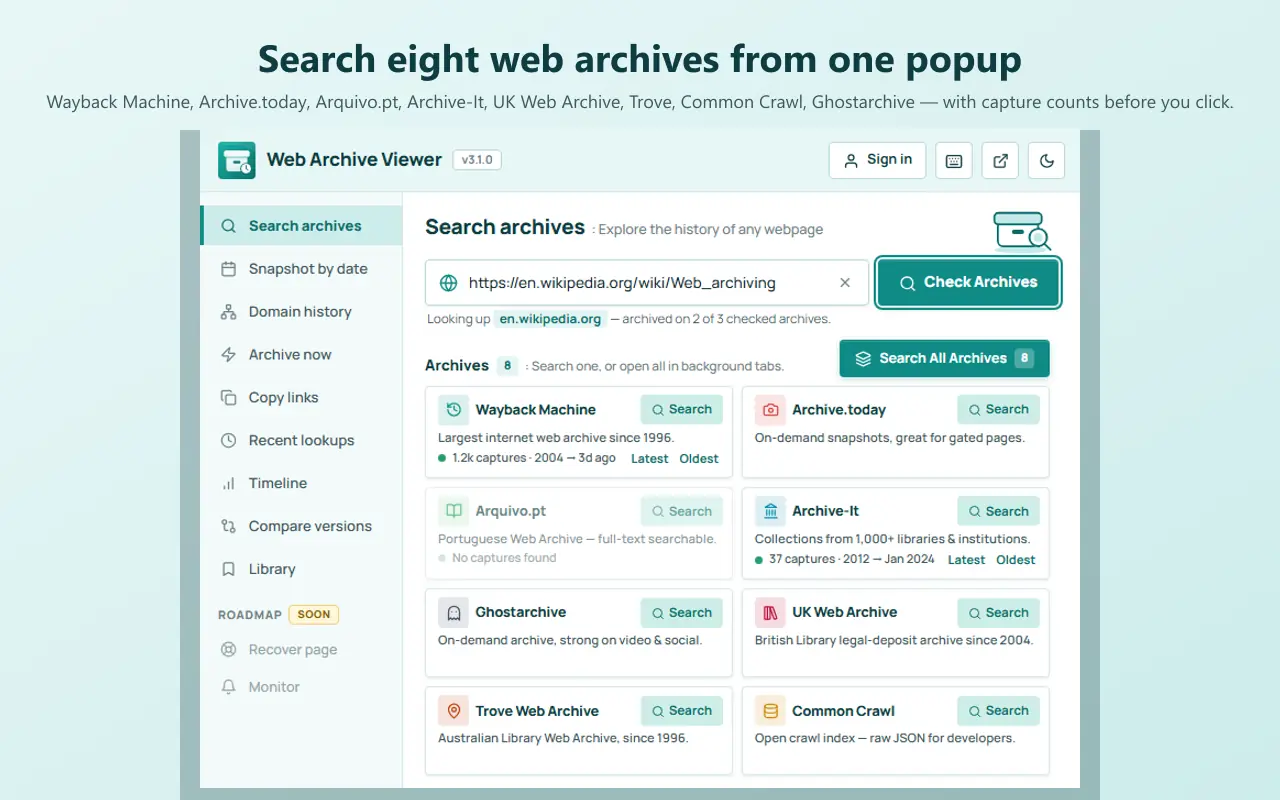
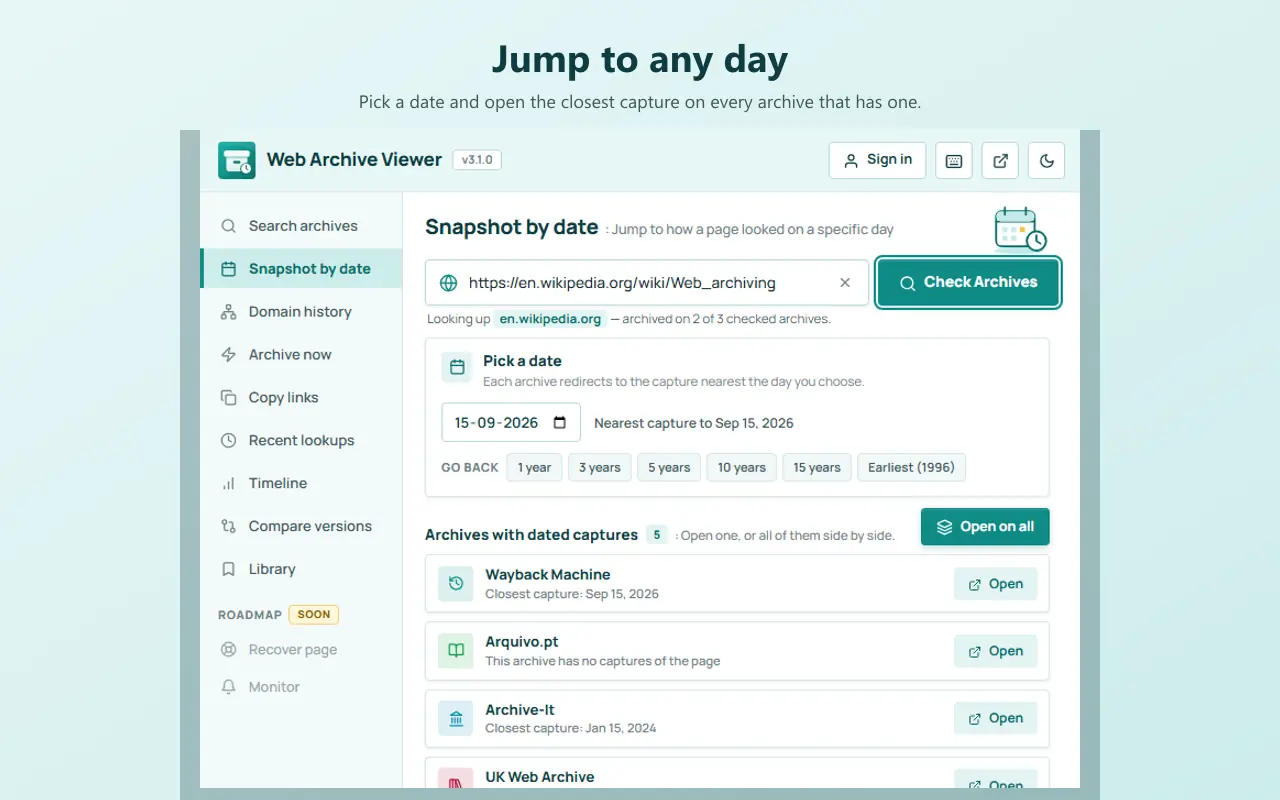
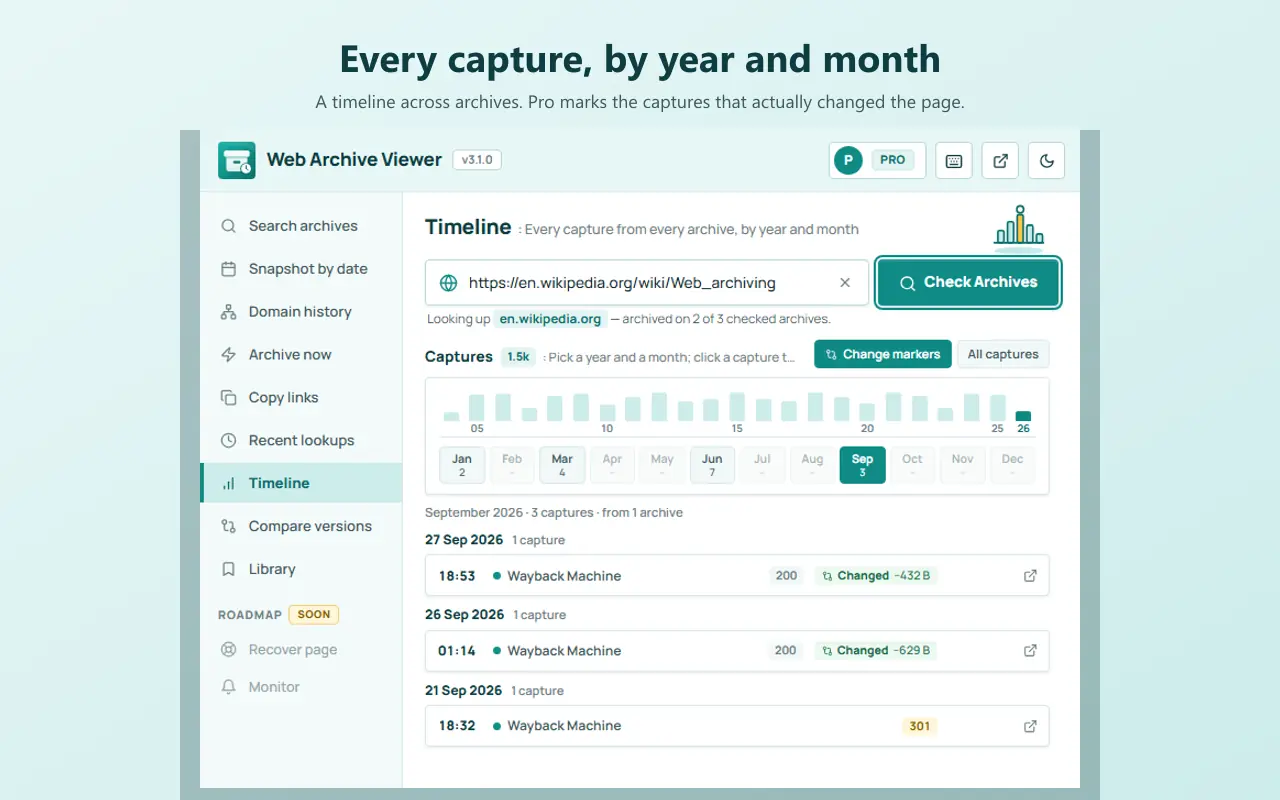
Web Archive Viewer is a free browser extension that searches eight web archives at once, including the Wayback Machine, Archive.today, Arquivo.pt, Archive-It, Ghostarchive and the UK Web Archive. It fills in the current tab's address, so checking a page's history takes one click. Its tools include:
- Search all archives at once, or one archive at a time.
- Snapshot by date: pick a day and open the capture closest to it.
- Domain history: every archived URL under a site.
- Archive now: request a fresh capture on the services that support it.
- Timeline: every capture by year, month and day.
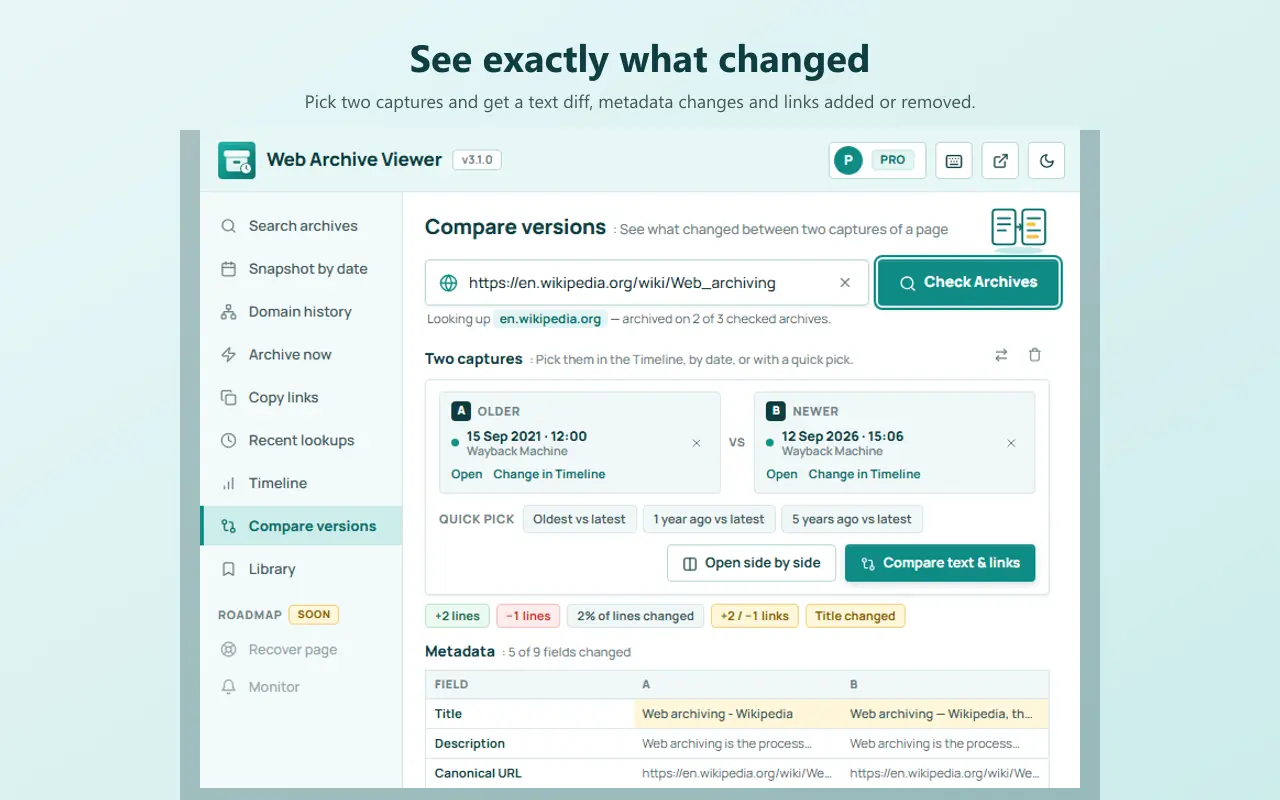
- Compare versions: open two captures side by side.
Install it for Chrome, Edge or Firefox.
Method 3: Other archives
If the big archives don't have the page, try:
- archive.today (also reachable as archive.ph), which stores on-demand snapshots people have saved.
- National library web archives, which collect sites from their country.
- The site itself: blogs and news sites sometimes keep old versions, changelogs or "updated on" notes.
Comparing old and new versions
To see what changed on a page:
- Open the current page and an archived snapshot side by side in two windows.
- Compare the title, headings, prices or wording that matter to you.
- For a closer look, open DevTools on both (
F12) and compare the HTML of the relevant section, or the<title>and meta description.
This is a powerful technique for SEO work. If a page lost traffic, comparing its title, headings and content before and after the drop often reveals the cause. Our guide to checking a website's SEO in your browser lists what to compare.
If you need a page you had open yourself
If the page was open in your browser recently, try your own history before the archives:
Ctrl+Shift+T(Cmd+Shift+Ton a Mac) reopens recently closed tabs.Ctrl+Hopens your full history to search.
Our guide on how to recover closed tabs and lost sessions covers every step. Remember that your history gives you the address, but the page you reopen is the current version; for the old content, you still need an archive.
Save pages so you never lose them
Archives can't be relied on to have every page. For pages that matter to you:
- Save a snapshot in the Wayback Machine with Save Page Now.
- Save a local copy: in Chrome, press
Ctrl+S(Cmd+Son a Mac) and save it as a complete webpage. - Take a full-page screenshot for a visual record. See how to take a full-page screenshot in Chrome.
- Keep your research tabs together as a named session with Super Session Manager, so you can reopen the same set of pages later.
Preview changes before they happen
The opposite question, "what would this page look like if it changed?", is easy to answer too. Edit Page lets you edit any page's text, styles and layout visually in your browser to mock up a new version, without touching the live site. Add Edit Page to Chrome, or read how to edit a webpage in your browser.
Frequently asked questions
How can I see what a website looked like years ago?
Enter the site's address in the Wayback Machine at web.archive.org and choose a date on its calendar. You can also try Web Archive Viewer and archive.today.
Can I see a deleted web page?
Often, yes, if an archive captured it before it was deleted. Look the URL up in the Wayback Machine and other archives. Pages that were never captured, or that were behind a login, usually can't be recovered.
Does Google still have cached pages?
No. Google retired its public cache links in 2024. Use web archives such as the Wayback Machine instead.
Why does an archived page look broken?
Archives don't always capture every image, stylesheet or script. The text is usually still readable even when the layout isn't.
How do I archive a page myself?
Use the Wayback Machine's Save Page Now, save the page to your computer with Ctrl+S, or take a full-page screenshot.