If your tab strip has shrunk to a row of tiny icons, you're not alone. Tabs pile up because each one is a small promise: read this later, reply to that, finish this comparison. The cost is a slower browser, more distraction and the nagging fear that closing anything means losing it.
This guide shows how to manage too many open browser tabs without losing anything you care about. Most tips work in Chrome, Edge and Firefox, with browser-specific steps where they differ.
Why tab overload happens
Most tab hoarding comes from one of three fears:
- "I'll forget about it." The tab is a to-do item.
- "I'll lose my place." The tabs are the context of a task you're in the middle of.
- "I might need it again." The tab is a reference you don't want to search for twice.
Each fear has a better home than an open tab. The rest of this guide gives you one for each.
1. Find tabs instantly with tab search
Before organizing anything, stop scrolling through tabs to find one.
- Chrome: press
Ctrl+Shift+A(Cmd+Shift+Aon a Mac), or click the tab search button, then type part of the title or address. - Edge: use the tab actions menu or Search tabs.
- Firefox: type
%followed by a space in the address bar, then your search term, to search open tabs.
With search, you can let a few more tabs stay open without the hunting.
2. Group tabs by task
Tab groups give each task its own labeled, colored cluster that you can collapse when you're not using it.
In Chrome or Edge, right-click a tab and choose Add tab to new group, then give it a short name like "Invoice", "Research" or "Trip". Collapse a group by clicking its label. Collapsed groups take almost no space in the tab strip. Firefox's recent versions offer tab groups too.
Our complete guide to Chrome tab groups covers every option. A good rule: one group per active task, and no more than three or four active tasks. If you have more, some of them aren't active; save them as sessions (tip 5).
3. Pin the tabs you always use
Email, calendar, chat and your project board are permanent residents. Right-click each and choose Pin. Pinned tabs shrink to icons at the left of the tab strip and stay out of the way of everything else.
Use Ctrl+1 through Ctrl+8 (Cmd+1 to Cmd+8 on a Mac) to jump to the first eight tabs, and Ctrl+9 to jump to the last. With pinned tabs at the left, Ctrl+1 becomes "go to email".
4. Let the browser put idle tabs to sleep
Modern browsers can free memory from tabs you haven't used for a while:
- Chrome: Settings → Performance → turn on Memory Saver.
- Edge: Settings → System and performance → turn on Sleeping tabs.
- Firefox: unloads tabs automatically when your computer is low on memory.
The tab stays in your strip and reloads when you click it. This fixes the "my browser is slow" symptom, but not the "I can't find anything" one.
5. Save sessions instead of keeping tabs open
This is the single most effective habit. When you finish working on something for the day, save its tabs as a session and close them. Tomorrow, restore just the session you need.
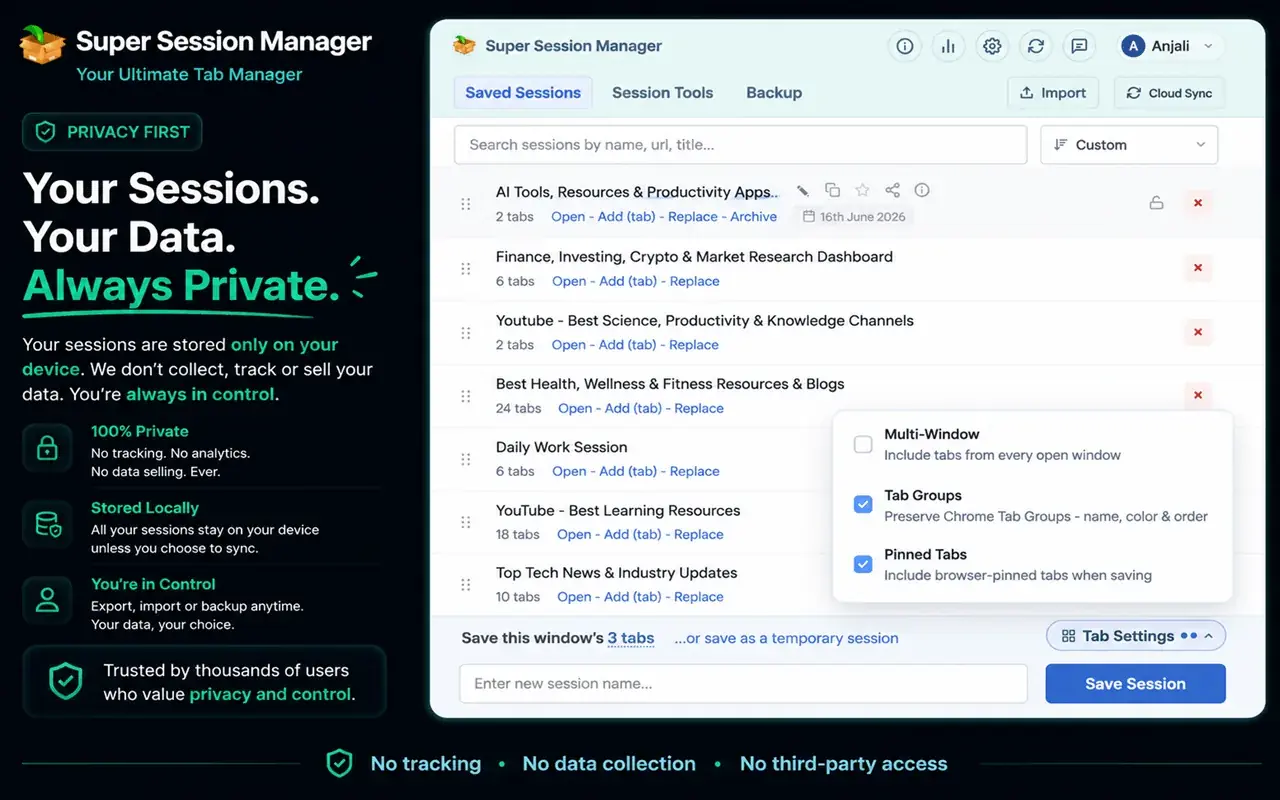
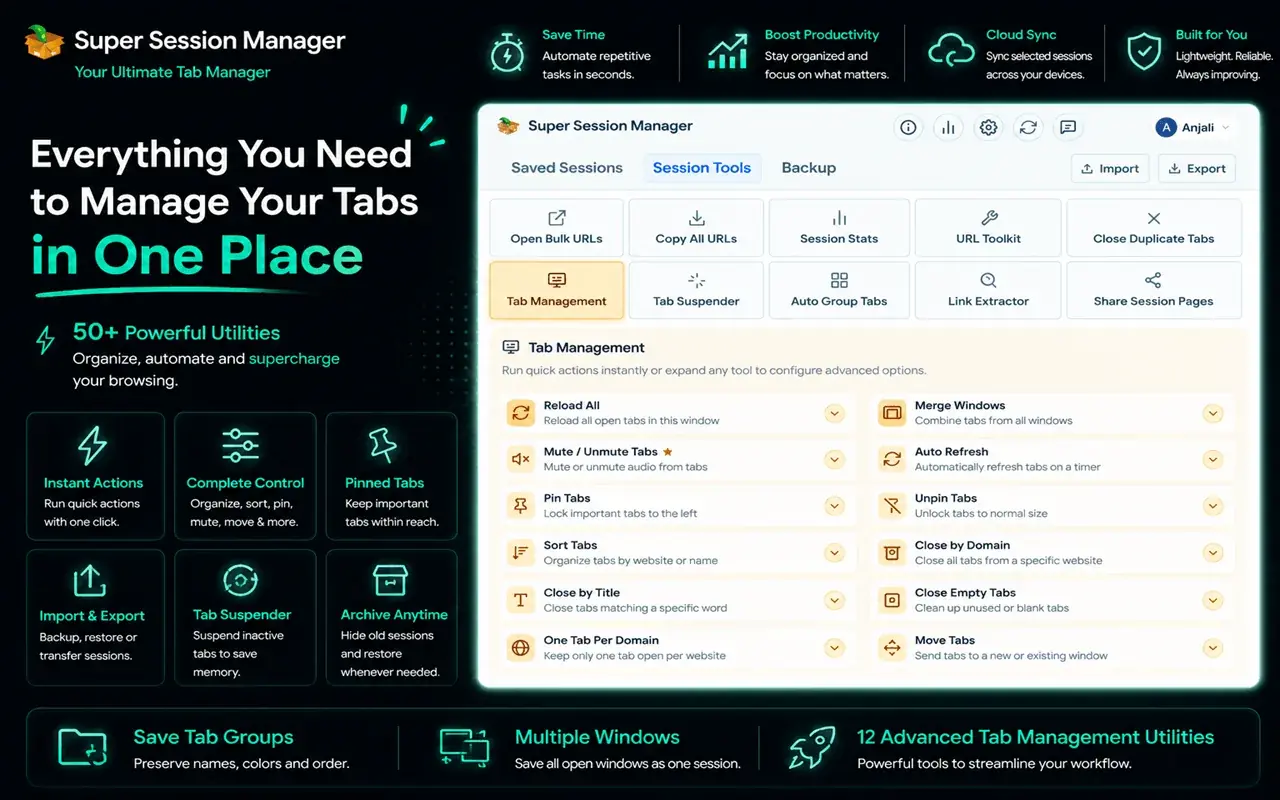
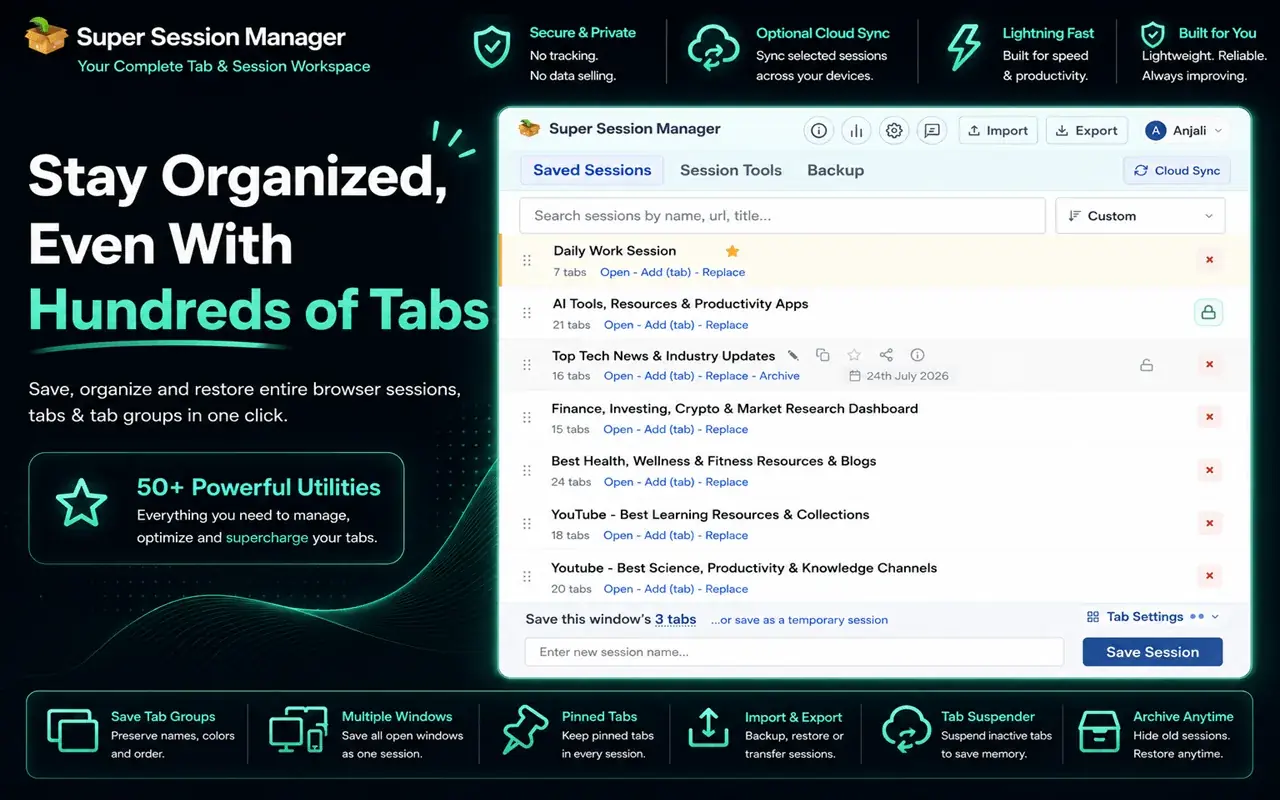
You can do this with bookmarks (Ctrl+Shift+D saves all tabs in a window into a folder), but a session manager makes it far quicker. Super Session Manager saves your windows and tabs as named sessions in a click and keeps them on your device by default. It's available for Chrome, Edge and Firefox.
Compare options in the best session manager extensions for Chrome, or see every built-in method in how to save and restore browser tabs and sessions.
6. Move "read later" tabs out of the tab strip
Articles you mean to read don't need to be open. Send them somewhere designed for reading later:
- Chrome: right-click a tab and add it to your Reading list, found in the side panel.
- Edge: save pages to a Collection.
- Any browser: a dedicated "Read later" bookmarks folder.
Then make a weekly habit of reading or clearing the list.
7. Give frequent sites a better home than a tab
Some tabs stay open only because they're sites you visit many times a day. A good start page or bookmarks bar removes the need to keep them open.
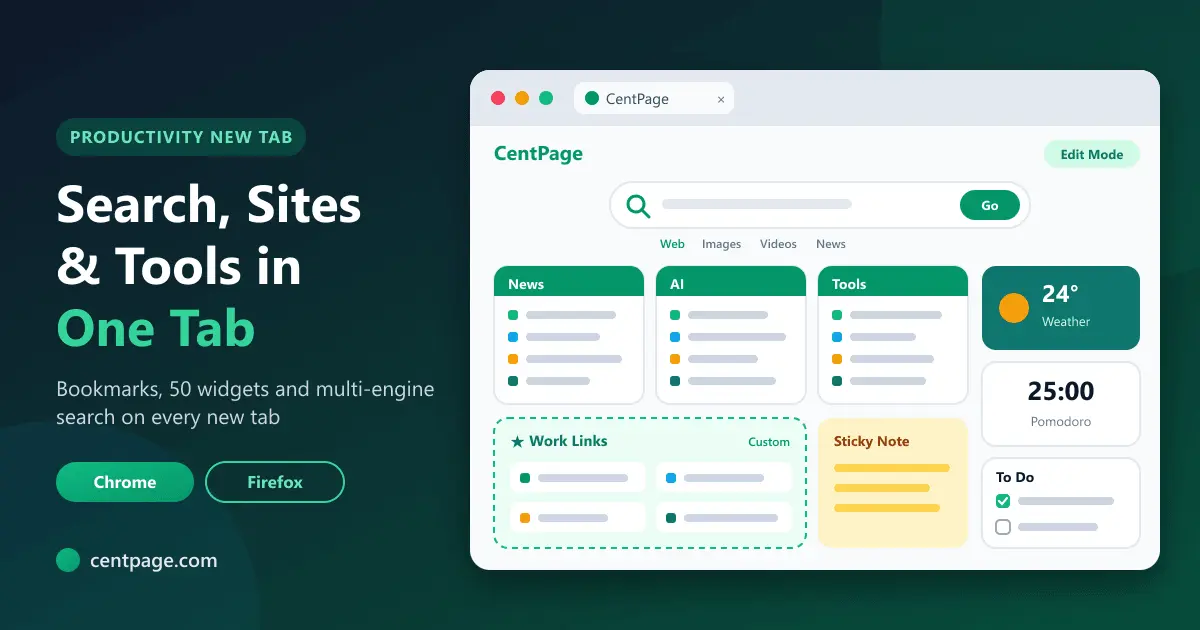
CentPage turns every new tab into a productivity dashboard with bookmarks, multi-engine search, notes and widgets, so opening a new tab takes you straight to the sites you use most. It's available for Chrome and Firefox. The bookmarks bar (Ctrl+Shift+B to show it) is a good built-in alternative.
8. Decide whether a video tab is worth it
Long videos are classic tab hoarders: "I'll watch that later" can sit open for weeks. If it's a YouTube video, SummaryTube, available for Chrome and Firefox, summarizes it so you can decide in a minute whether to watch the whole thing, save it or close it. More tips are in how to summarize YouTube videos.

9. Use separate windows for separate contexts
One window per context (work, personal, a big project) makes it easy to save or close a whole context at once. Pair this with profiles if you want separate logins and extensions for work and personal browsing.
10. Adopt a closing ritual
Habits beat tools. Try this at the end of each day:
- Close tabs you've finished with.
- Move "read later" tabs to your reading list.
- Save each active project window as a session.
- Close everything except pinned tabs.
It takes two minutes and you start every morning with a clean browser and nothing lost.
Keyboard shortcuts for tab control
| Action | Windows / Linux | Mac |
|---|---|---|
| Search open tabs (Chrome) | Ctrl+Shift+A | Cmd+Shift+A |
| Next / previous tab | Ctrl+Tab / Ctrl+Shift+Tab | Cmd+Option+Right / Left |
| Jump to tab 1–8 | Ctrl+1 … Ctrl+8 | Cmd+1 … Cmd+8 |
| Jump to last tab | Ctrl+9 | Cmd+9 |
| Close tab | Ctrl+W | Cmd+W |
| Reopen last closed tab | Ctrl+Shift+T | Cmd+Shift+T |
| Bookmark all tabs | Ctrl+Shift+D | Cmd+Shift+D |
Closed one too many? Ctrl+Shift+T brings it back, and our guide on how to recover closed tabs and lost sessions covers the harder cases.
Frequently asked questions
Is it bad to have too many tabs open?
Many open tabs use more memory and can slow your browser and computer, though Memory Saver and Sleeping tabs reduce the impact. The bigger cost is usually focus: it's harder to find what you need and easier to get distracted.
How many tabs is too many?
There's no fixed number. It's too many when you can't find tabs quickly, your browser slows down or you're afraid to close anything. If any of those is true, try saving sessions and grouping tabs.
How do I close all tabs without losing them?
Save them first. Bookmark all tabs with Ctrl+Shift+D, or save them as a session with a session manager extension, then close the window. You can reopen everything later.
Does Chrome have a tab manager?
Chrome has tab search, tab groups, pinned tabs, a reading list and Memory Saver. For saving and switching between named sets of tabs, you'll want a session manager extension.