You have a window full of tabs for a project, a trip or a piece of research, and you need to restart your computer, switch to something else or just close the browser for the night. How do you get all of those tabs back later, exactly as they were?
This guide covers every reliable way to save and restore browser tabs and sessions in Chrome, Edge and Firefox, from one built-in setting to dedicated session manager extensions, and when to use each.
The options at a glance
| Method | Saves | Survives a restart | Multiple named sets | Best for |
|---|---|---|---|---|
| "Continue where you left off" | Your last session | Yes | No | Picking up exactly where you stopped |
| Bookmark all tabs | One window's tabs, as bookmarks | Yes | Yes (one folder each) | Occasional, long-term saving |
| Tab groups | Groups of tabs in a window | Yes, in Chrome when saved | Yes | Organizing a few active projects |
| Session manager extension | Windows, tabs and (often) groups | Yes | Yes | Switching between many projects |
Method 1: Make the browser reopen your last session
The simplest fix is telling the browser to restore everything when it starts.
Chrome
- Open Settings (or go to
chrome://settings). - Click On startup.
- Choose Continue where you left off.
Microsoft Edge
- Open Settings (
edge://settings). - Go to Start, home, and new tabs.
- Under When Edge starts, choose Open tabs from the previous session.
Firefox
- Open Settings (
about:preferences). - In General, under Startup, tick Open previous windows and tabs.
Now closing and reopening the browser brings your tabs back. The limitation: you only get the last session. If you close a window by accident, or the browser crashes before saving cleanly, you may lose it. Our guide to recovering closed tabs and lost sessions covers what to do then.
Method 2: Bookmark all open tabs
Bookmarking every tab in a window gives you a permanent, named snapshot.
Chrome: press Ctrl+Shift+D (Cmd+Shift+D on a Mac), or open the Chrome menu and choose Bookmarks and lists → Bookmark all tabs. Give the new folder a descriptive name like "Kitchen renovation – Oct".
Edge: press Ctrl+Shift+D, or right-click a tab and choose Add all tabs to favorites.
Firefox: right-click any tab, choose Select All Tabs, then right-click again and choose Bookmark Tabs.
To restore: right-click the folder in your bookmarks bar or bookmark manager and choose Open all (or Open all in new window).
This is reliable and syncs with your browser account, but it gets messy fast. Bookmark folders don't update as you open and close tabs, so you end up with many slightly different snapshots.
Method 3: Use tab groups
Tab groups collect related tabs under a colored label in your tab strip.
In Chrome:
- Right-click a tab and choose Add tab to new group.
- Name the group and pick a color.
- Drag more tabs into it, or right-click other tabs and add them to the group.
- Save the group from its right-click menu if you want to close it and reopen it later.
Saved groups can be closed to clear your tab strip and reopened later from the bookmarks bar or the tab groups menu. The exact options have changed across Chrome versions, so if you don't see them, update Chrome.
In Edge, tab groups work in a similar way. Edge also has Collections for saving pages with notes.
In Firefox, recent versions have added tab groups; check that you're on the latest release.
Tab groups are excellent for organizing a few active projects in one window; see how to use Chrome tab groups for the details. They're less suited to archiving many sessions or moving between computers that don't share a browser account.
Method 4: Use a session manager extension
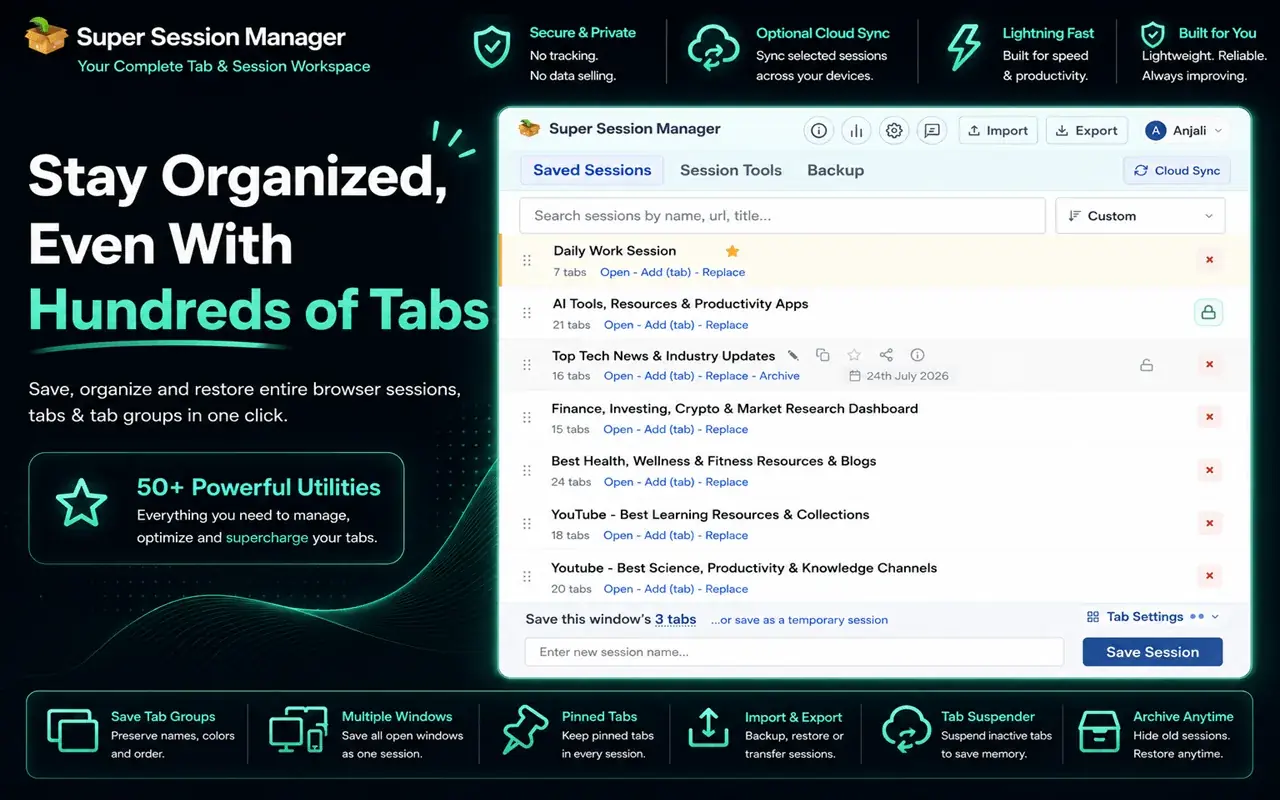
A session manager saves whole windows and their tabs as named sessions, which you can restore whenever you like, in full or in part. This is the most flexible option if you juggle several projects or want a safety net against lost tabs.
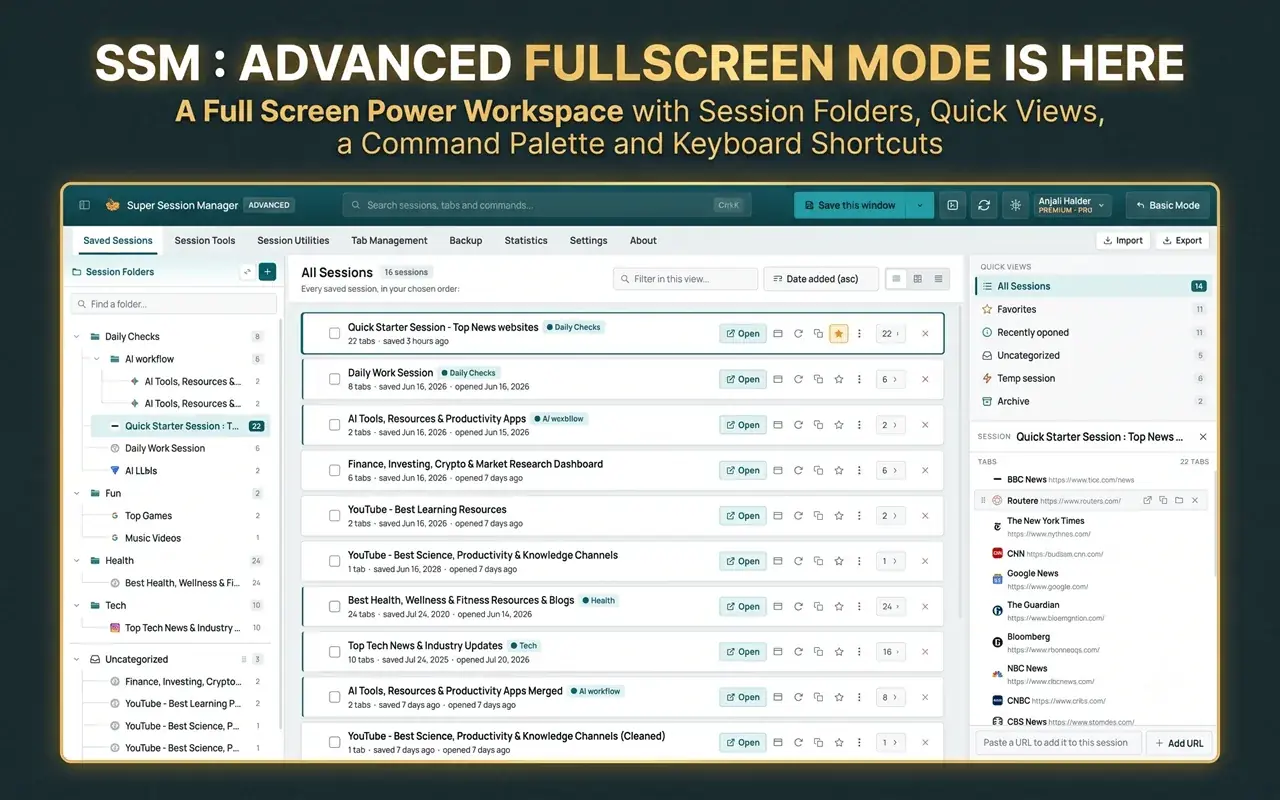
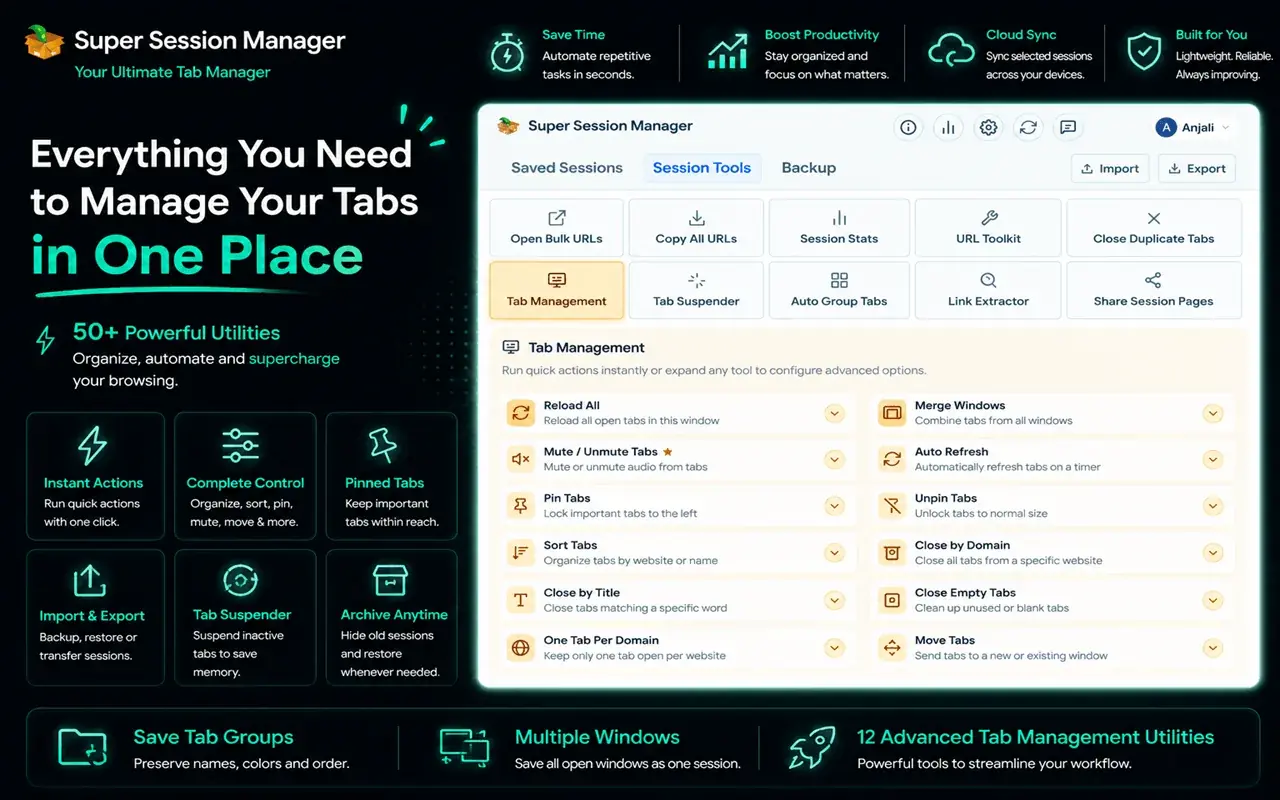
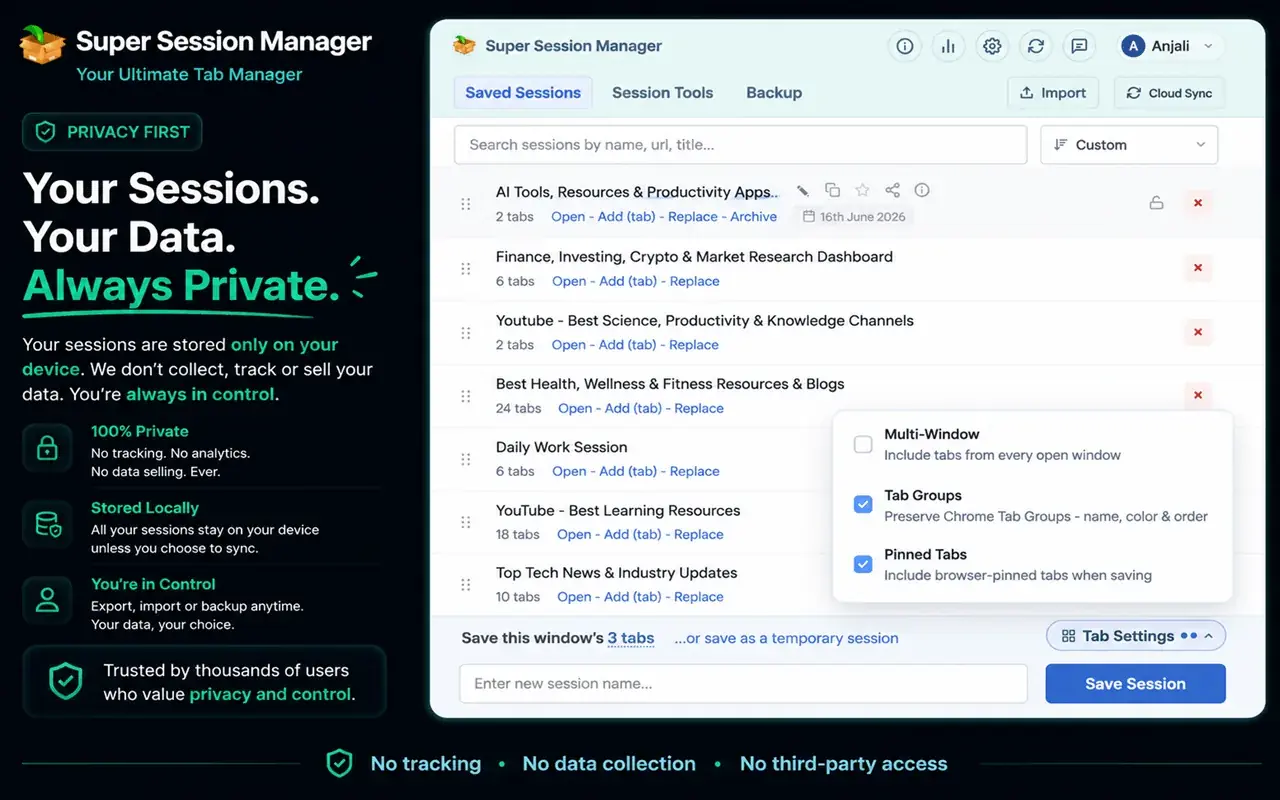
Super Session Manager is built for this. With it you can:
- Save your open windows and tabs as a named session in a click.
- Keep separate sessions per project, client or topic.
- Restore a saved session whenever you need it, or share it.
- Keep your sessions on your device by default, with optional sync for the sessions you choose.
It's available for Chrome, Edge and Firefox. For a comparison with other options, read the best session manager extensions for Chrome.
A simple session workflow
- End of the day: save each project's window as its own session ("Client A – audit", "Blog research").
- Close the windows. Your browser starts fast and uncluttered tomorrow.
- Next morning: restore only the session you're working on.
- When a project is done: delete or archive its session.
This one habit does more for tab overload than any amount of tab-closing willpower. See how to manage too many open tabs for more strategies.
Bonus: keep a plain list of URLs
For something that will outlive any browser or extension, keep a plain-text list of the URLs that matter. Many session managers can export sessions, and you can also copy URLs into a note. It's a low-tech backup that you can open in any browser on any computer.
Which method should you use?
- You just want your tabs back after a restart: turn on "Continue where you left off" (Method 1).
- You want to park a set of tabs for weeks: bookmark all tabs into a named folder (Method 2).
- You work on two or three things in one window: use tab groups (Method 3).
- You switch between many projects, or you've lost tabs before: use a session manager (Method 4), with Method 1 as a backup.
Frequently asked questions
How do I save all my tabs in Chrome?
Press Ctrl+Shift+D (Cmd+Shift+D on a Mac) to bookmark all tabs in the current window into a new folder. To save them as a reusable session instead, use a session manager extension such as Super Session Manager.
How do I make Chrome open my tabs from last time?
Go to Settings → On startup and choose Continue where you left off. Chrome will reopen your previous session each time it starts.
Do saved tab groups sync between computers?
Chrome can sync saved tab groups when you're signed in with sync turned on. Check your sync settings to make sure tab-related data is included.
What's the difference between a session and a bookmark folder?
A bookmark folder is a static list of pages. A session usually captures whole windows and their tabs, can be restored as windows, and in a session manager can be renamed, updated, merged or restored in part.
Will a session manager slow down my browser?
Saving a list of tabs is lightweight. In fact, saving tabs to a session and closing them usually makes your browser faster, because fewer tabs are using memory.