Tab groups are one of the simplest ways to bring order to a crowded tab strip. A group gathers related tabs under a colored, named label that you can collapse when you're not using it, so a window with thirty tabs can look like five tidy projects.
This guide covers everything about Chrome tab groups: creating and managing them, keyboard-friendly habits, saving groups for later, and how they work in Edge and Firefox.
Create a tab group
- Right-click a tab and choose Add tab to new group.
- Type a short name, such as "Invoices", "Research" or "Trip".
- Pick a color.
- Press
Enteror click outside the box.
To add more tabs, drag them next to the group's tabs, or right-click a tab and choose Add tab to group, then pick the group. To add a new, blank tab to a group, right-click the group's label and choose New tab in group.
Tip: select several tabs first (hold Ctrl or Cmd and click them, or Shift-click a range), then right-click and add them all to a new group at once.
Manage groups
Click a group's label to collapse or expand it. Collapsed groups shrink to just the label, which is the main reason tab groups help so much.
Right-click a group's label for its options:
- Rename it or change its color.
- New tab in group.
- Move group to new window, handy for giving a project its own window.
- Ungroup to keep the tabs but remove the group.
- Close group to close all its tabs.
You can drag the label to move the whole group along the tab strip or into another window.
Save groups to reopen later
Recent versions of Chrome can keep tab groups so you can close them and reopen them later. Depending on your Chrome version, groups are saved automatically or you can turn on a Save group option from the group's right-click menu. Saved groups appear in the bookmarks bar or Chrome's tab group menu, where you can reopen them with one click.
If you're signed in to Chrome with sync turned on, saved groups can also appear on your other computers. Options in this area have changed between Chrome versions, so update Chrome if you don't see them.
Tab groups in Edge and Firefox
Microsoft Edge supports tab groups in much the same way: right-click a tab and choose Add tab to new group, then name and color it. Edge also offers vertical tabs, which make long group names easier to read, and Collections for saving pages with notes.
Firefox has added tab groups in recent versions. You can create a group from a tab's right-click menu, or by dragging one tab onto another. Make sure you're on the latest release to see them.
A simple system that works
Tab groups work best with a few rules:
- One group per task, named for the outcome: "Q4 report", not "Stuff".
- No more than four or five groups in a window. Beyond that, the extras aren't active; save them instead.
- Pin always-open tabs (email, calendar) instead of grouping them.
- Collapse everything except the group you're working in.
- Close or save a group when its task is done.
For more strategies, see how to manage too many open tabs.
Back up your groups with sessions
Tab groups live in your browser. If a window closes unexpectedly, the browser crashes or you want to move to another computer without sync, it's easy to lose them. A session manager adds a safety net.
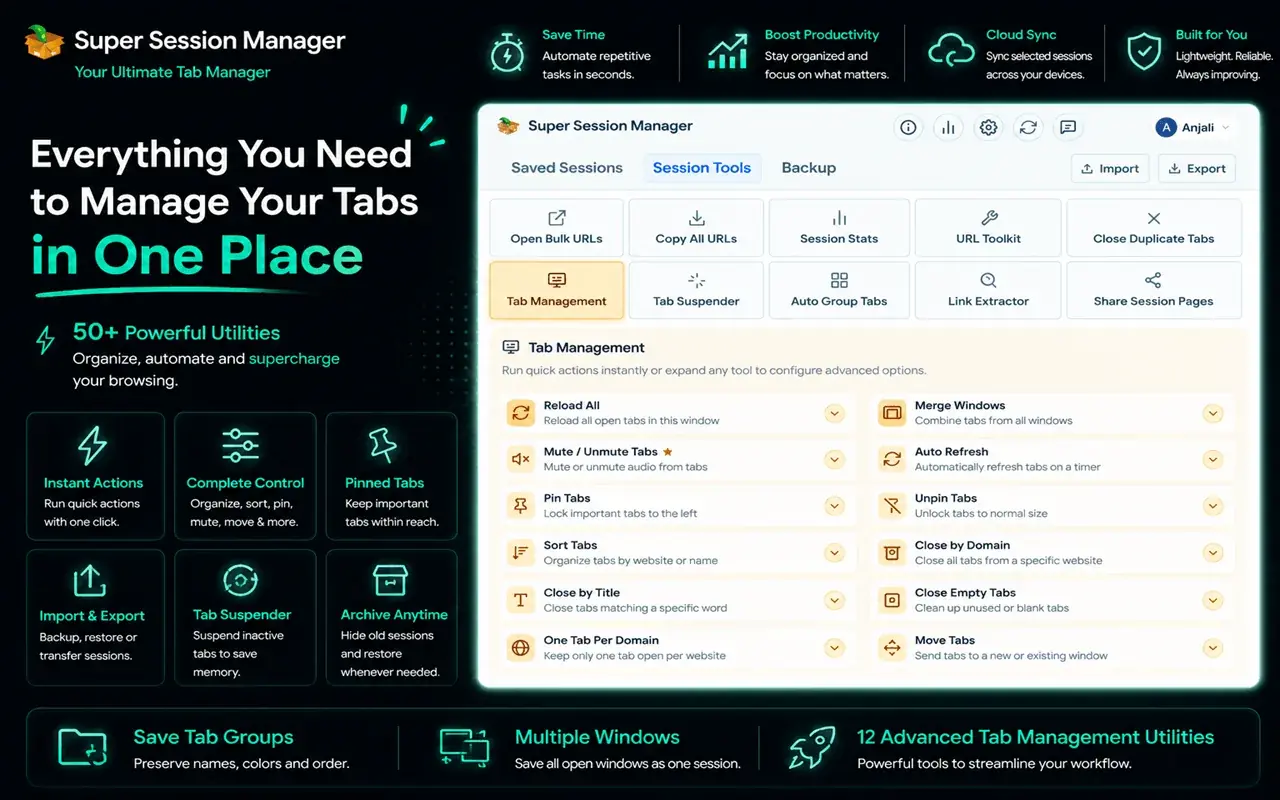
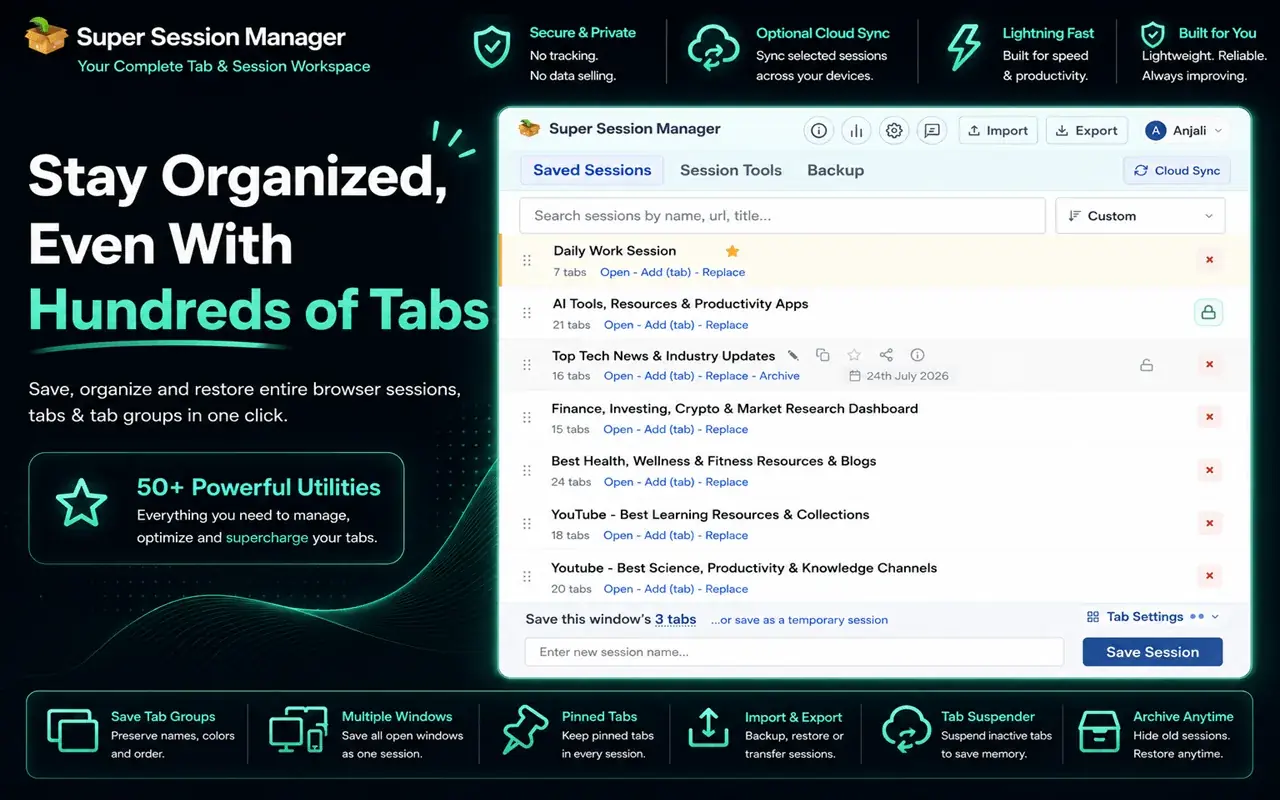
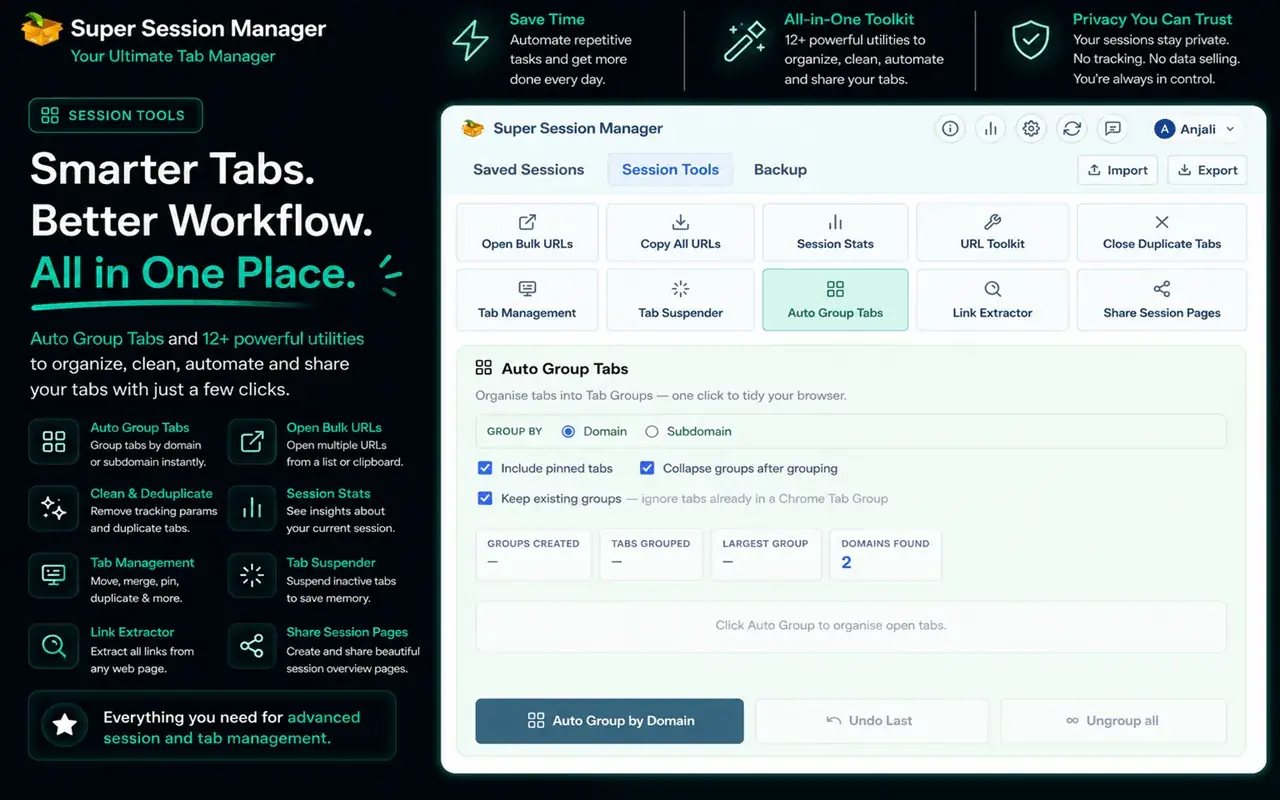
Super Session Manager saves your windows and tabs, including tab groups, as named sessions you can restore later, and keeps them on your device by default with optional sync for the sessions you choose. It's available for Chrome, Edge and Firefox.
A practical routine:
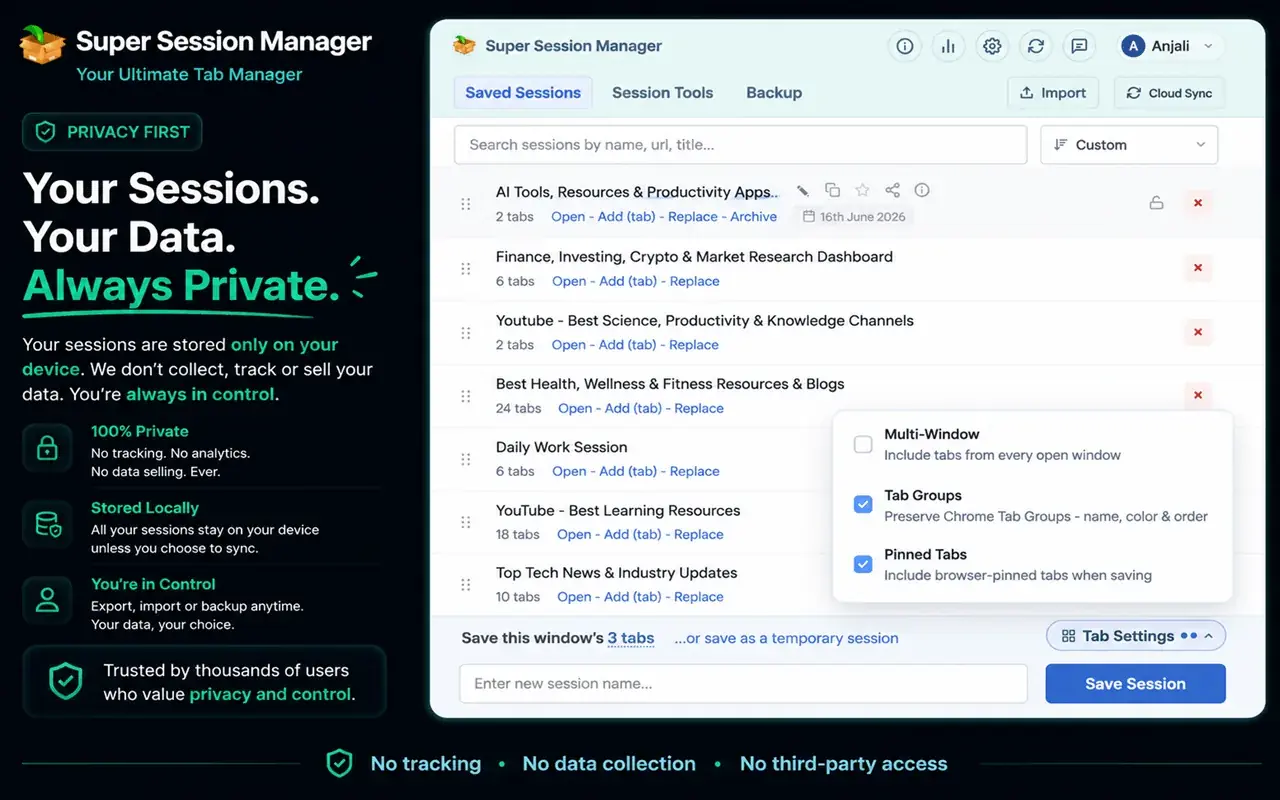
- Organize the day's work into groups.
- At the end of the day, save the window as a session.
- Close it, and restore it tomorrow.
Read how to save and restore browser tabs and sessions for every built-in option, or compare tools in the best session manager extensions for Chrome. And if a group does go missing, how to recover closed tabs and lost sessions can help get it back.
Tab groups for developers
Developers juggle docs, issues, local servers and production. A useful layout:
- Docs: MDN, framework docs, API references.
- Ticket: the issue, the pull request and the design.
- Environments: localhost, staging and production for the page you're working on.
When you're comparing environments, a visual editor such as Edit Page lets you try a CSS fix on the live page before you write it. Add Edit Page to Chrome, and see our browser productivity tips for developers for more.
Frequently asked questions
How do I create a tab group in Chrome?
Right-click a tab, choose Add tab to new group, then give the group a name and a color. Drag other tabs into it or add them from their right-click menu.
Can I save Chrome tab groups?
Yes. Recent Chrome versions can keep tab groups so you can close and reopen them later, either automatically or through a Save group option, depending on your version. A session manager adds a separate backup.
Do tab groups use less memory?
Grouping alone doesn't reduce memory, but collapsed groups are easier to close or save. Chrome's Memory Saver can free memory from inactive tabs in any group.
Can I use tab groups in Firefox?
Yes, recent versions of Firefox support tab groups. Update to the latest release if you don't see the option in a tab's right-click menu.
How do I move a tab group to a new window?
Right-click the group's label and choose Move group to new window, or drag the label out of the tab strip.