A normal screenshot only captures what fits on your screen. To share a whole landing page, document a bug further down a page or save a long article, you need a full-page screenshot: one image of the entire page, top to bottom.
Chrome can do this without installing anything. This guide shows how, plus the equivalents in Edge and Firefox and how to get clean, useful captures.
The quick answer
| Browser | Full-page screenshot |
|---|---|
| Chrome | DevTools → Command Menu → Capture full size screenshot |
| Edge | Ctrl+Shift+S → Capture full page (or DevTools, as in Chrome) |
| Firefox | Right-click → Take Screenshot → Save full page |
| Any Chromium browser with Edit Page Pro | Edit Page screenshot tool → Full page |
Full-page screenshot in Chrome with DevTools
Chrome's full-page capture lives in the developer tools, but you don't need to be a developer to use it:
- Open the page you want to capture and scroll back to the top.
- Open DevTools with
F12orCtrl+Shift+I(Cmd+Option+Ion a Mac). - Open the Command Menu with
Ctrl+Shift+P(Cmd+Shift+Pon a Mac). - Type screenshot.
- Choose Capture full size screenshot and press
Enter.
Chrome saves a PNG of the whole page to your downloads folder. The same menu has three other options:
- Capture screenshot: just the visible area.
- Capture area screenshot: drag to select a region.
- Capture node screenshot: the element currently selected in the Elements panel.
Element screenshots
To capture just one part of a page, such as a card, a chart or a pricing table:
- Right-click the element and choose Inspect.
- In the Elements panel, make sure the right element is highlighted (move up the tree if needed).
- Right-click the node and choose Capture node screenshot.
Mobile-sized full-page screenshots
To capture how a page looks on a phone, turn on device mode first (Ctrl+Shift+M with DevTools open), pick a device, then run Capture full size screenshot. Our guide to testing responsive design in your browser covers device mode in detail.
Full-page screenshots in Edge and Firefox
Microsoft Edge has a built-in screenshot tool. Press Ctrl+Shift+S, choose Capture full page, then copy, save or draw on the result. Edge's DevTools also support the Chrome method above.
Firefox has screenshots built in too. Right-click an empty part of the page and choose Take Screenshot, or press Ctrl+Shift+S. Then choose Save full page or Save visible, or click an element to capture just that.
When full-page screenshots go wrong
Long pages don't always capture cleanly. Common problems and fixes:
- Sticky headers repeat or cover content. Remove or hide them before capturing.
- Images are missing further down. Many pages load images lazily. Scroll to the bottom and back up before capturing.
- A cookie banner or chat bubble sits on top. Clear them first. See how to remove cookie banners and pop-ups.
- Animations are caught halfway. Wait for them to finish, or capture again.
- The image is enormous. Very tall pages produce very tall images; crop or capture specific sections instead.
Screenshots with Edit Page
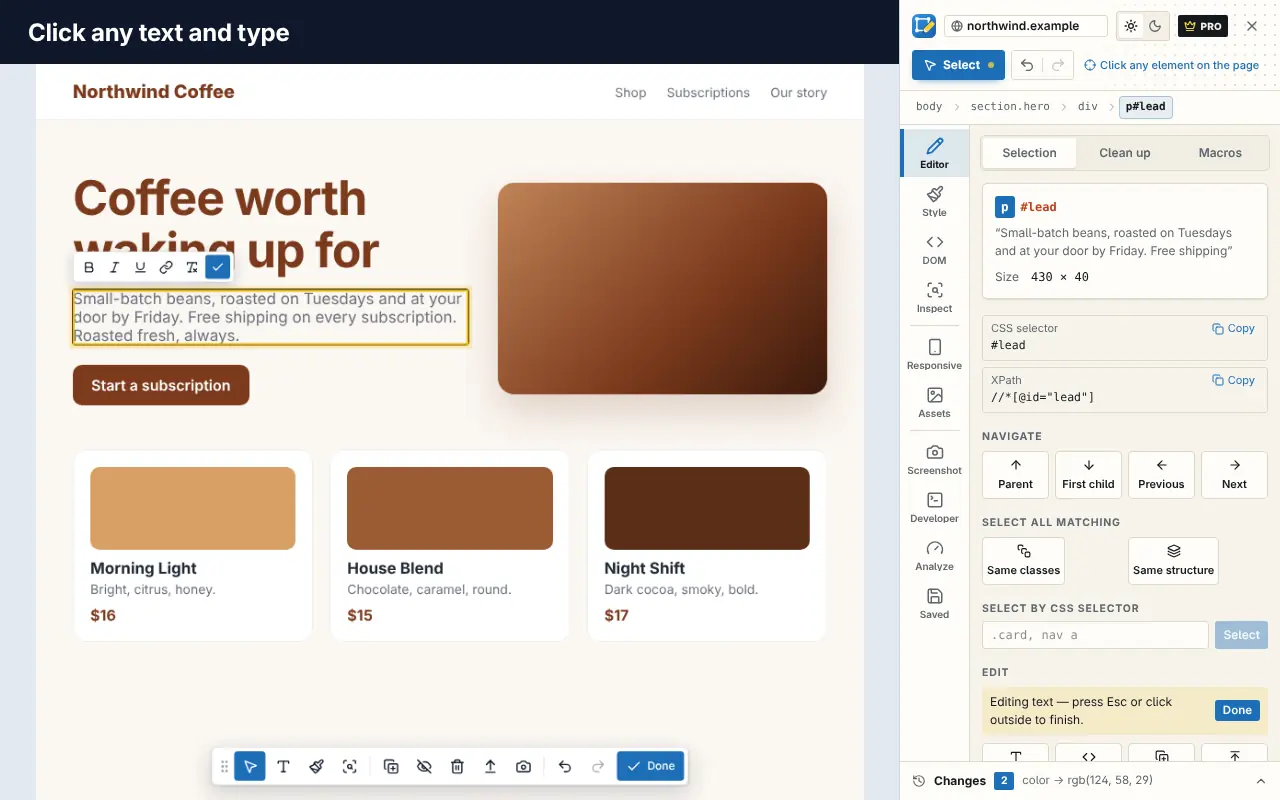
Edit Page has a screenshot tool built for clean captures of pages you've edited or tidied up.
On the free plan you can capture the visible area or a region, crop in the screenshot studio, and save as PNG or copy to the clipboard.
On Pro you also get:
- Full-page and element capture, with very tall pages split into full-size parts.
- Annotations: add arrows, boxes and text, then move, resize or edit them.
- Blur, pixelate and redact for hiding personal details.
- Device frames for browser, phone, tablet and laptop mock-ups.
- JPG and WebP export as well as PNG.
Because Edit Page is also a visual editor, you can fix a typo, swap an image or remove pop-ups before you capture. Add Edit Page to Chrome to try it, or start with the live demo on our home page.
Which format should you save in?
- PNG keeps text and interface edges sharp, so it's the best default for webpages. Files can be large for very long pages.
- JPG makes much smaller files, which helps when you're emailing or uploading many captures, but text can look slightly blurred.
- WebP offers smaller files than PNG with good quality and is widely supported by modern browsers and tools.
For bug reports, PNG is usually best. For a portfolio or slides, crop the capture to the part that matters; a 15,000-pixel-tall image is hard to view anywhere. If you need captures at several screen sizes, combine this with device mode, as described in how to test responsive design in your browser.
Use screenshots responsibly
Screenshots of edited pages are great for mock-ups, design reviews and documentation. Presenting an edited page as genuine (a receipt, a review, a message) to mislead someone isn't, and may be illegal. When you redact personal information, use a solid redaction rather than a light blur if the details are sensitive.
Organize the pages you capture
If you're capturing many pages for an audit or a portfolio, keep them together. Save the tabs as a named session with Super Session Manager so you can come back to the same set of pages later, and see how to save and restore browser tabs and sessions.
Frequently asked questions
Does Chrome have a built-in full-page screenshot?
Yes, in the developer tools. Open DevTools, press Ctrl+Shift+P, type "screenshot" and choose Capture full size screenshot.
How do I take a scrolling screenshot in Chrome?
A "scrolling screenshot" is the same as a full-page screenshot. Use DevTools' Capture full size screenshot, or an extension such as Edit Page.
Where does Chrome save DevTools screenshots?
To your default downloads folder, as a PNG named after the page.
How do I screenshot just one element?
Inspect the element, then right-click its node in the Elements panel and choose Capture node screenshot. In Firefox, start Take Screenshot and click the element.
Why is part of my full-page screenshot blank?
Usually because images load lazily as you scroll. Scroll to the bottom of the page and back to the top, then capture again.

