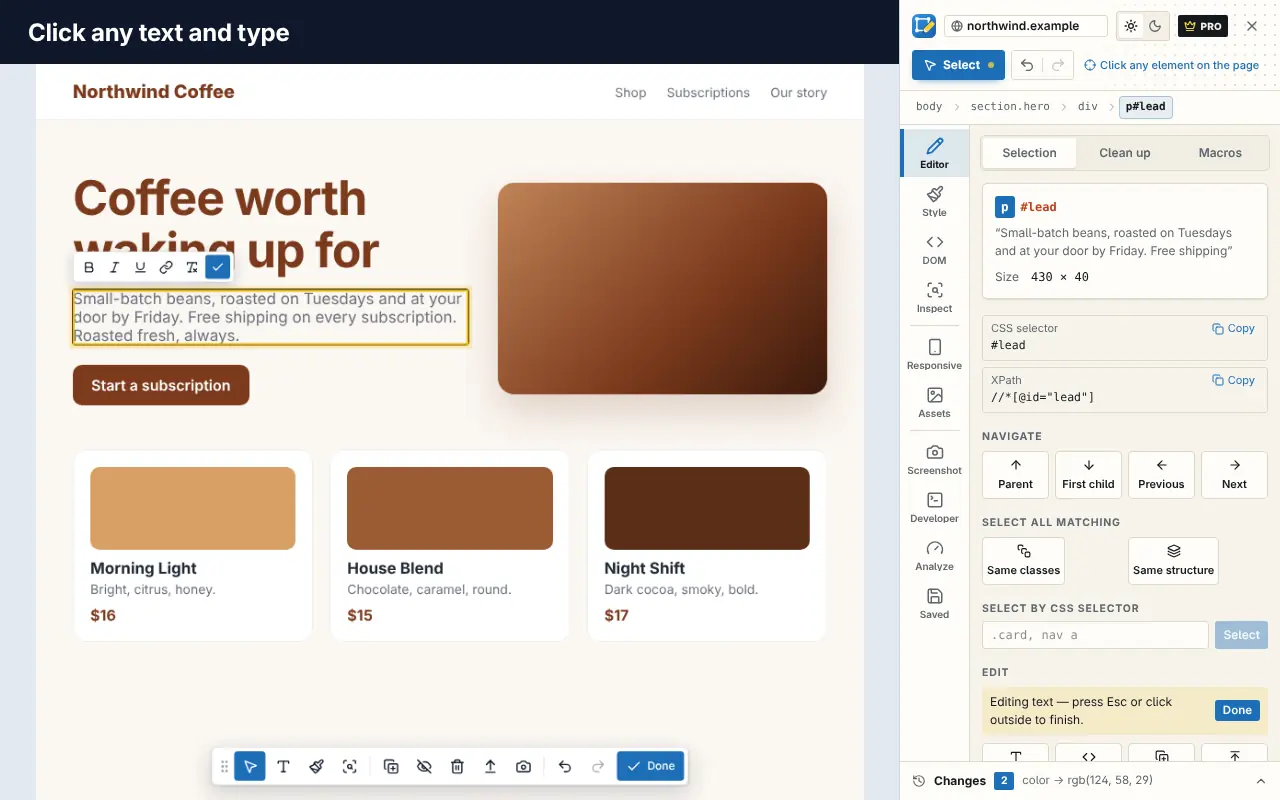
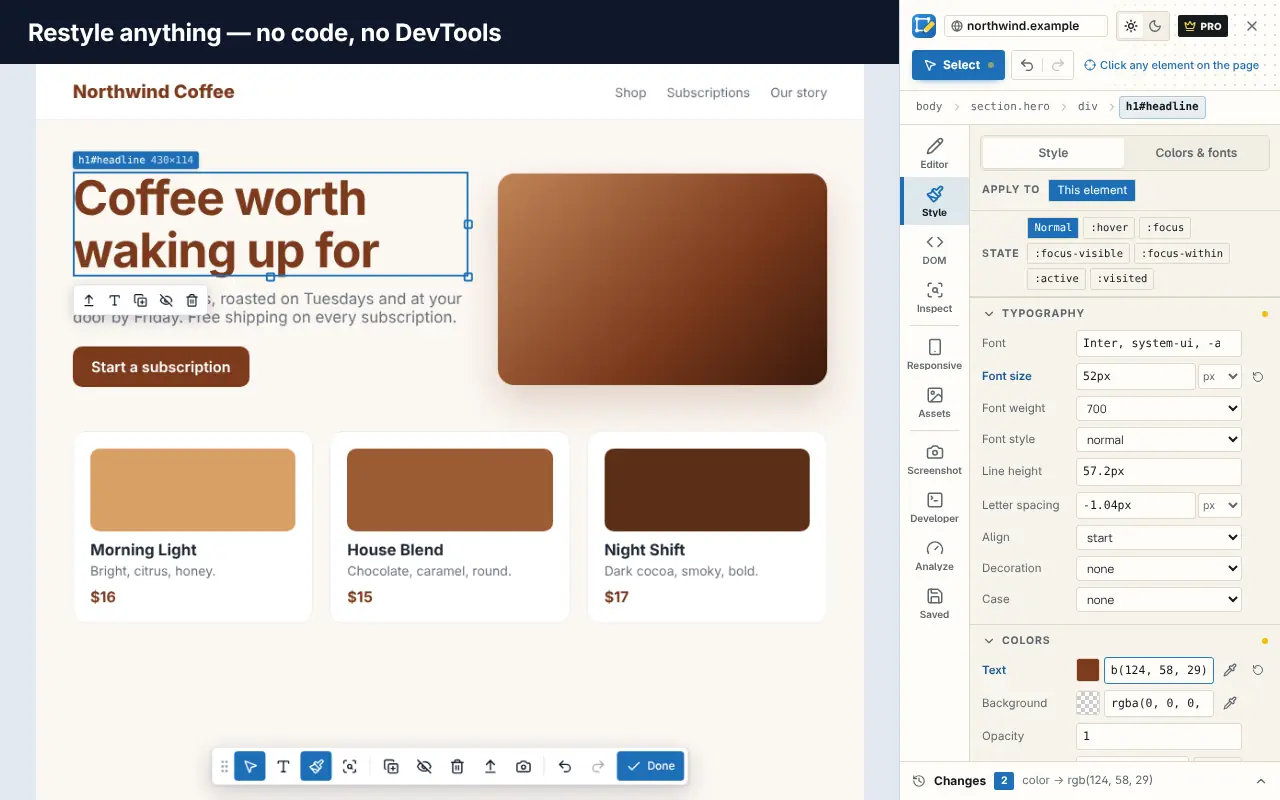
Open almost any website and you'll meet a cookie banner, a newsletter sign-up, a "chat with us" bubble, a sticky header and maybe a notification prompt, all before you've read a word. They get in the way of reading and ruin screenshots.
This guide shows how to remove cookie banners and pop-ups from websites with what your browser already offers, and how to clear them all in one click when you need a clean page.
A note on cookie banners: hiding a consent banner doesn't accept or reject anything. The site simply doesn't receive your choice, so it falls back to whatever it does by default. If you care about how a site uses cookies, make your choice in the banner, or block third-party cookies in your browser settings.
Know what you're dealing with
"Pop-up" covers several different things, and each needs a different fix:
| Type | Example | Built-in fix |
|---|---|---|
| Pop-up windows | A new window opens on its own | Browser pop-up blocker (on by default) |
| Notification prompts | "Allow notifications?" | Block in site settings |
| Overlays and modals | Newsletter sign-up, cookie banner | Reading mode, DevTools or a cleanup tool |
| Sticky elements | Fixed headers, "Get the app" bars | DevTools or a cleanup tool |
| Chat widgets | Support chat bubble | DevTools or a cleanup tool |
1. Make sure the pop-up blocker is on
Real pop-up windows are blocked by default in modern browsers. To check:
- Chrome: Settings → Privacy and security → Site settings → Pop-ups and redirects, and choose Don't allow sites to send pop-ups or use redirects.
- Edge: Settings → Cookies and site permissions → Pop-ups and redirects.
- Firefox: Settings → Privacy & Security, under Permissions, tick Block pop-up windows.
This doesn't affect banners and overlays drawn inside the page, which is what most "pop-ups" are today.
2. Stop notification prompts
"Allow notifications?" prompts are easy to switch off for good:
- Chrome: Settings → Privacy and security → Site settings → Notifications, then choose Don't allow sites to send notifications.
- Edge: Settings → Cookies and site permissions → Notifications, and turn off Ask before sending.
- Firefox: Settings → Privacy & Security → Permissions → Notifications → Settings, and tick Block new requests asking to allow notifications.
3. Use reading mode for articles
Reading mode shows just the article text and images, without banners, sidebars or chat bubbles:
- Chrome: right-click and choose Open in reading mode, or pick Reading mode in the side panel.
- Edge: press
F9for Immersive Reader on supported pages. - Firefox: click the Reader View icon in the address bar.
It's perfect for reading and doesn't change the page itself. It's no use when you need the real page, for example to take a screenshot of a product page.
4. Remove a banner with DevTools
You can delete any element with the browser's developer tools:
- Right-click the banner and choose Inspect.
- In the Elements panel, move up the tree until the highlighted area covers the whole banner, overlay or dark backdrop.
- Press
Deleteto remove it, orHto hide it. - If the page still won't scroll, select
<body>(and<html>) and removeoverflow: hiddenin the Styles pane.
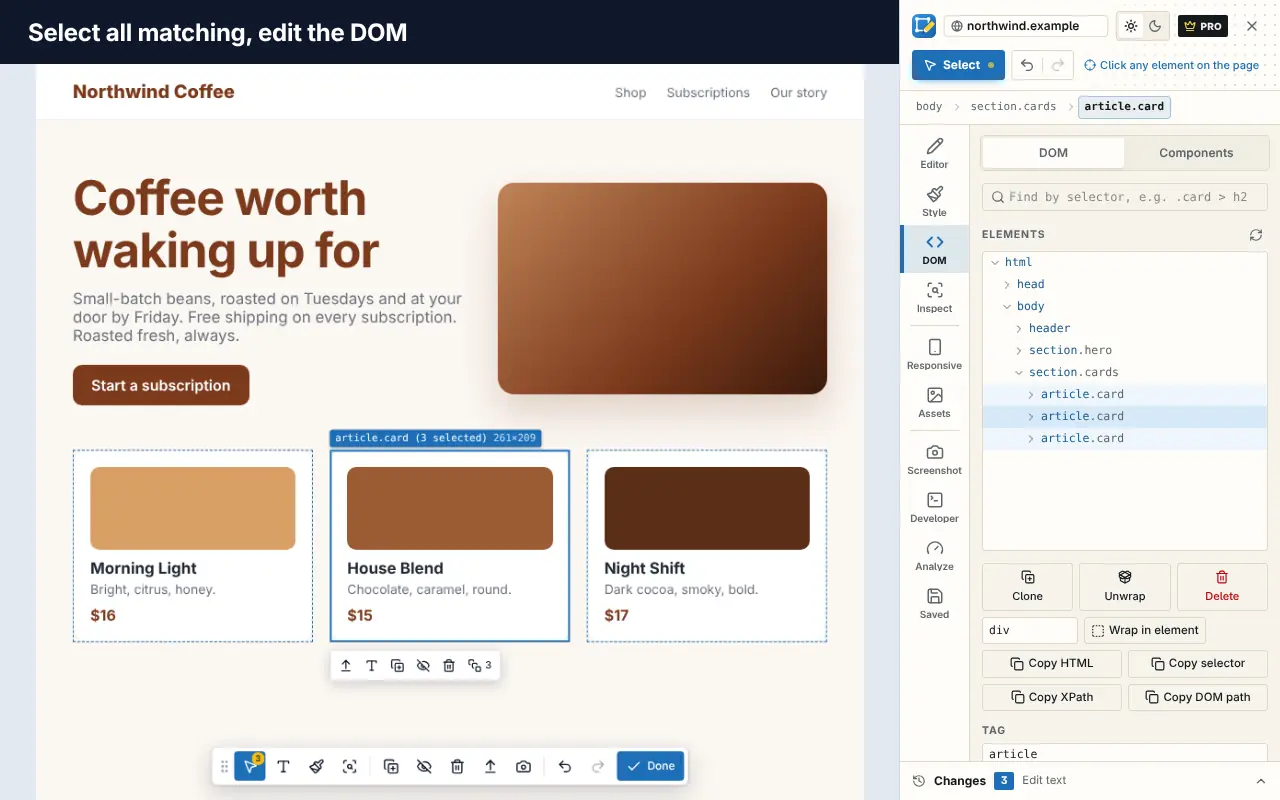
It works, but it's fiddly, needs repeating for every element and every page, and comes back on reload. Our guide on how to edit a webpage in your browser covers this approach in more detail.
5. Clear everything in one click with Edit Page
Edit Page includes a one-click cleanup that's free to use. It hides the usual clutter in one go:
- cookie and consent banners from many common consent platforms
- newsletter and sign-up modals, and the dark overlays behind them
- sticky bars and "open in app" banners
- chat bubbles and notification prompts
- ad slots
- the scroll lock that stops a page from scrolling
How to use it:
- Add Edit Page to Chrome and open the cluttered page.
- Click the Edit Page icon, open the cleanup tool and run it.
- The cleanup is a single step, so one undo brings everything back.
- Save it for the site if you want it applied every time you visit.
With Pro, automatic cleanup can run on every site you visit for the categories you choose, with a per-site opt-out. You can see the before and after in the cleanup slider on our home page.
Anything the cleanup misses can be hidden by hand: select the element and hide or delete it.
Clean pages for screenshots
Removing clutter is especially useful before a screenshot for a bug report, a portfolio or a presentation. A good routine:
- Run the cleanup, or remove banners with DevTools.
- Close any remaining chat or sticky elements by hand.
- Take the screenshot. Our guide to full-page screenshots in Chrome covers every method.
Too many tabs full of pop-ups?
If you have a stack of tabs to work through, cleaning each page is only half the battle. Save them as a session with Super Session Manager so you can close the window and come back later, and see how to manage too many open tabs for more habits.
Frequently asked questions
Is it legal to hide cookie banners?
Hiding elements on a page in your own browser is generally fine, and it's what developer tools and reading modes do. Keep in mind that hiding a banner doesn't give or refuse consent.
Why does the page not scroll after I remove a pop-up?
Many modals lock scrolling by setting overflow: hidden on the page. Remove that style in DevTools, or use a cleanup tool that also removes scroll locks, such as Edit Page.
Does Chrome block pop-ups automatically?
Chrome blocks pop-up windows by default. It doesn't block banners, modals or chat widgets drawn inside the page, which is what most pop-ups are now.
Will the banner come back when I reload?
Yes, unless you save the change. Edit Page can save the cleanup per site so it's applied on every visit.