You can change the text, colors, images and layout of almost any webpage right in your browser, without access to the site's code and without installing anything. It's useful for mocking up copy changes, testing a design idea, preparing a clean screenshot or just reading a page the way you like.
This guide shows four ways to edit a webpage in your browser, from quickest to most powerful, and explains how to keep your changes.
Good to know: these edits only change the copy of the page in your browser. The real website, and what everyone else sees, stays exactly the same. Reload the page and it goes back to normal unless you save your edits.
Which method should you use?
| Method | Best for | Install needed | Keeps edits after reload |
|---|---|---|---|
| Inspect Element | One precise change to text or CSS | No | No (without extra setup) |
| Design mode in the Console | Rewriting lots of text quickly | No | No |
| Bookmarklet | Design mode in one click | No (just a bookmark) | No |
| Edit Page extension | Visual editing of text, styles and layout | Yes (free) | Yes, per website |
Method 1: Inspect Element
Every desktop browser has built-in developer tools that let you edit any element.
- Right-click the text or element you want to change and choose Inspect.
- The developer tools open with that element highlighted in the HTML tree.
- To change text: double-click the text in the tree, type your new text and press
Enter. - To change style: in the Styles pane on the right, click a value (like a color or font size) and edit it, or click inside a rule to add a new property.
- To delete an element: select it and press
Delete.
This works in Chrome, Edge, Firefox and Safari (Safari needs the developer menu turned on in its settings first). It's precise, but editing inside an HTML tree is slow when you want to change a whole paragraph. Our guide on how to inspect and edit HTML and CSS goes deeper into this method.
Method 2: Turn on design mode
Browsers have a built-in design mode that makes a whole page editable like a document. You switch it on from the Console:
- Press
F12(orCmd+Option+Ion a Mac) to open the developer tools. - Click the Console tab.
- Type this and press
Enter:
document.designMode = "on";Now click anywhere on the page and type. You can select and delete text, and paste in new words. To switch it off, run document.designMode = "off".
Some pages show a warning the first time you paste into the Console. It's there to protect you from scams: only paste code you understand. The line above just toggles editing for the page you're on.
Design mode is great for text but doesn't help with colors, spacing or layout, and links can be awkward to edit because clicking them still tries to follow them.
Method 3: A one-click bookmarklet
If you use design mode often, save it as a bookmark:
- Create a new bookmark (
Ctrl+D, orCmd+Don a Mac) and edit it. - Name it Edit page.
- Replace the URL with:
javascript:void(document.designMode = document.designMode === "on" ? "off" : "on")Click the bookmark on any page to turn editing on, and click it again to turn it off. Some sites block bookmarklets with a Content Security Policy, in which case use Method 1 or 4.
Method 4: Use a visual editor extension
When you want more than text, such as changing colors, fonts, spacing, images or layout, a visual editor is far faster than editing code.
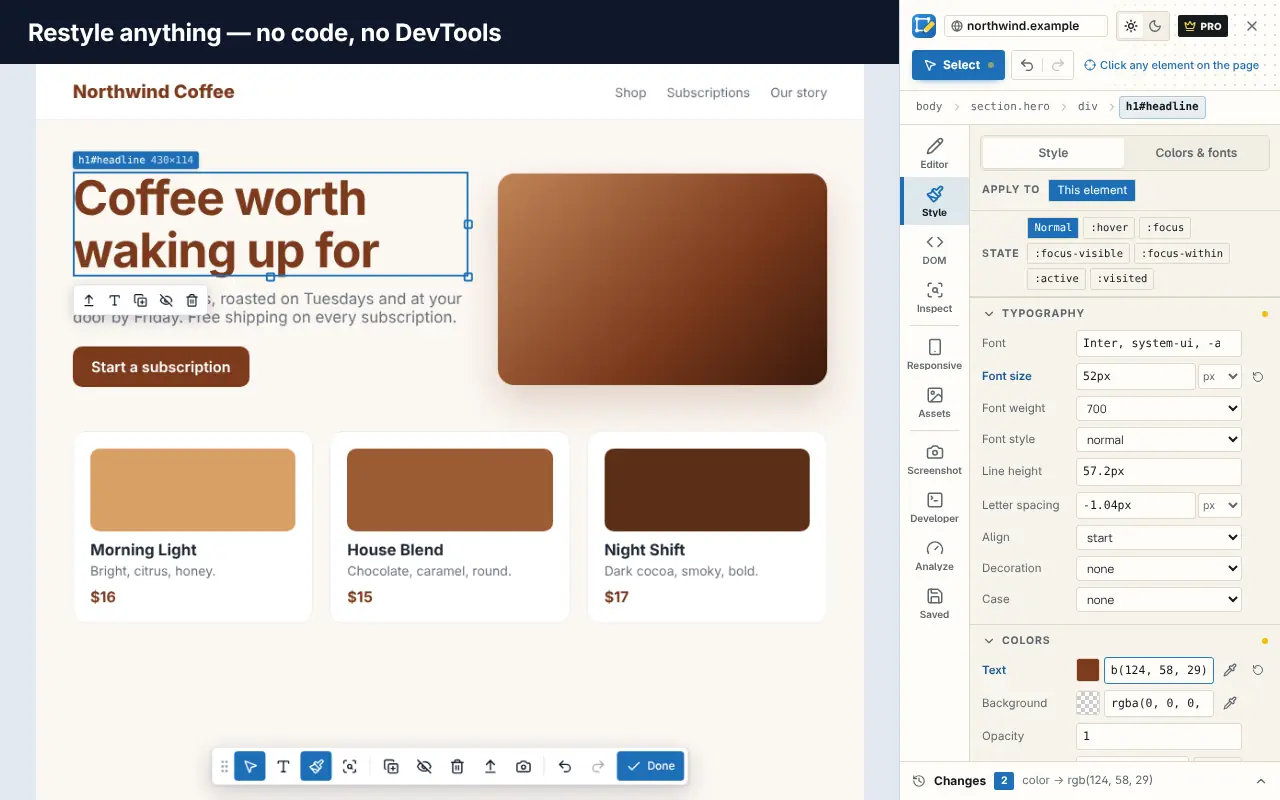
Edit Page is a free Chrome extension built for exactly this. Here's the workflow:
- Add Edit Page to Chrome and pin it to your toolbar.
- Open the page you want to change and click the Edit Page icon, or press
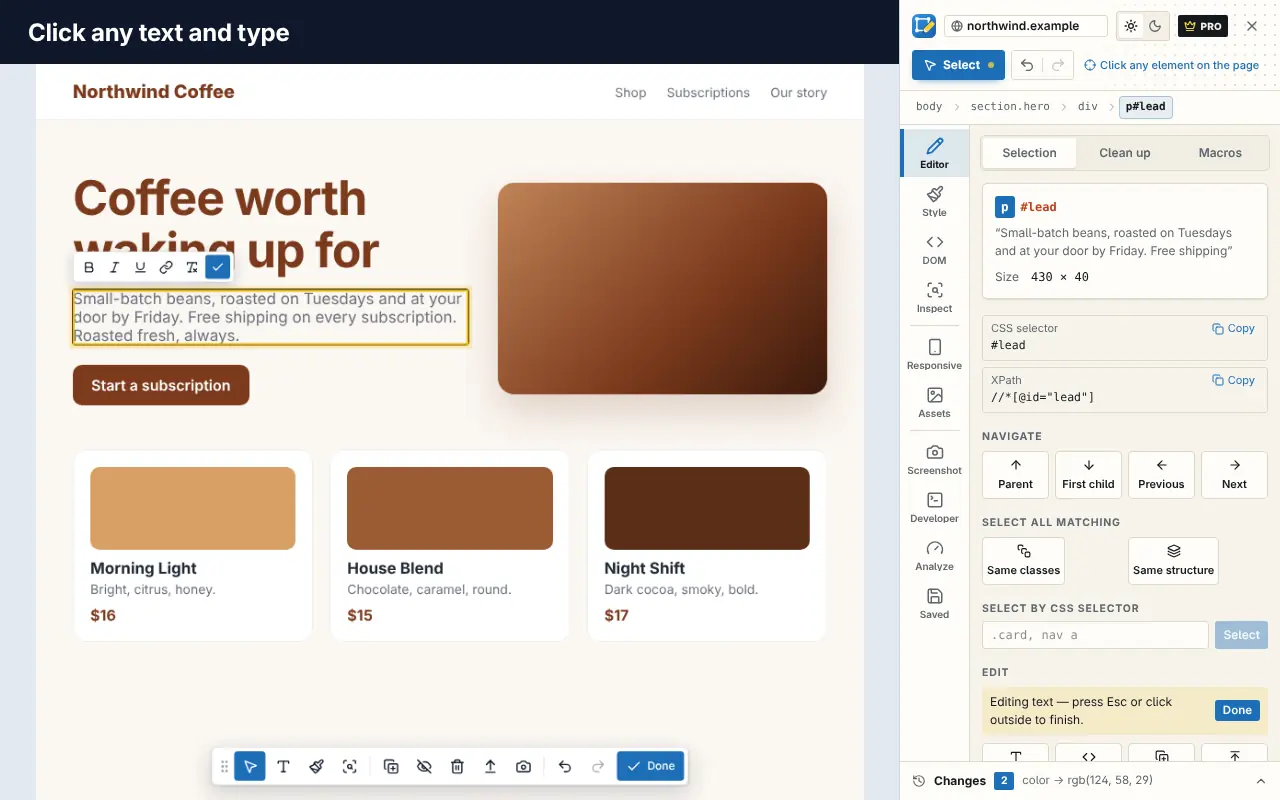
Alt+Shift+E. - Quick Edit makes the page editable in one click, like design mode, for fast text changes.
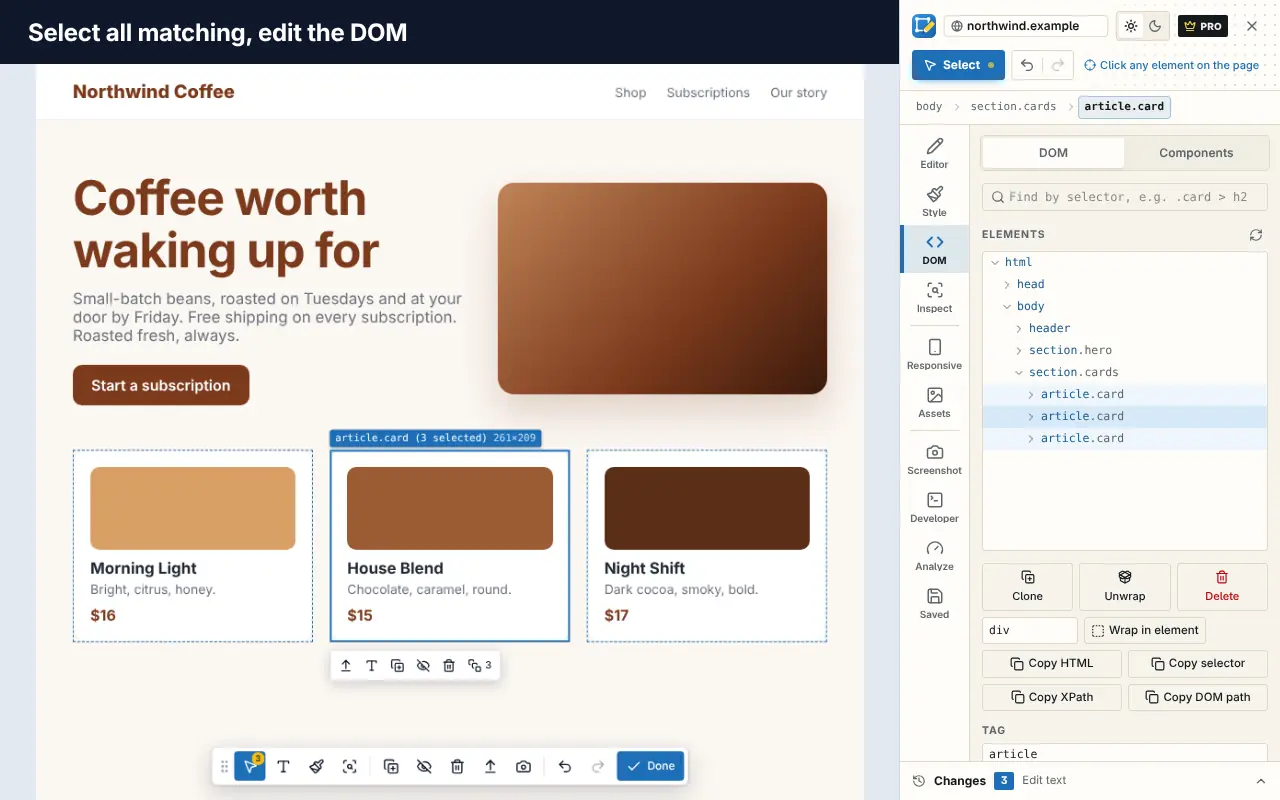
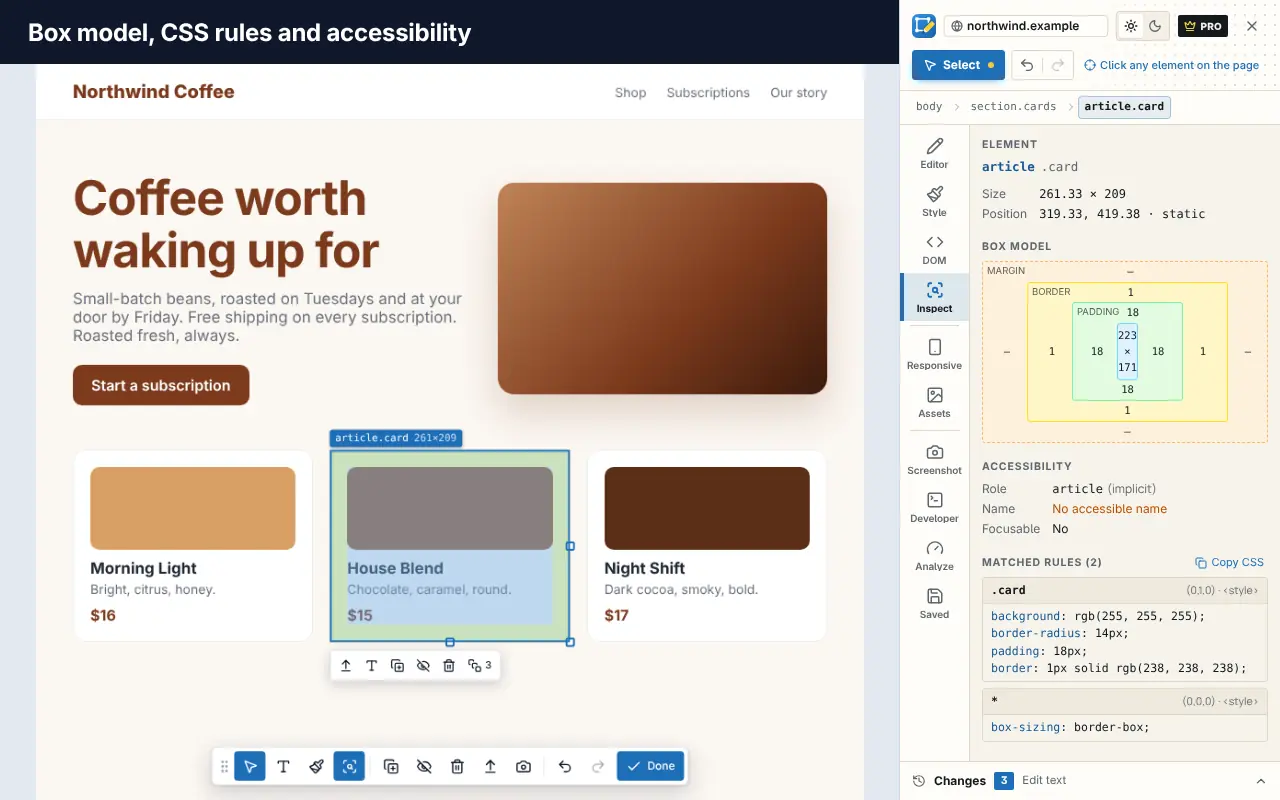
- For more, open the editor: hover to highlight an element and click to select it.
- Edit text inline with a small formatting bar (bold, italic, links), or change styles in the panel: typography, colors, spacing, borders, size and layout.
- Use the extra tools as you need them: move or resize elements, hide or delete them, swap an image by URL, or remove cookie banners and pop-ups in one click.
- Undo any step, or open the list of changes to revert one.
Want to try it before installing? There's a live playground on our home page where you can edit a sample page.
How to keep your edits after reloading
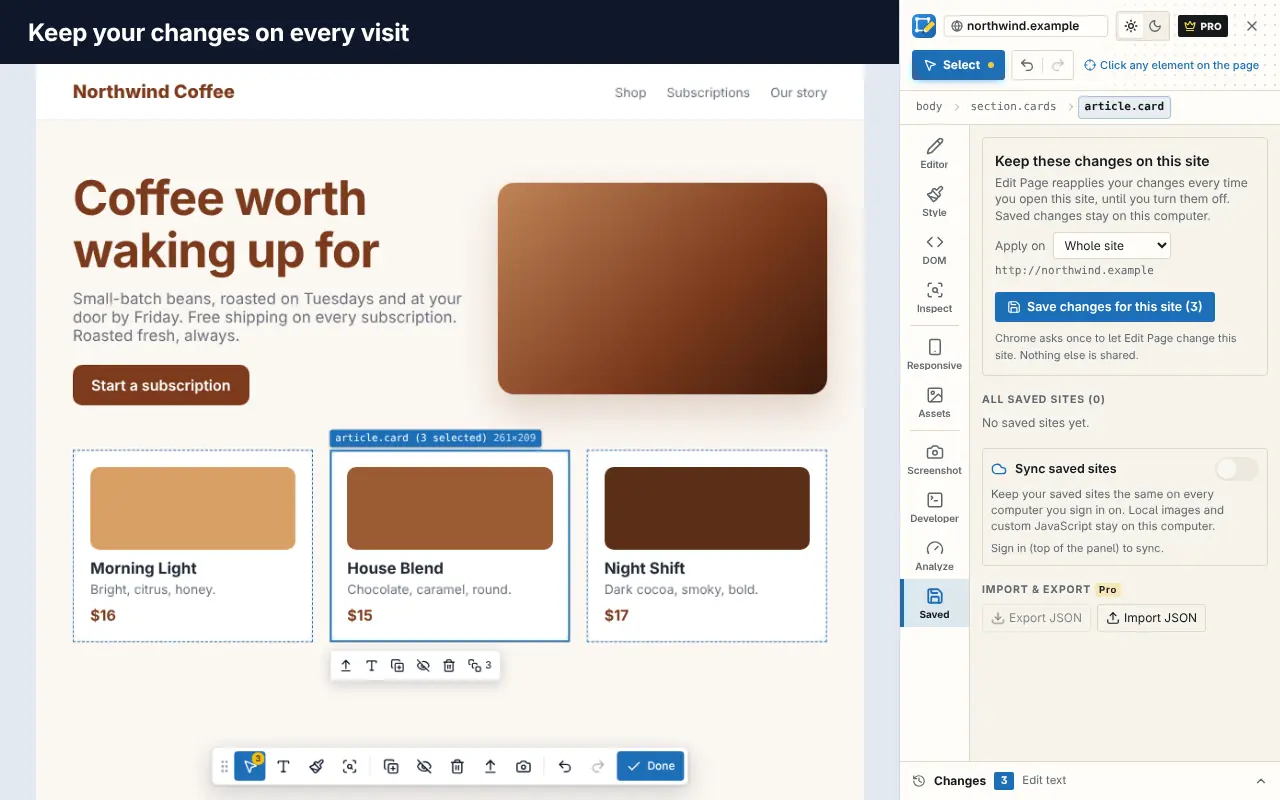
By default, every method above forgets your changes on reload. You have two good options for keeping them.
Chrome DevTools Local Overrides save DevTools edits to a folder on your computer and serve them in place of the real files. They're powerful, but they need setting up, work at the file level and only apply while DevTools is open.
Edit Page saved changes remember your edits for a website and reapply them automatically each time you visit, without DevTools. The free plan saves changes for one website; Pro removes that limit and adds profiles, checkpoints, import/export and sync between computers. Your edits are stored in your browser, and editing doesn't need an account. You can read more in the FAQ.
Taking a screenshot of your edited page
Once the page looks right, you'll often want a picture of it. Our guide to full-page screenshots in Chrome covers every option; in short:
- Chrome DevTools: open the Command Menu (
Ctrl+Shift+P), type "screenshot" and choose Capture screenshot or Capture full size screenshot. - Edit Page: the built-in screenshot tool captures the visible area or a region on Free. Full-page and element captures, annotations and device frames are part of Pro.
Please use edited screenshots honestly. Mocking up a design is fine; passing off an edited page as genuine (a fake receipt, review or message) is deceptive and may be illegal.
Editing webpages on a phone
Desktop Chrome extensions don't run in Chrome for Android or iOS, and mobile browsers don't include full developer tools. The bookmarklet method can work in some mobile browsers if you start typing the bookmark's name into the address bar and tap it. For anything more, edit on a computer and use device mode (Ctrl+Shift+M in DevTools) to preview the mobile layout.
Common use cases
- Copywriters and marketers: try new headlines and calls to action on the live page before asking a developer.
- Designers: test color, font and spacing tweaks in context, then hand over exact values.
- Developers: prototype a CSS fix in place, then copy it into the code. The browser tools every web developer should know make this faster.
- Readers: remove clutter or change the font on any website you read every day.
- Teachers and presenters: prepare a tidy version of a page for a demo.
If you're picking tools for this kind of work, our list of the best Chrome extensions for web developers covers more options, and the best free web developer tools in 2026 rounds up the wider toolkit.
Frequently asked questions
Can I edit any website?
You can edit how any webpage looks in your own browser. You can't change the real site that other people see. That needs access to the site's code or content management system.
Is editing a webpage in my browser legal?
Changing how a page displays on your own screen is normal and is what browser developer tools are for. What matters is how you use the result: presenting an edited page as genuine to mislead someone can be fraud.
Why do my changes disappear when I refresh?
The browser reloads the original page from the server. To keep edits, use DevTools Local Overrides or an extension like Edit Page that saves changes per website.
How do I make a webpage editable in Chrome?
Open the Console (F12, then the Console tab) and run document.designMode = "on", or use Edit Page's Quick Edit for a one-click toggle.
Does Edit Page work in Edge and Firefox?
Yes. Edit Page supports Google Chrome, Microsoft Edge, Firefox 140 or later and other Chromium browsers that install from the Chrome Web Store. In Firefox the editor opens in the sidebar. See the FAQ for details.