YouTube is one of the best places to learn anything, from a new JavaScript framework to fixing a leaking tap. It's also one of the slowest. A 45-minute talk might contain the five minutes you need, and "watch later" tabs pile up faster than anyone could watch them.
This guide shows practical ways to summarize YouTube videos and get the useful part faster, using features built into YouTube and tools that do the summarizing for you.
Decide before you watch
The biggest time saver is choosing what not to watch. Before you press play, check:
- The description. Many creators list what's covered, with timestamps.
- Chapters. If the progress bar is split into segments, hover over them to see each chapter's title, or open the chapter list from the description.
- The upload date. For software tutorials, an older video may cover an outdated version.
- A summary. A quick summary tells you whether the video answers your question at all (see below).
Use YouTube's transcript
Most videos have captions, and YouTube can show them as a full transcript:
- Below the video, expand the description (click ...more).
- Scroll down and click Show transcript.
- The transcript opens next to the video with timestamps. Click any line to jump there.
Use Ctrl+F to search the transcript for the term you care about, then jump straight to that moment. For tutorials, this is often faster than any summary. Auto-generated captions can contain mistakes, especially with technical terms and names.
Watch at the right speed
YouTube's playback speed setting (the gear icon, then Playback speed) goes from 0.25× to 2×. Many people find 1.25× to 1.5× comfortable for talks and explanations. Keyboard shortcuts make it quicker:
| Action | Shortcut |
|---|---|
| Play or pause | K or Space |
| Back or forward 10 seconds | J / L |
| Back or forward 5 seconds | Left / Right arrow |
| Slower / faster | Shift+, / Shift+. |
| Captions on or off | C |
| Jump to a point (10%–90%) | 1 to 9 |
Get an instant summary with SummaryTube
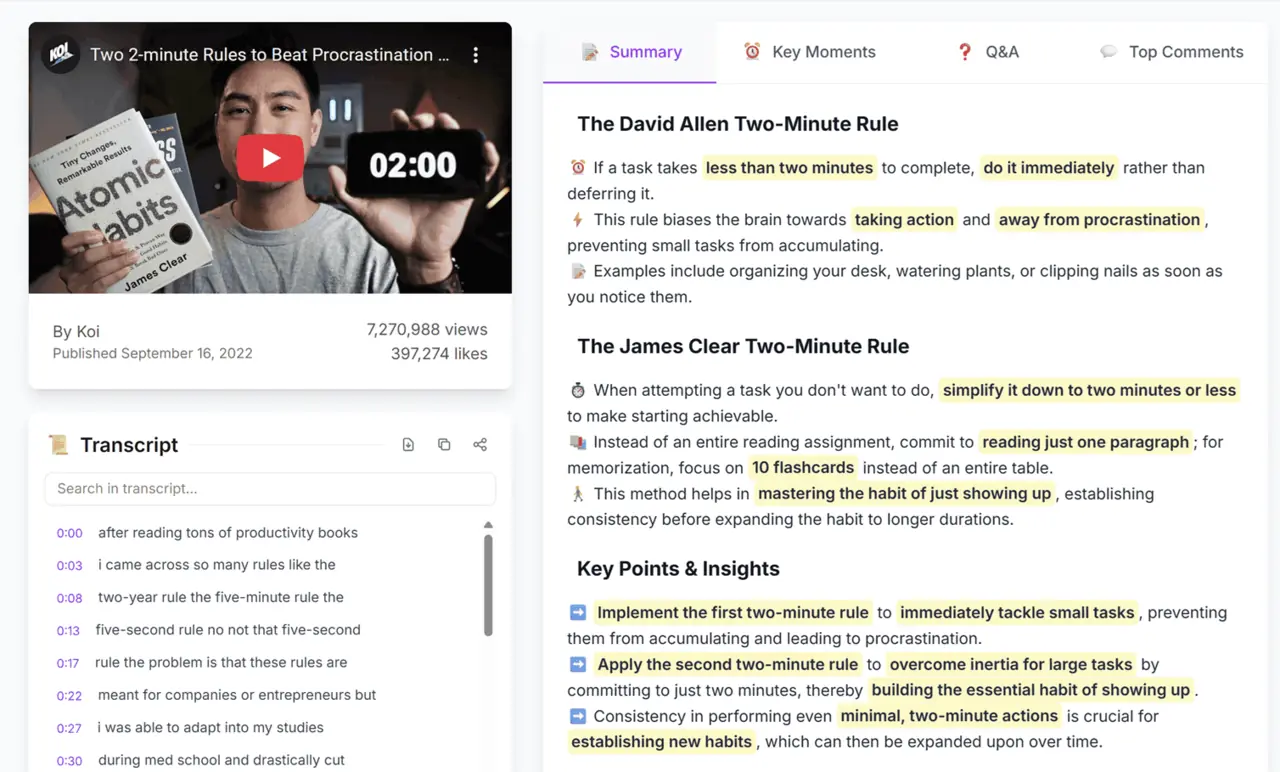
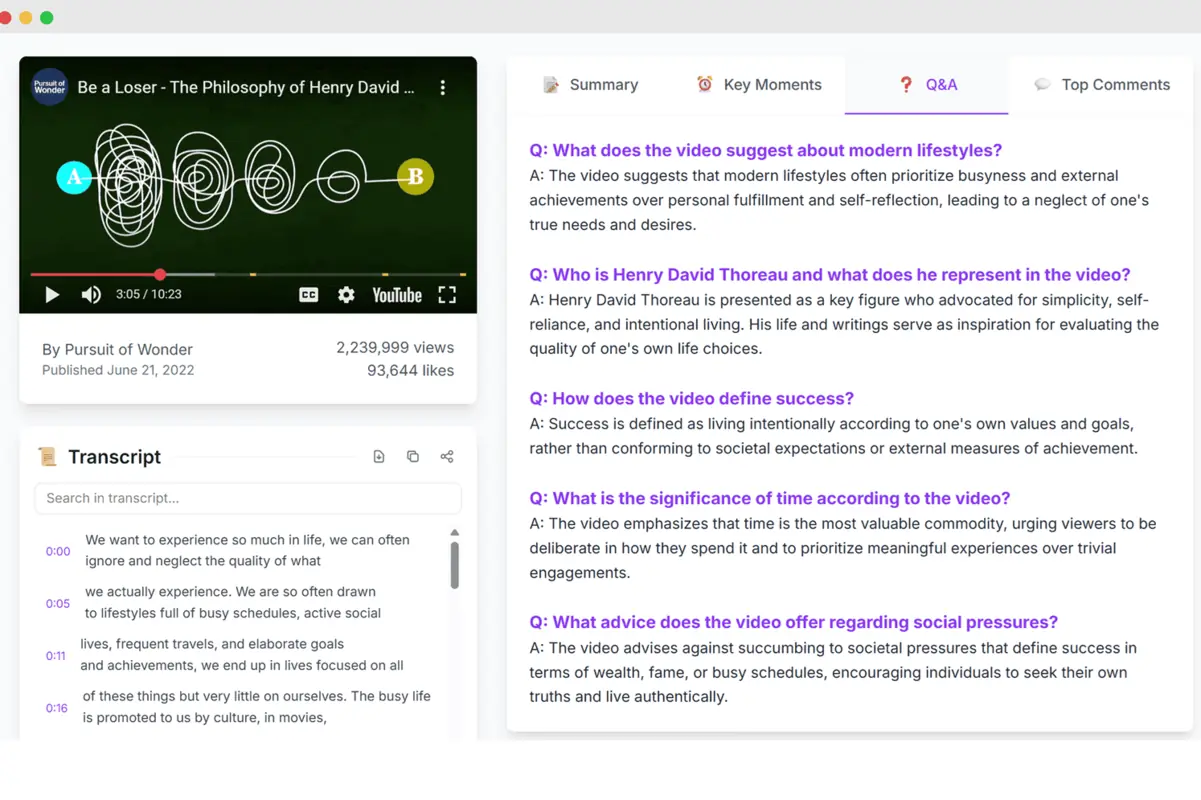
When you want the gist of a video without watching it, a summarizer saves the most time. SummaryTube summarizes YouTube videos with AI so you can read the key points first, then decide whether to watch the whole video, jump to a section, save it for later or move on. Next to the video it shows a summary, key moments with timestamps, a Q&A view and the transcript. Add it to Chrome or Firefox.
A good way to use summaries:

- Triage your watch-later list. Summarize each video and keep only the ones that are worth the time.
- Check a tutorial's scope before investing an hour in it.
- Review after watching. A summary is a handy refresher of what you learned.
Summaries are a starting point. For anything you'll act on, such as code or commands, check the relevant part of the video or the official documentation.
Summaries for different kinds of videos
Different videos call for different approaches:
- Coding tutorials: read the summary to check the tools and versions covered, then use the transcript to find the exact step you need. Code is usually easier to copy from the linked repository than from the screen.
- Conference talks: a summary tells you the main argument, so you can decide whether the full talk is worth an hour. Chapters help you jump to the demo or the Q&A.
- Product reviews and comparisons: a summary lists the conclusions quickly; watch the relevant sections for the details that matter to you.
- Lectures and courses: use the summary as a revision aid after watching, not as a replacement for the lecture.
- News and commentary: summaries help you scan several videos on the same topic and pick the most useful one.
Turn videos into notes
Learning sticks better when you write things down:
- Keep a running note per topic, with the video link and timestamps of the useful parts.
- Copy commands and code from the video's description or linked repository, not by retyping from the screen.
- Link the docs. For web development topics, pair a video with the official reference, such as MDN for CSS or HTML.
- Try it immediately. If a video explains a CSS technique, test it on a real page. Edit Page lets you change styles on any live page visually, so you can see a technique work in seconds. Add it to Chrome.
Stop video tabs from piling up
Videos are some of the most persistent tab hoarders. A few habits help:
- Summarize, then decide right away instead of leaving the tab open.
- Use YouTube's Watch later playlist rather than open tabs.
- Group learning tabs in a tab group. See how to use Chrome tab groups.
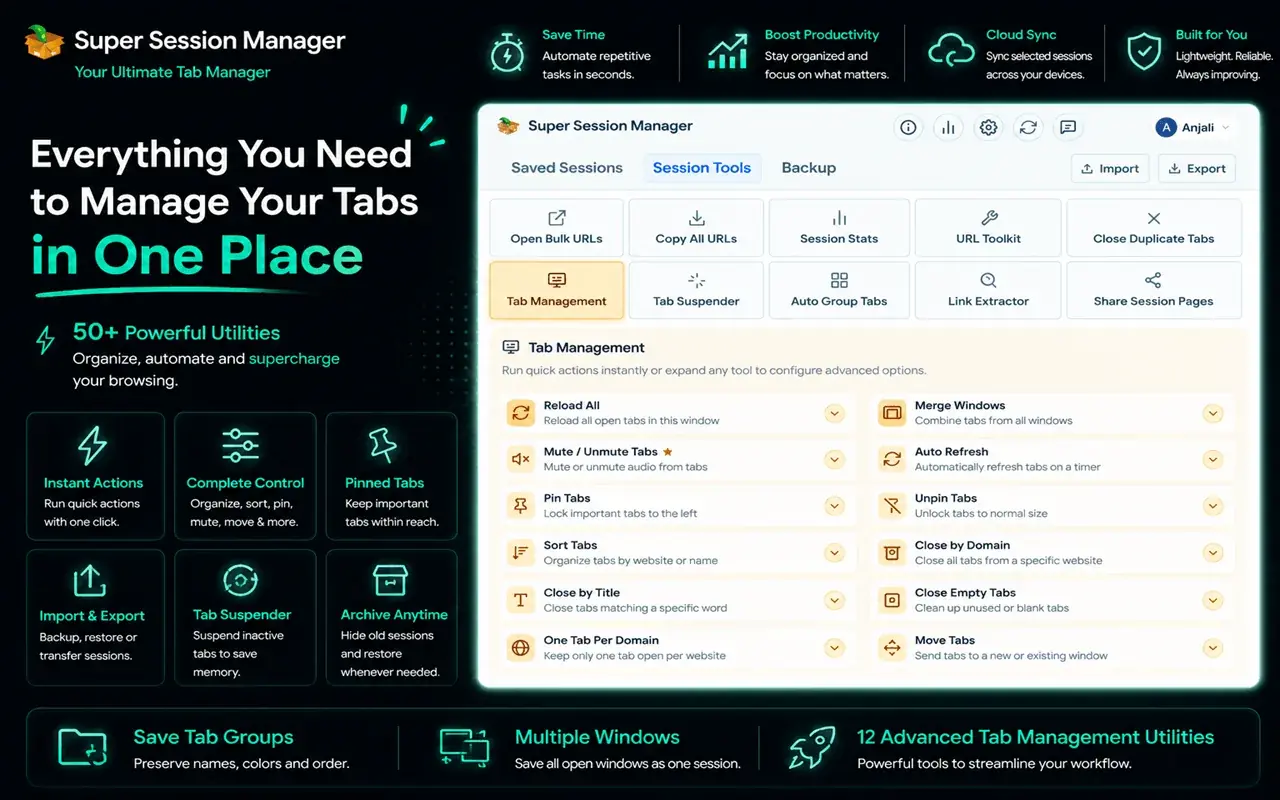
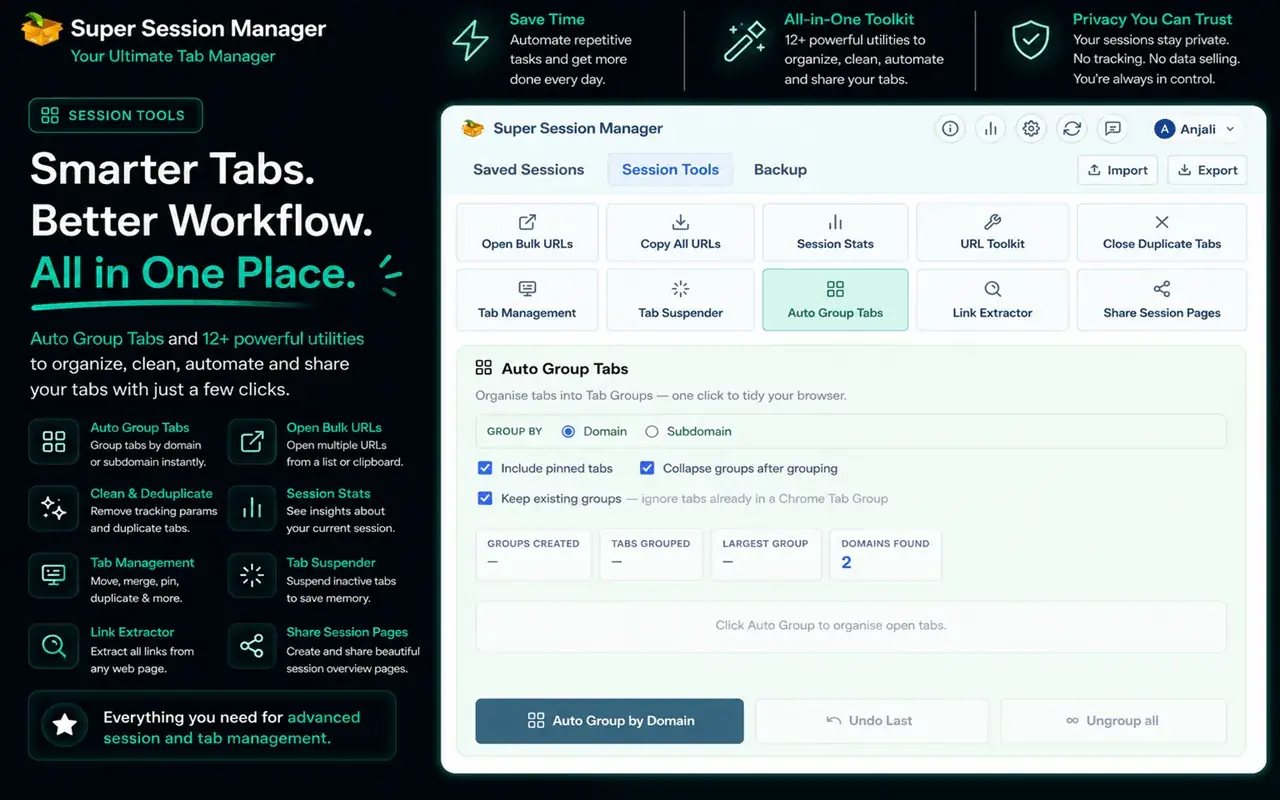
- Save a study session. Save the videos, docs and notes for a topic as a named session with Super Session Manager, and reopen them all next time.
More strategies are in how to manage too many open tabs and browser productivity tips for developers.
A quick routine for learning from YouTube
- Read the summary and chapter list.
- Search the transcript for your exact question.
- Watch only the relevant chapters, at a comfortable speed.
- Write a short note with the timestamps and links.
- Try the idea right away.
- Close the tab, or save it to a session for later.
Frequently asked questions
How do I get a summary of a YouTube video?
Use a summarizer such as SummaryTube, or read the video's description, chapters and transcript to find the key points yourself.
How do I see the transcript of a YouTube video?
Expand the description under the video, scroll down and click Show transcript. The transcript appears with clickable timestamps.
Are YouTube video summaries accurate?
They're a useful overview but can miss details or nuance, especially if the captions are auto-generated. Check the video or official documentation before acting on specific instructions.
How can I learn faster from YouTube tutorials?
Pick videos carefully, use chapters and transcripts to jump to what you need, watch at a slightly higher speed, take short notes and practise straight away.