Some websites use fonts that are too small, too thin or just hard to read. Others are fine, but you want to see how a page would look in a different typeface before you suggest a redesign. Either way, you can change the font on any website right in your browser, without touching the site's code.
This guide covers five methods, from a quick zoom to a full visual font change that stays in place every time you visit.
Which method fits what you need?
| Goal | Best method |
|---|---|
| Make everything bigger, quickly | Page zoom |
| Set a minimum readable size on every site | Browser font settings |
| Read an article in a clean, comfortable font | Reading mode |
| Try a specific font on one site | DevTools |
| Change fonts visually and keep the change | Edit Page |
Method 1: Zoom the page
The fastest fix for small text is zoom, and it works everywhere:
- Zoom in:
Ctrland+(Cmdand+on a Mac) - Zoom out:
Ctrland- - Reset:
Ctrland0
Chrome, Edge and Firefox remember your zoom level per site, so a site you always zoom stays zoomed. Zoom scales everything, including images and layout, which is often what you want for readability. It doesn't change the typeface itself.
Method 2: Change your browser's default fonts
Browsers let you choose default fonts and a minimum font size.
Chrome: go to Settings → Appearance → Customize fonts. You can set the standard, serif, sans-serif and fixed-width fonts, and a minimum font size.
Edge: go to Settings → Appearance → Fonts for similar options.
Firefox: go to Settings → General → Fonts, then click Advanced to set fonts per style and a minimum size. Untick Allow pages to choose their own fonts, instead of your selections above if you want your fonts used everywhere.
There's a catch in Chrome and Edge: most sites set their own fonts in CSS, so your default typeface only applies where a site doesn't specify one. The minimum font size setting is more effective, because it stops text from being rendered smaller than your chosen size on any site.
Method 3: Use reading mode
For articles, reading mode strips away the layout and shows the text in a clean, adjustable font:
- Chrome: open the side panel and choose Reading mode, or right-click the page and choose Open in reading mode. You can pick the font, size, spacing and colors.
- Edge: use Immersive Reader (
F9) on supported pages. - Firefox: click the Reader View icon in the address bar, then use the Aa menu to change the font and size.
Reading mode is excellent for long reads but only works on article-like pages, and it doesn't change the page itself.
Method 4: Change the font with DevTools
To try a specific font on a specific page, edit its CSS in the browser's developer tools:
- Right-click the text and choose Inspect.
- In the Styles pane, find the rule that sets
font-family, or select the<body>element to change the whole page. - Click the value and type a new font stack, for example:
font-family: Georgia, "Times New Roman", serif;- To change the size or spacing, edit
font-sizeandline-heightthe same way.
The font must be installed on your computer, or be one the site already loads. The change disappears when you reload. If you'd like to keep it, our guide to inspecting and editing HTML and CSS explains Local Overrides and the Changes tab.
Method 5: Change fonts visually with Edit Page
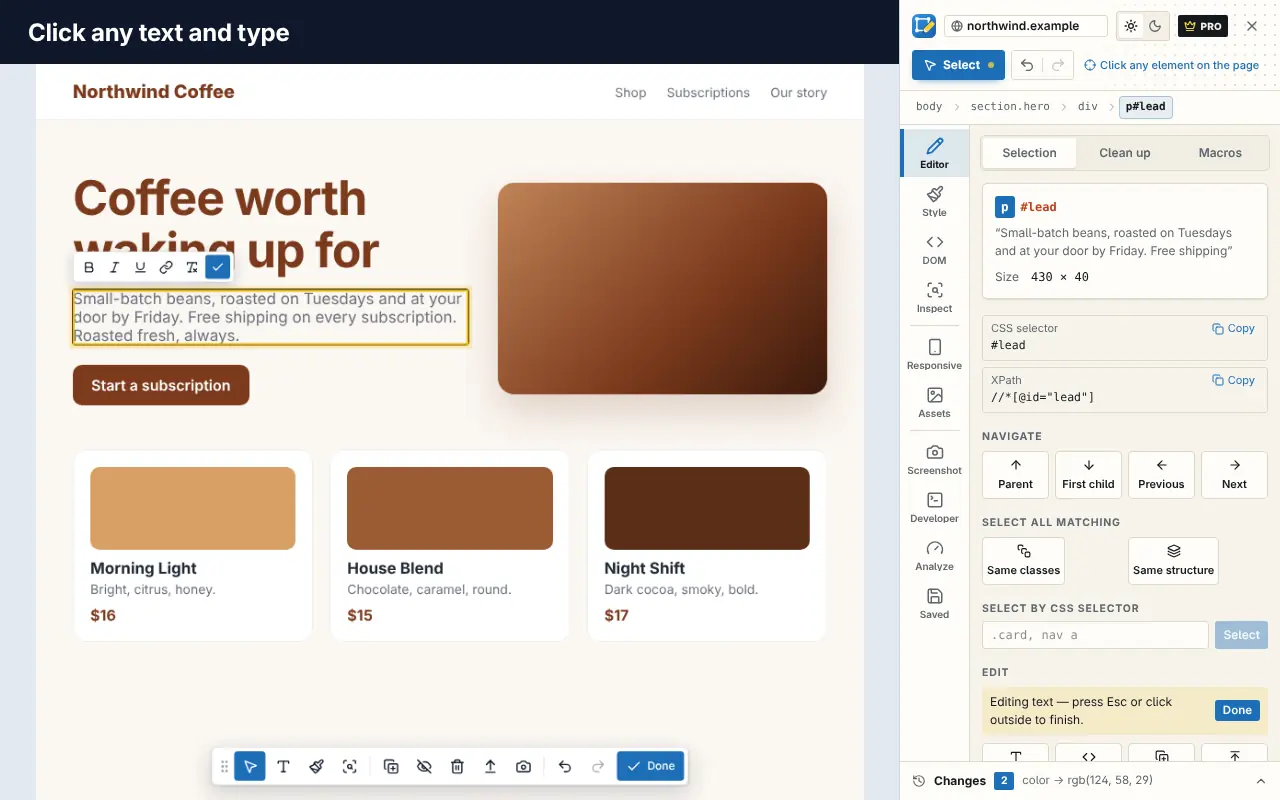
Edit Page is a Chrome extension for editing any webpage visually. It's the easiest way to change fonts if you don't want to touch CSS:
- Add Edit Page to Chrome and open the page you want to change.
- Click the Edit Page icon or press
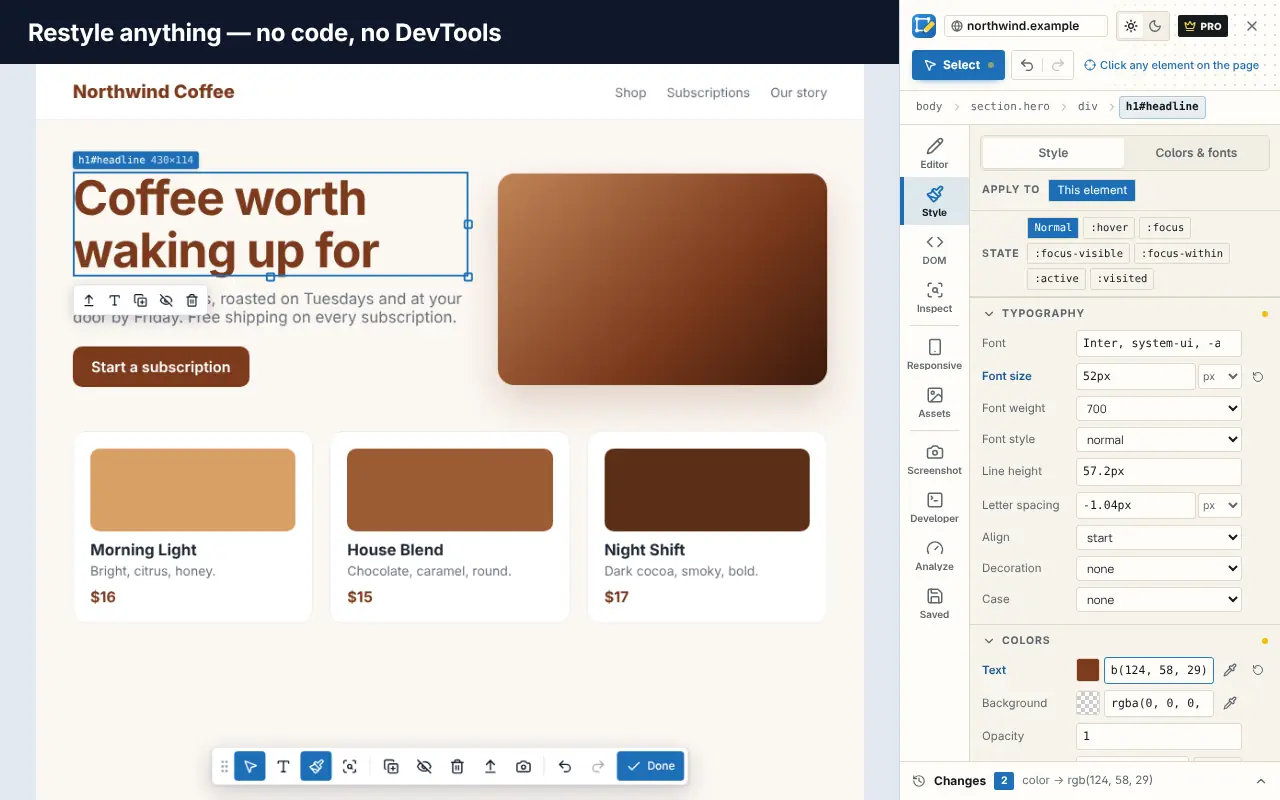
Alt+Shift+E, then select a heading or paragraph. - In the Typography controls, change the font family, size, weight, line height and letter spacing. You see each change live.
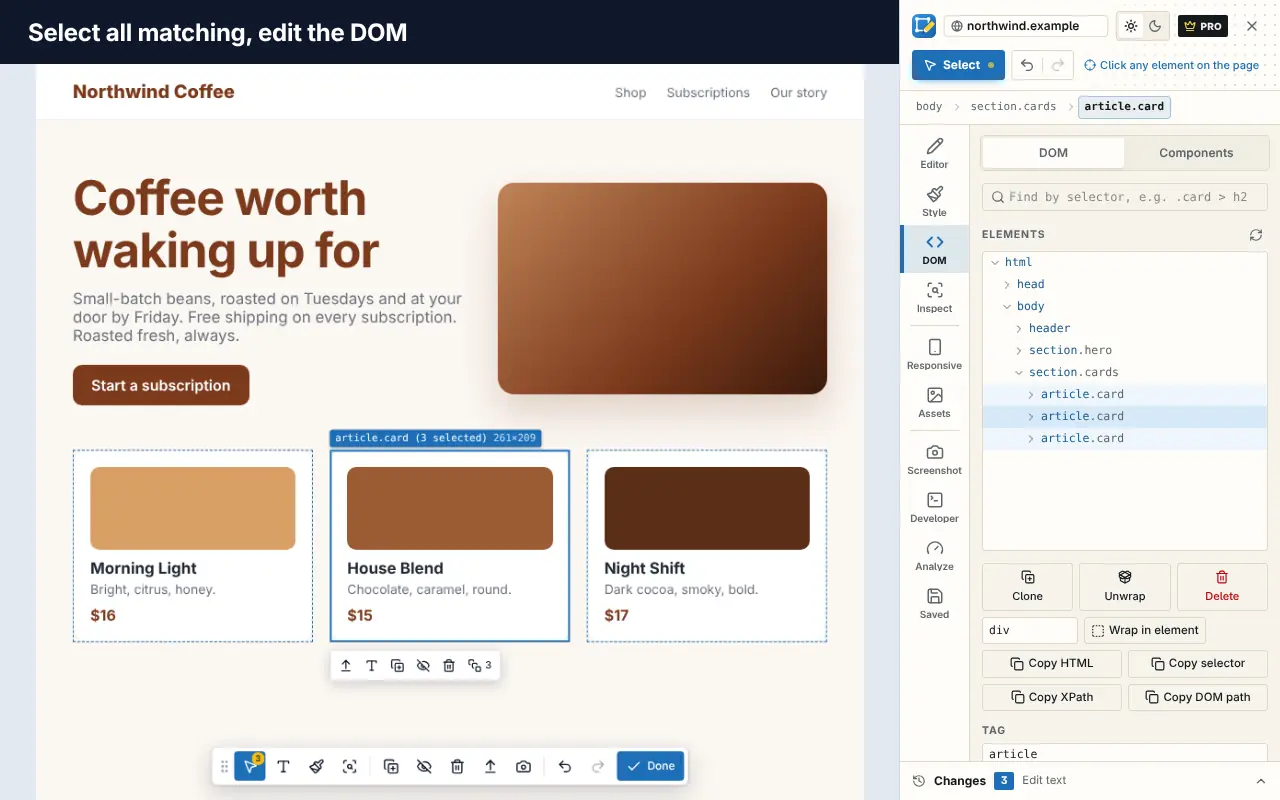
- To change the font across the whole page, open the Colors & fonts tool. It lists every font the page uses with its sizes and weights, and lets you select every element that uses a font. On Pro you can replace a font everywhere on the page in one step.
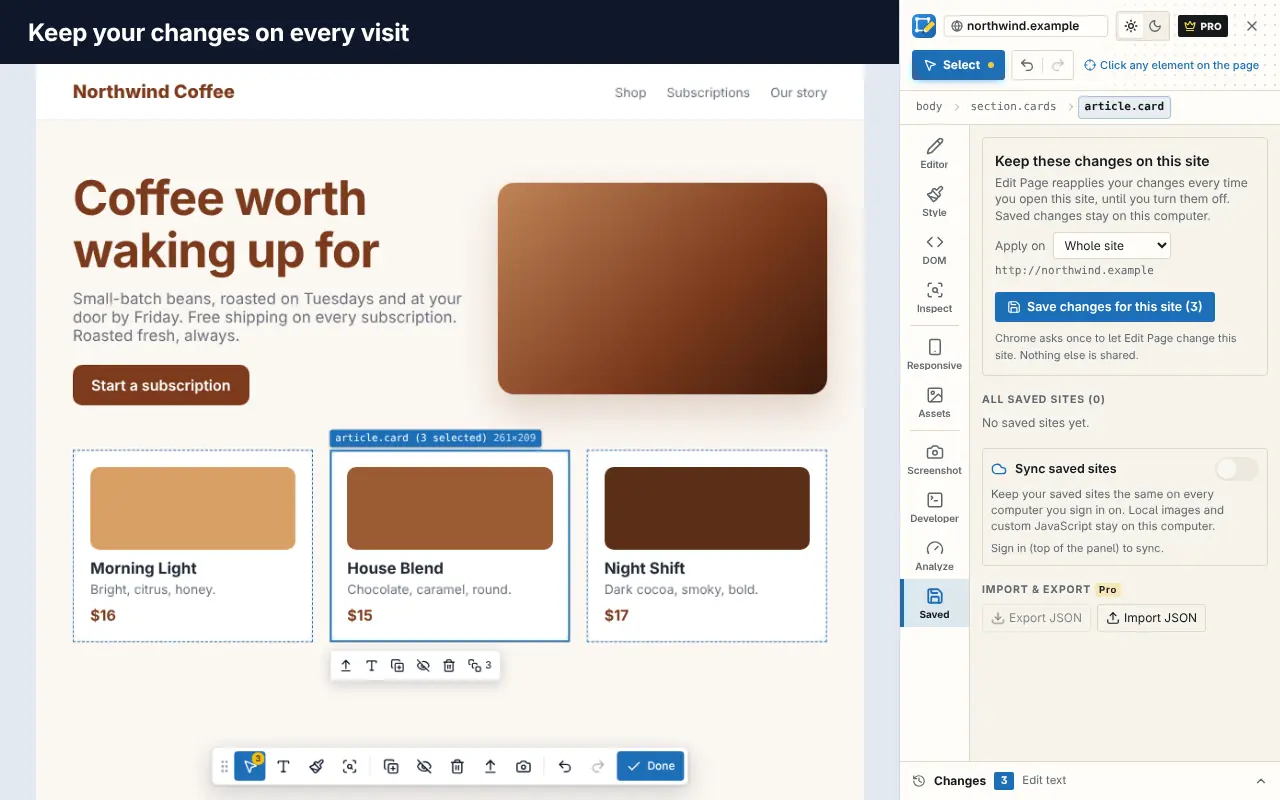
- Save your changes for the site, and they're reapplied every time you visit.
You can try the editor on our home page before installing.
Tips for choosing a readable font
- Size first. For body text on screens, around 16px or larger is a common baseline. Many readability problems disappear with a bigger size and a bit more line height.
- Line height of about 1.5 makes paragraphs easier to follow.
- Shorter lines (roughly 60 to 80 characters) are easier to read than very wide ones.
- Contrast matters as much as typeface. Light grey text on white is hard to read in any font. See how to check website accessibility for contrast checks.
- System fonts are safe. Fonts like Georgia, Arial, Segoe UI or San Francisco are already on most computers.
Want to know which font a site is using before you change it? Read how to find the fonts and colors on any website.
Frequently asked questions
Can I change the font on a website permanently?
Only for yourself. Your browser's settings and Edit Page's saved changes keep your font on every visit, but the real website and what other people see stay the same.
Why doesn't Chrome's font setting change every website?
Most websites specify their own fonts in CSS, which overrides your browser's default typeface. Chrome's minimum font size setting still applies, and Firefox can force your fonts on every site.
How do I make text bigger on just one website?
Use page zoom (Ctrl and +). Browsers remember the zoom level for each site, so it stays bigger next time.
Can I use a Google Font on any website?
In DevTools you can only use fonts that are installed on your computer or already loaded by the page. Install the font on your computer first, then use its name in font-family.
Does changing fonts affect the website for others?
No. All of these methods change only what you see in your own browser.