Inspecting and editing HTML and CSS in the browser is the fastest way to understand how a page is built and to try a fix before you touch your code. You see the result instantly, on the real page, with the real content.
This tutorial covers how to inspect any element, edit its HTML, change its CSS, figure out why a style isn't applying and carry your changes back into your project. It uses Chrome DevTools (Edge's are the same), with Firefox notes where they differ.
Step 1: Inspect an element
There are three ways to get to the element you care about:
- Right-click it and choose Inspect. DevTools opens with that element selected.
- Use the element picker: press
Ctrl+Shift+C(Cmd+Shift+Con a Mac) and click the element on the page. - Browse the tree: open DevTools with
F12and expand nodes in the Elements panel (Inspector in Firefox).
As you hover over nodes in the tree, the page highlights the matching element with colored overlays for its content, padding, border and margin. That overlay alone answers a lot of "where is this gap coming from?" questions.
Step 2: Edit the HTML
In the Elements panel you can change the page's structure directly:
- Edit text: double-click the text inside a node, type and press
Enter. - Edit an attribute: double-click an attribute name or value, such as a
classorhref. - Add an attribute: right-click the element and choose Add attribute.
- Edit a whole block: right-click and choose Edit as HTML to change the element and its children as text.
- Move an element: drag the node to a new position in the tree.
- Hide or delete: select the node and press
Hto toggle visibility orDeleteto remove it.
Here's a quick exercise. Find a button on any page, choose Edit as HTML and change it to:
<button class="cta">Start free trial</button>Press Ctrl+Enter (or click outside) to apply it. The page updates immediately.
Step 3: Edit the CSS
With an element selected, the Styles pane shows every CSS rule that applies to it, most specific first.
- Change a value: click it and type. Use the
UpandDownarrow keys to nudge numbers by 1 (holdShiftfor 10,Altfor 0.1). - Add a property: click inside a rule's braces after the last declaration and type, for example
gap: 1rem. - Toggle a property: hover over it and untick its checkbox to see the page without it.
- Add a rule just for this element: use the
element.styleblock at the top. - Add a new rule: click the + button to create a selector-based rule.
- Pick a color: click the color swatch next to any color value to open a picker, complete with an eyedropper and contrast ratio.
Test hover, focus and other states
Styles for :hover or :focus only show while the element is in that state, which is tricky when your mouse is on DevTools. Click :hov in the Styles toolbar and tick the state you want to force. Next to it, .cls lets you add or remove classes with checkboxes.
Read the box model and computed values
The Computed tab (Firefox: Layout and Computed) shows the final value of every property after the cascade, plus the box model diagram. Click a computed value's arrow to jump to the rule that set it.
Step 4: Debug a style that won't apply
When a CSS change doesn't take effect, the Styles pane usually tells you why:
- Struck-through declarations are overridden by a more specific or later rule. Look higher in the pane for the winner.
- A warning icon means the value is invalid or the property isn't supported there.
- Greyed-out properties don't apply in this context. For example,
justify-contentdoes nothing unless the element is a flex or grid container.
Most "it won't apply" bugs come down to specificity. A selector's specificity is roughly a count of IDs, then classes (and attributes and pseudo-classes), then element names. Higher wins; ties go to whichever rule comes last.
/* Specificity 0-1-0 */
.card { color: black; }

/* Specificity 0-1-1 — wins over .card */
article.card { color: navy; }

/* Specificity 1-0-0 — wins over both */
#featured { color: crimson; }
Instead of reaching for !important, write a selector that's specific enough, or restructure your CSS so the rule you want comes later. MDN's CSS documentation explains the cascade in full.
Step 5: Keep your changes
DevTools edits vanish on reload. To keep them:
- Copy them from the Changes tab. In Chrome, open the Command Menu (
Ctrl+Shift+P), type "Show Changes" and pressEnter. You get a diff of every CSS change you made, ready to paste into your stylesheet. - Use Local Overrides. In Sources → Overrides, choose a folder and allow access. DevTools then saves edited files there and serves them on reload while DevTools is open.
- Use a tool that saves per site. Edit Page (below) reapplies your changes on every visit, no DevTools needed.
A visual alternative: Edit Page
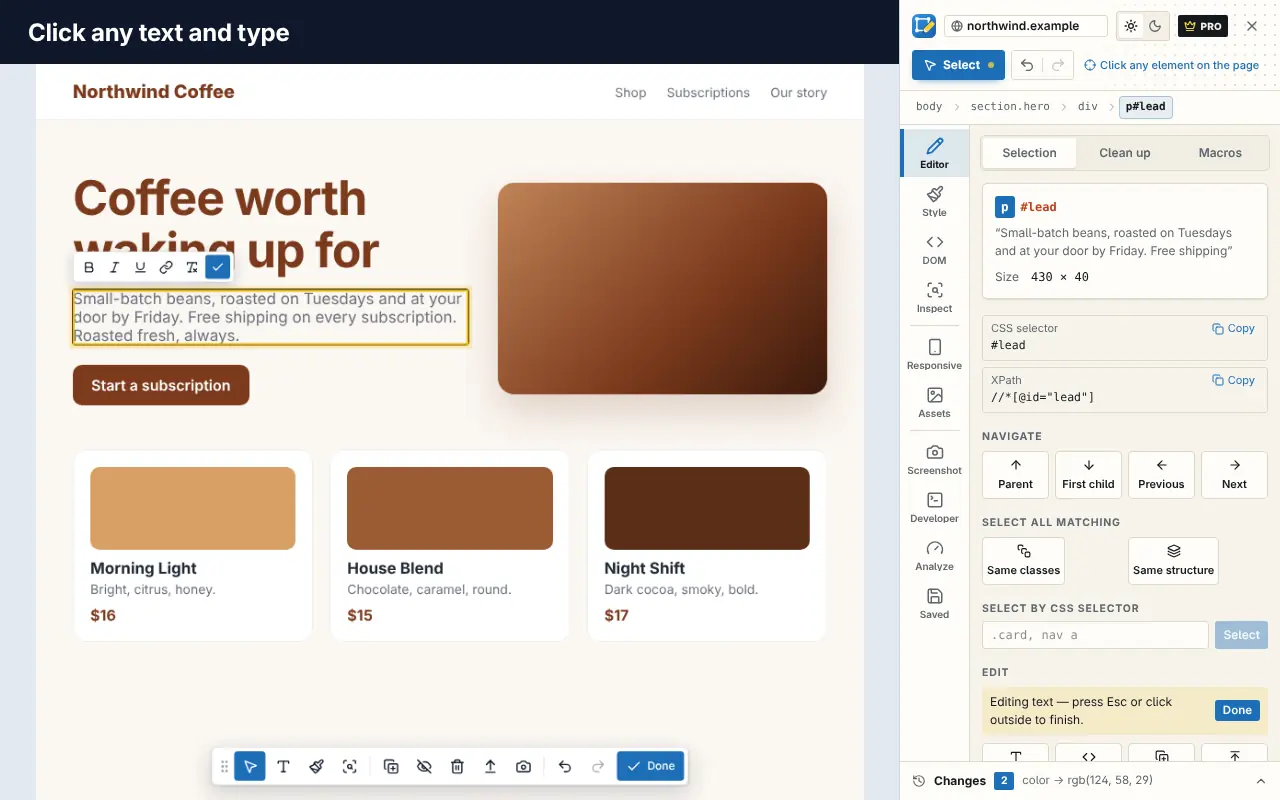
DevTools are precise but very code-centered. If you'd rather point and click, Edit Page is a Chrome extension that puts the same core abilities in a visual side panel:
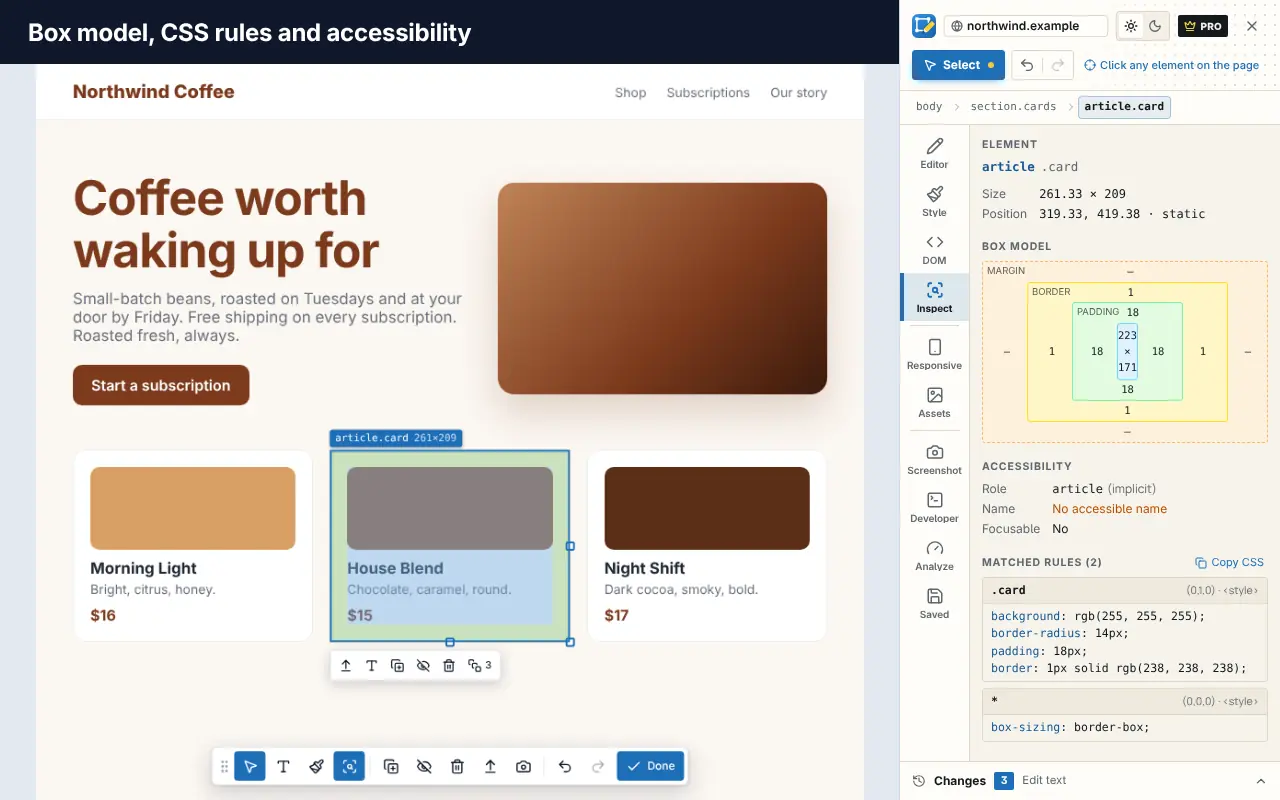
- Inspect: box model, matched CSS rules with their specificity, state and pseudo-element rules, inherited and computed styles, and accessibility info.
- Style visually: typography, colors with a picker and eyedropper, spacing, size, borders and layout, with units you can scrub. Force
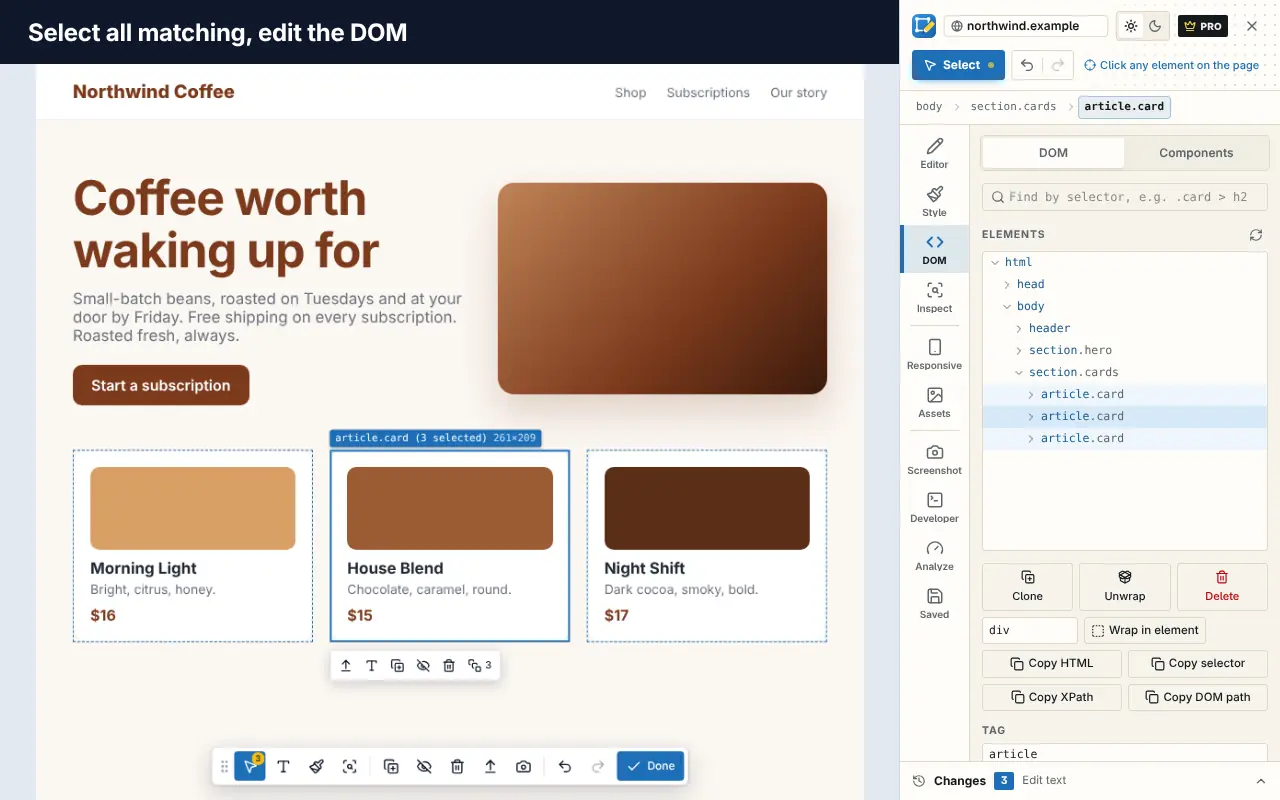
:hoveror:focusand style that state. - Edit HTML: edit an element's HTML, rename tags, edit IDs, classes and attributes in a DOM tree that stays fast on very large pages, and copy an element's HTML, CSS selector or XPath.
- Find patterns: select every element matching the current one, or every element using a particular color or font.
- Keep it: save changes per website, and preview the CSS and HTML your edits produce. Copying or downloading that code, and exporting to React, Vue or Tailwind, are part of Pro.
You can try the editor on our home page or add it to Chrome for free. For a simpler, text-first approach, see how to edit a webpage in your browser.
Firefox differences at a glance
| Task | Chrome / Edge | Firefox |
|---|---|---|
| HTML panel | Elements | Inspector |
Force :hover | :hov button | :hov button |
| Flexbox and grid overlays | Badges in Elements | Badges plus the Layout panel |
| Track your CSS edits | Changes tab | Changes panel |
| Persist edits locally | Local Overrides | Script overrides in the Debugger (JavaScript files) |
The Firefox DevTools documentation covers its Inspector in detail, and Chrome's is at developer.chrome.com.
Practice ideas
- Change a site's main font and see how much the mood shifts. First, find the fonts and colors it uses.
- Find the element that causes a horizontal scrollbar on mobile. See how to test responsive design in your browser.
- Rebuild a card layout with
display: gridlive in the Styles pane. - Check a page's color contrast using the color picker's contrast readout.
When you're comfortable, our guide to essential browser tools for web developers introduces the Network, Sources and Lighthouse panels, and our browser productivity tips for developers cover the shortcuts that make DevTools faster. For more free tools to pair with DevTools, see the best free web developer tools in 2026.
Frequently asked questions
How do I inspect an element in Chrome?
Right-click the element and choose Inspect, or press Ctrl+Shift+C (Cmd+Shift+C on a Mac) and click it. DevTools opens with the element selected in the Elements panel.
Can I edit CSS in the browser and save it?
Yes. Copy your edits from Chrome's Changes tab into your stylesheet, use DevTools Local Overrides to persist them on your machine, or use an extension like Edit Page that saves changes per website.
Why is my CSS crossed out in DevTools?
A crossed-out declaration is being overridden by another rule with higher specificity or that comes later in the cascade. Look further up the Styles pane to find the rule that wins.
Do my edits change the real website?
No. Inspecting and editing only changes the copy of the page in your browser. Nobody else sees your changes.