Developers spend most of the day in two places: the editor and the browser. Most of us have tuned our editor carefully, and very few have done the same for the browser. A handful of small changes add up to real time saved every day, plus less context-switching and fewer "where was that tab?" moments.
Here are practical browser productivity tips for developers, followed by a short list of essential tools. Everything works in Chrome and Edge, with notes for Firefox.
1. Learn ten keyboard shortcuts
You don't need to memorize hundreds. These ten cover most of a working day:
| Action | Windows / Linux | Mac |
|---|---|---|
| Focus the address bar | Ctrl+L | Cmd+L |
| New tab | Ctrl+T | Cmd+T |
| Reopen closed tab | Ctrl+Shift+T | Cmd+Shift+T |
| Search open tabs (Chrome) | Ctrl+Shift+A | Cmd+Shift+A |
| Jump to tab 1–8 / last | Ctrl+1…8 / Ctrl+9 | Cmd+1…8 / Cmd+9 |
| Open DevTools | F12 or Ctrl+Shift+I | Cmd+Option+I |
| Inspect element picker | Ctrl+Shift+C | Cmd+Shift+C |
| DevTools Command Menu | Ctrl+Shift+P | Cmd+Shift+P |
| Toggle device mode | Ctrl+Shift+M | Cmd+Shift+M |
| Hard reload (skip cache) | Ctrl+Shift+R | Cmd+Shift+R |
Pick two per week and use them deliberately until they're automatic.
2. Turn the address bar into a search launcher
Chrome lets you add your own site search shortcuts:
- Go to Settings → Search engine → Manage search engines and site search.
- Next to Site search, click Add.
- For MDN, use the name
MDN, the shortcutmdnand the URLhttps://developer.mozilla.org/en-US/search?q=%s.
Now typing mdn flex-wrap and pressing Enter (or mdn, then Tab, in recent Chrome versions) searches MDN directly. Add shortcuts for your issue tracker, your docs or your company wiki in the same way; %s is where your search term goes. Firefox supports the same idea through keyword bookmarks.
3. Separate work with profiles
Browser profiles give you separate history, cookies, logins and extensions. Useful setups for developers:
- Work and personal, so work tabs and accounts never mix with your own.
- Clean testing profile with no extensions, for reproducing bugs and running Lighthouse.
- Client profiles if you log into many admin panels with different accounts.
In Chrome, click your profile picture at the top right and choose Add.
4. Get more out of DevTools
A few DevTools habits pay off every day:
- Command Menu (
Ctrl+Shift+P) reaches any feature by name: "screenshot", "dark", "coverage", "disable JavaScript". $0in the Console is the element you selected in Elements.- Snippets (Sources → Snippets) store reusable scripts you can run on any page.
- Changes lists every CSS edit you made so you can copy them into your code.
- Disable cache in the Network panel while DevTools is open avoids stale-file confusion.
Our guide to essential browser tools for web developers covers each panel, and how to inspect and edit HTML and CSS goes deep on styling.
5. Make visual tweaks without writing code
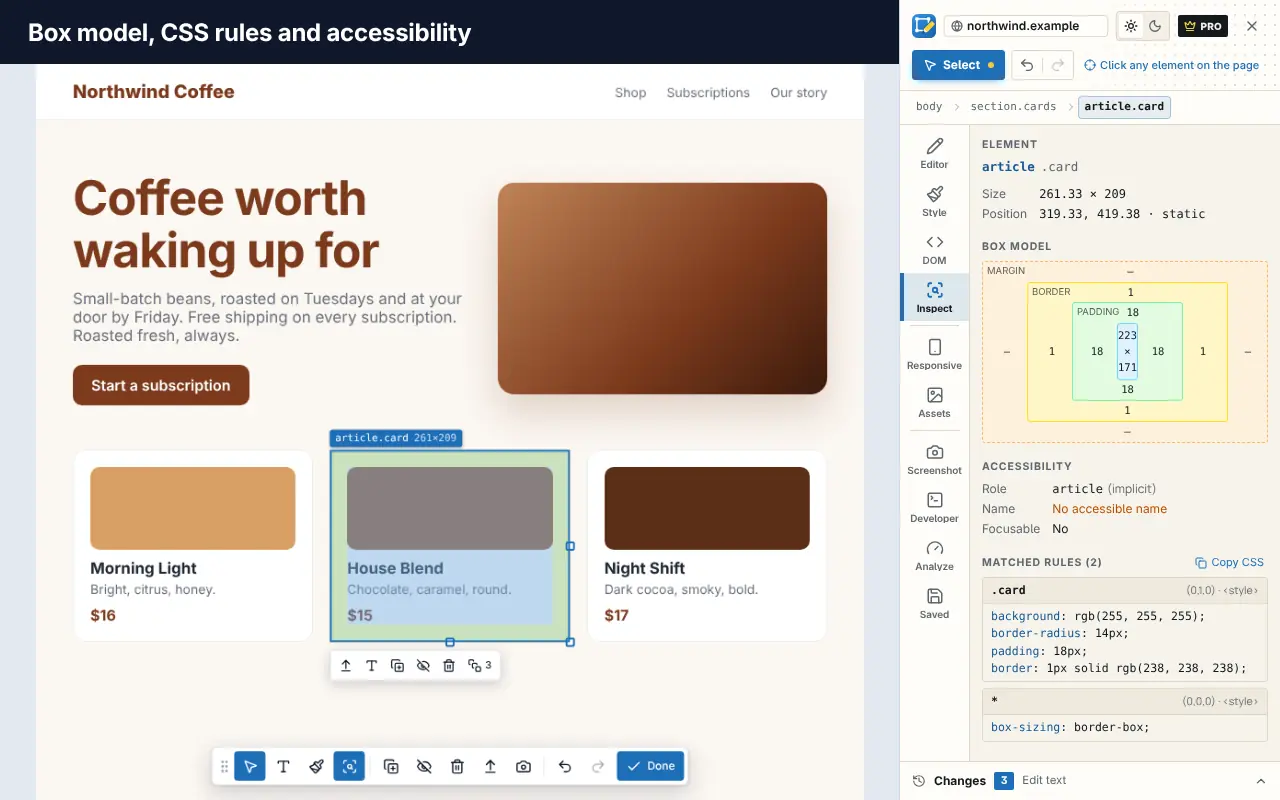
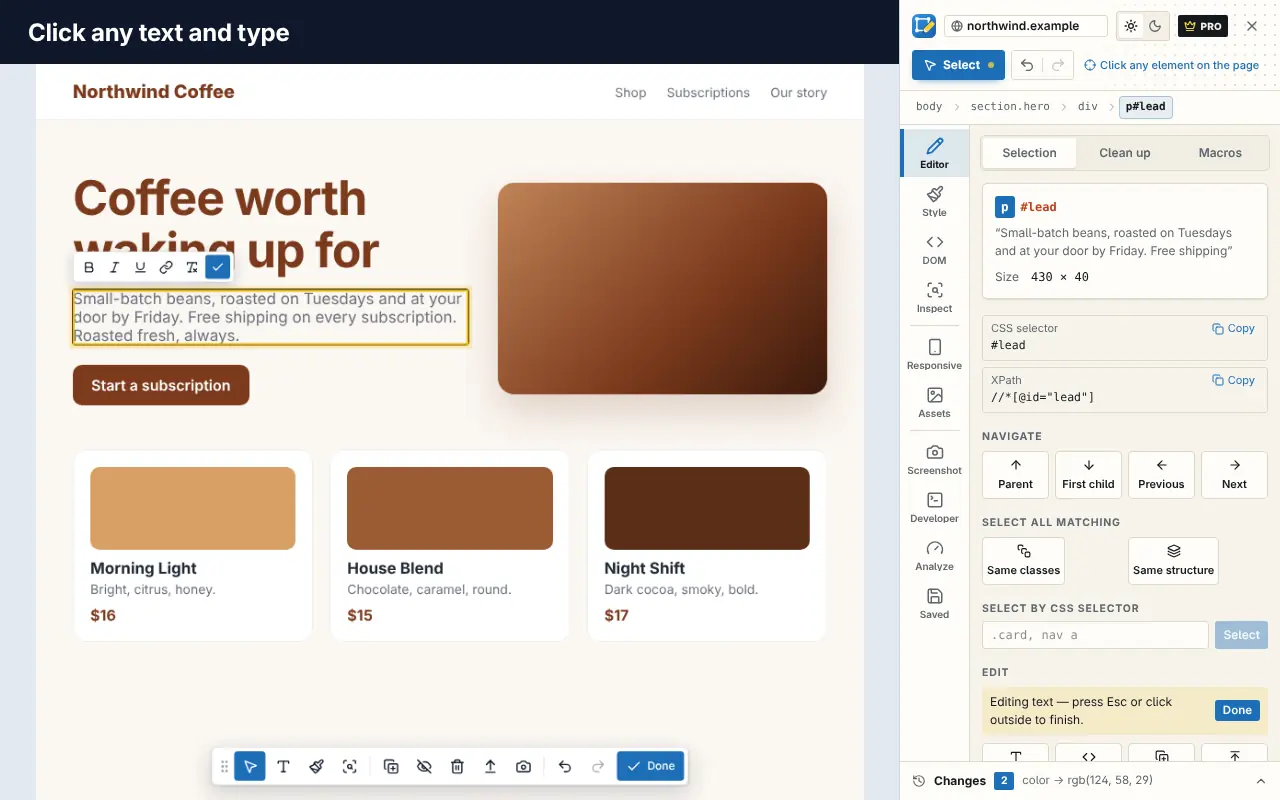
For "what if the heading were bigger?" or "try this button in our brand blue", editing CSS in DevTools is slower than it needs to be. Edit Page, a visual editor extension for Chrome, lets you click any element and change its text, styles and layout visually. You can remove cookie banners and pop-ups in one click before a full-page screenshot, and keep changes per website so they're there when you reload. It's free to add to Chrome, opens with Alt+Shift+E, and you can try it on our home page.
6. Keep one session per project
Context switching is expensive, and the browser is where context lives: docs, tickets, staging and production. Instead of keeping everything open:
- Give each project its own window.
- When you stop working on it, save the window as a named session.
- Restore it when you come back.
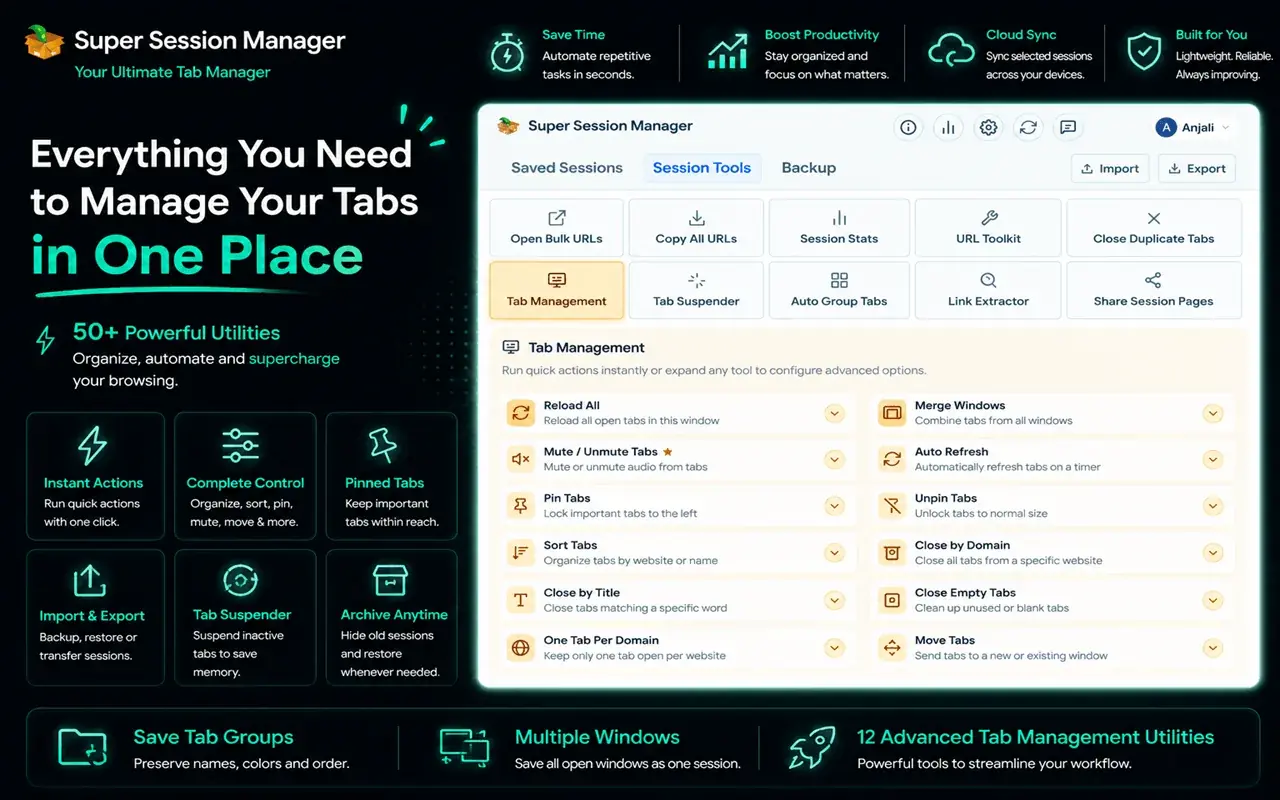
Super Session Manager saves windows and tabs as named sessions for exactly this, and keeps them on your device by default. More strategies are in how to manage too many open tabs and how to save and restore browser tabs and sessions.
7. Start each tab somewhere useful
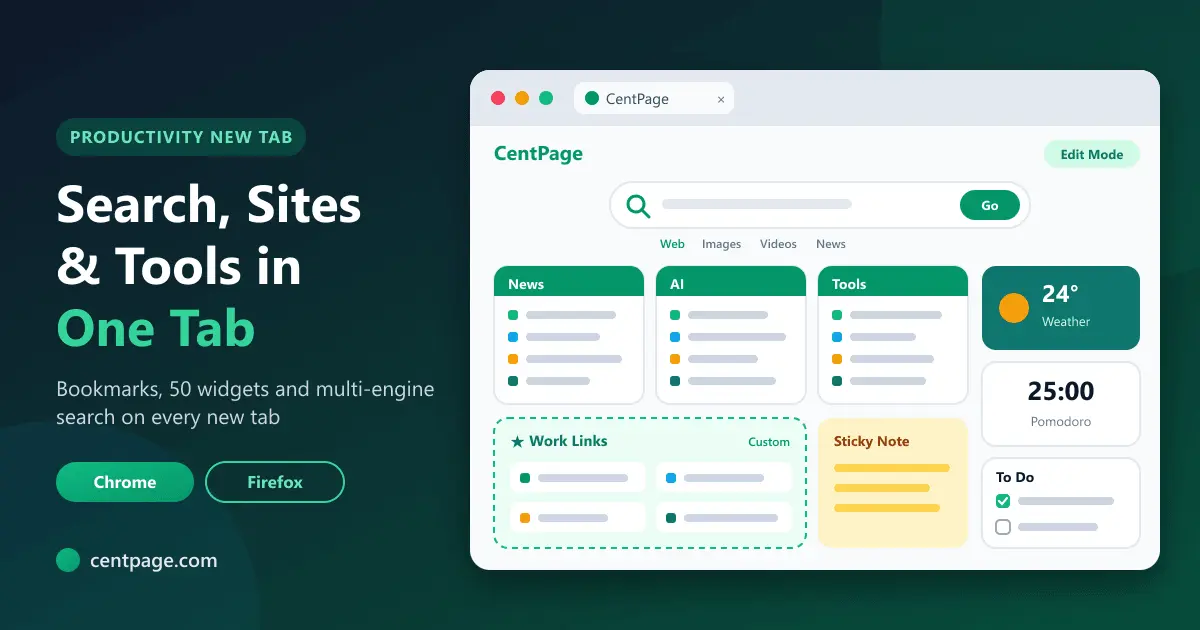
Your new tab page is the screen you see most. Make it work for you with your most-used tools a click away: the repository, the CI dashboard, the staging site and docs. CentPage is a productivity new tab for Chrome and Firefox with bookmarks, multi-engine search, notes and widgets, or you can use the bookmarks bar (Ctrl+Shift+B to show it) with short names or just icons.
8. Learn faster from video
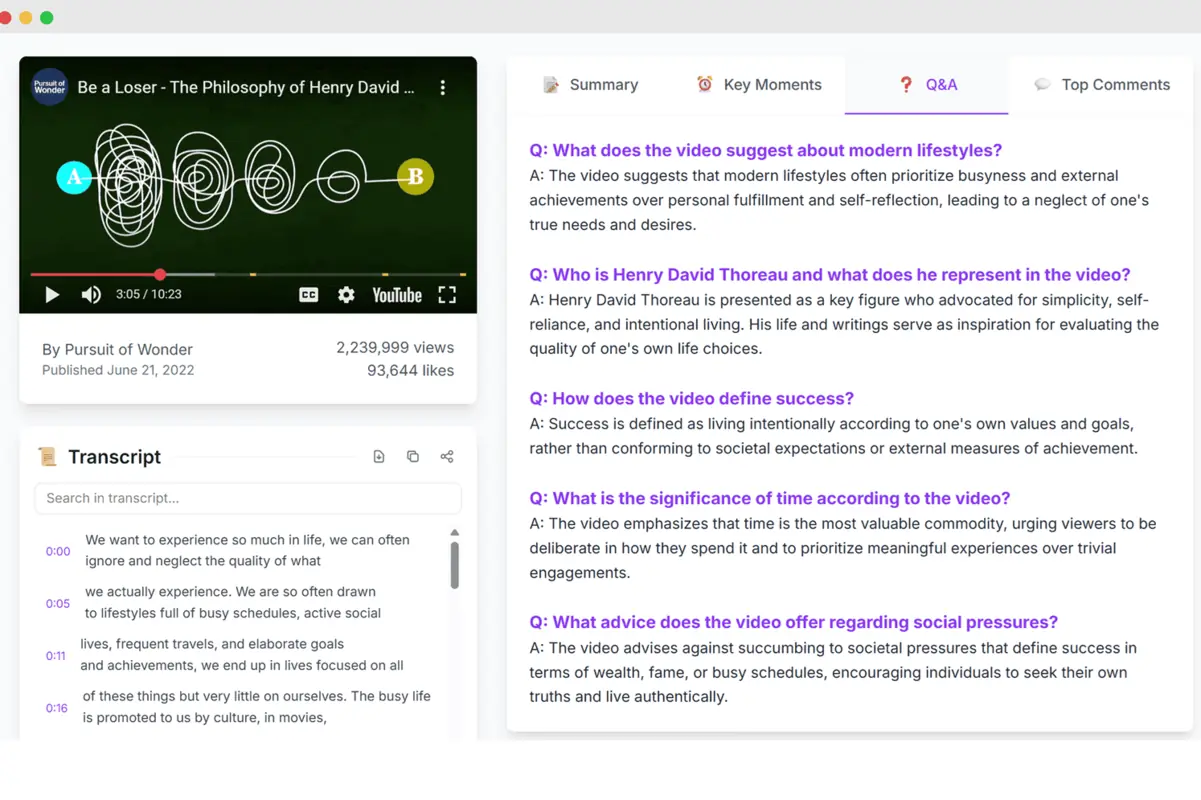
Conference talks and tutorials are great, and also long. When a YouTube video might answer your question, SummaryTube gives you a summary first so you can jump in, save it for later or move on. That's a useful filter for the "watch later" tabs that otherwise sit open for weeks. See how to summarize YouTube videos and learn faster.
9. Check how a page used to look
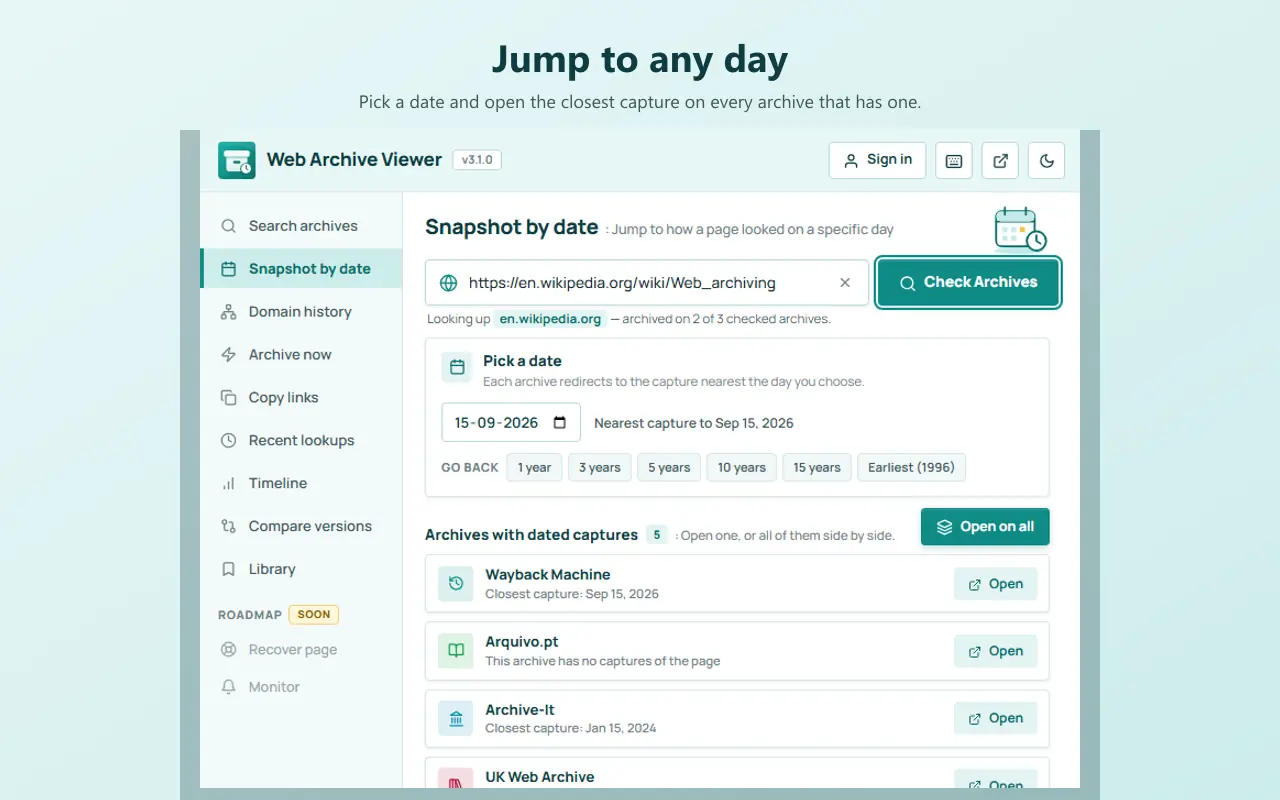
Debugging a regression or a sudden SEO drop sometimes means asking "what did this page look like last month?". The Wayback Machine keeps snapshots of many public pages, and Web Archive Viewer searches it and seven more archives from one popup, with a timeline of every capture and a snapshot-by-date picker. It's free for Chrome, Edge and Firefox. Our guide on viewing old versions of a website walks through both.
10. Keep your extension list lean
Every extension costs a little memory and some trust. Review them every few months:
- Remove anything you haven't used recently.
- Prefer tools that do several jobs well. For example, Edit Page's analysis covers technology detection, colors and fonts, and SEO and accessibility checks, which can replace several single-purpose extensions.
- Keep heavy debugging extensions in a separate development profile.
Our list of the best Chrome extensions for web developers and the best free web developer tools in 2026 can help you choose what stays.
A lean daily toolkit
| Need | Tool |
|---|---|
| Debugging and auditing | Browser DevTools and Lighthouse |
| Visual edits, inspection, screenshots | Edit Page |
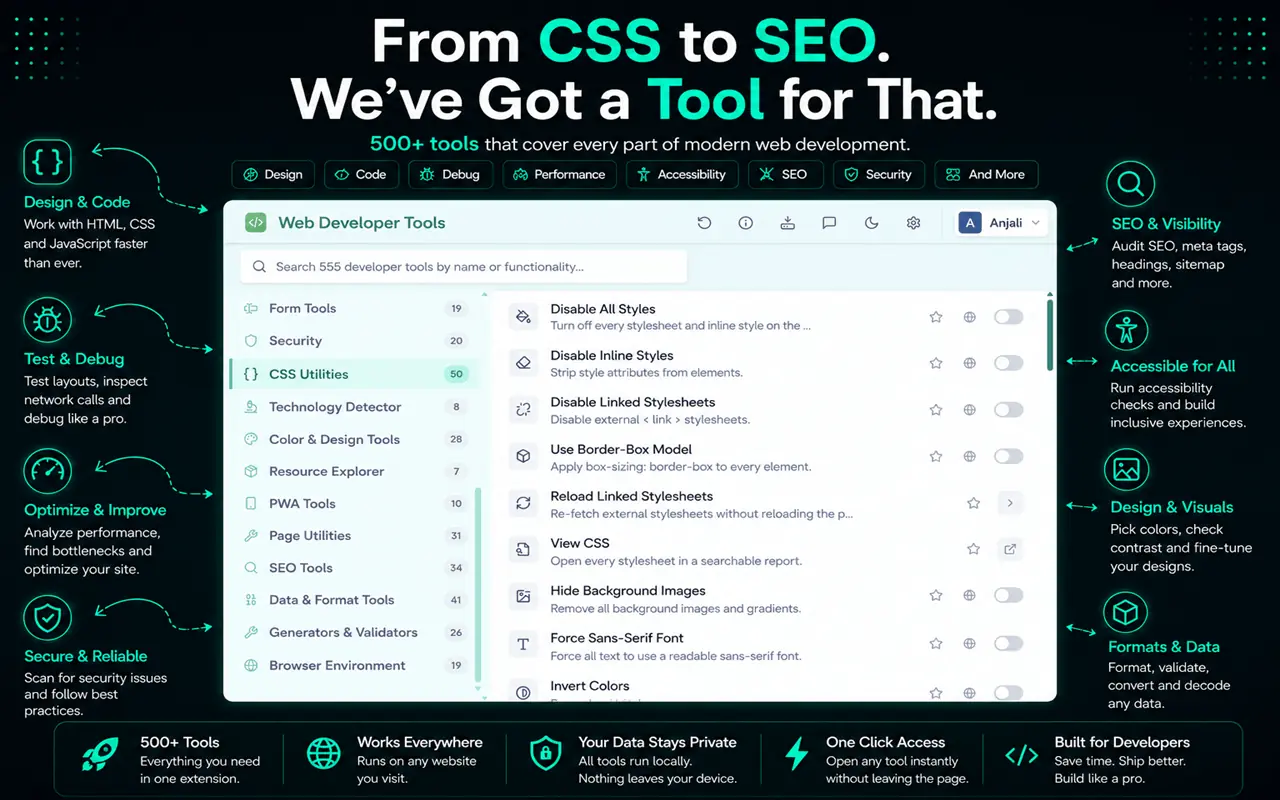
| Developer utilities | Web Developer Tools |
| Project tab sessions | Super Session Manager |
| New tab dashboard | CentPage |
| Video summaries | SummaryTube |
| Old versions of pages | Web Archive Viewer or the Wayback Machine |
| Reference | MDN and Can I use |
Prefer fewer extensions? The built-in alternatives mentioned above cover the basics.
Frequently asked questions
What are the most useful browser shortcuts for developers?
Ctrl+L to focus the address bar, Ctrl+Shift+T to reopen a closed tab, Ctrl+Shift+C to inspect an element, Ctrl+Shift+P for the DevTools Command Menu and Ctrl+Shift+R for a hard reload. On a Mac, swap Ctrl for Cmd.
How can developers be more productive in Chrome?
Learn a few keyboard shortcuts, add site search shortcuts for your docs, use separate profiles, keep one saved session per project and remove extensions you don't use.
Should developers use a separate browser profile?
It's a good idea. A clean profile without extensions gives reliable test and Lighthouse results, and separate work and personal profiles keep logins and history apart.
What browser tools should every developer have?
Browser DevTools and Lighthouse cover the essentials. Add your framework's devtools extension, a visual editor such as Edit Page for quick design changes, and a session manager to keep project tabs organized.