Your browser is the most important web development tool you have. It's where your code actually runs, and every major browser ships a full set of developer tools for inspecting, debugging and measuring it.
This guide covers the essential browser tools for web developers: what each panel is for, the shortcuts that open it and when to reach for it. Examples use Chrome DevTools, with notes for Firefox. Edge uses the same Chromium DevTools as Chrome, so the Chrome instructions apply there too.
How to open the developer tools
| Action | Windows / Linux | Mac |
|---|---|---|
| Open or close DevTools | F12 or Ctrl+Shift+I | Cmd+Option+I |
| Pick an element to inspect | Ctrl+Shift+C | Cmd+Shift+C |
| Open the Console directly | Ctrl+Shift+J | Cmd+Option+J |
| Run any DevTools command | Ctrl+Shift+P (with DevTools open) | Cmd+Shift+P |
You can also right-click anything on a page and choose Inspect. That opens DevTools with the element already selected, which is usually the fastest way in.
1. Elements (Inspector in Firefox)
The Elements panel shows the live DOM, the page as it exists right now, after JavaScript has run. That's different from "View source", which shows the HTML the server sent.
Use it to:
- Find which element is which, and see its classes and attributes.
- Edit text and attributes by double-clicking them.
- Change CSS in the Styles pane and see the result instantly.
- Read the Computed tab to see final values after the cascade.
- Check the box model diagram for margin, border, padding and content sizes.
Edits here are temporary: reload the page and they're gone. Our step-by-step guide on how to inspect and edit HTML and CSS covers this panel in depth, including how to keep your changes.
2. Console
The Console shows errors, warnings and anything your code logs. It's also a live JavaScript prompt that runs against the current page.
A few habits that save time:
$0refers to the element currently selected in Elements, so$0.textContentreads its text.$$('a')returns all elements matching a selector as an array.console.table(data)displays arrays of objects as a readable table.- Filter the Console by level (errors only) when a page is noisy.
3. Network
The Network panel records every request the page makes: HTML, CSS, scripts, images, fonts and API calls. For each one you can see the status code, size, timing and headers.
Reach for it when:
- Something fails to load (look for red rows and 4xx or 5xx statuses).
- An API returns the wrong data (click the request and read Response).
- A page is slow (sort by size or time to find the heavy hitters).
- You need to test a slow connection (use the throttling dropdown).
Tick Disable cache while DevTools is open so you always see fresh files during development.
4. Sources (Debugger in Firefox)
Sources is where you debug JavaScript. Set a breakpoint by clicking a line number, reload or trigger the code, and execution pauses so you can inspect variables and step through line by line.
It beats scattering console.log calls when the bug depends on state you can't easily print. You can also pause on exceptions, or on DOM changes by right-clicking an element in Elements and choosing Break on.
5. Application (Storage in Firefox)
The Application panel shows what a site stores in the browser: cookies, local storage, session storage, IndexedDB and service workers. Use it to clear a site's data, inspect a login cookie or debug an offline-capable app.
6. Lighthouse
Lighthouse audits a page for performance, accessibility, best practices and SEO, and lists specific improvements for each. Run it from its DevTools panel, ideally in an incognito window so extensions don't skew the results.
If you want a second opinion from outside your machine, PageSpeed Insights runs the same engine from Google's servers. For step-by-step audits, see how to check a website's SEO and how to check website accessibility in your browser.
7. Device mode
Device mode (Ctrl+Shift+M with DevTools open, Cmd+Shift+M on a Mac) resizes the viewport to common phone and tablet sizes and simulates touch. It's the quickest way to check a responsive layout, though it's an approximation, not a real device. Our guide to testing responsive design in your browser has a full checklist.
8. Performance and Memory
The Performance panel records what the browser does while a page loads or while you interact with it: scripting, layout, painting. It's the tool for "why does this feel janky?". The Memory panel helps track down leaks in long-lived apps.
These are deep tools. Start with Lighthouse for the obvious wins and move to Performance when you need to explain a specific slowdown.
Hidden gems worth knowing
- Changes: Chrome's Changes tab (open it from the Command Menu) lists every CSS edit you've made in DevTools, so you can copy them back into your code.
- Local Overrides: saves your DevTools edits to a folder on disk and reapplies them on reload.
- Coverage: shows how much of each CSS and JS file the page actually uses.
- Rendering: emulates dark mode, reduced motion and print styles.
- CSS Overview: summarizes a page's colors, fonts and media queries.
Try the Command Menu (Ctrl+Shift+P) and type a feature name; it's faster than hunting through menus.
Browser extensions that complement DevTools
DevTools are built for precision, not speed of visual iteration. A few extensions fill that gap.
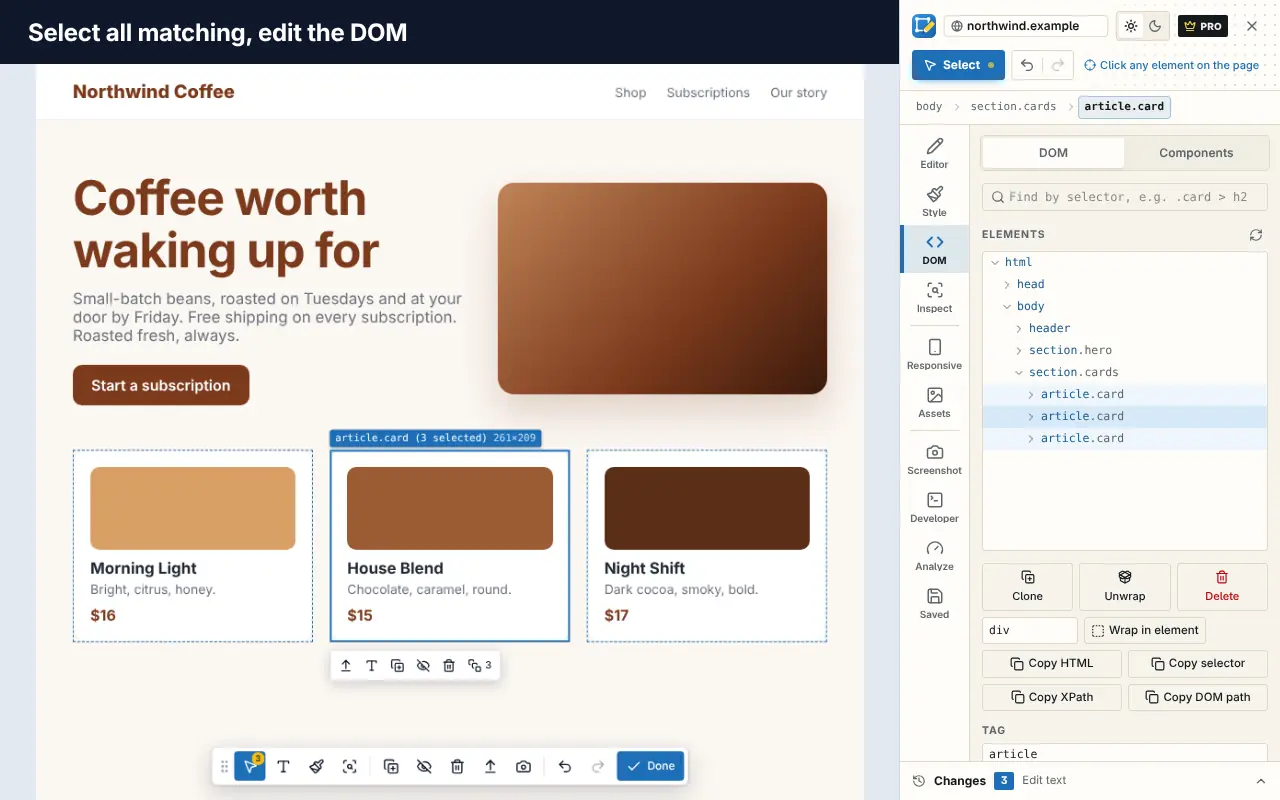
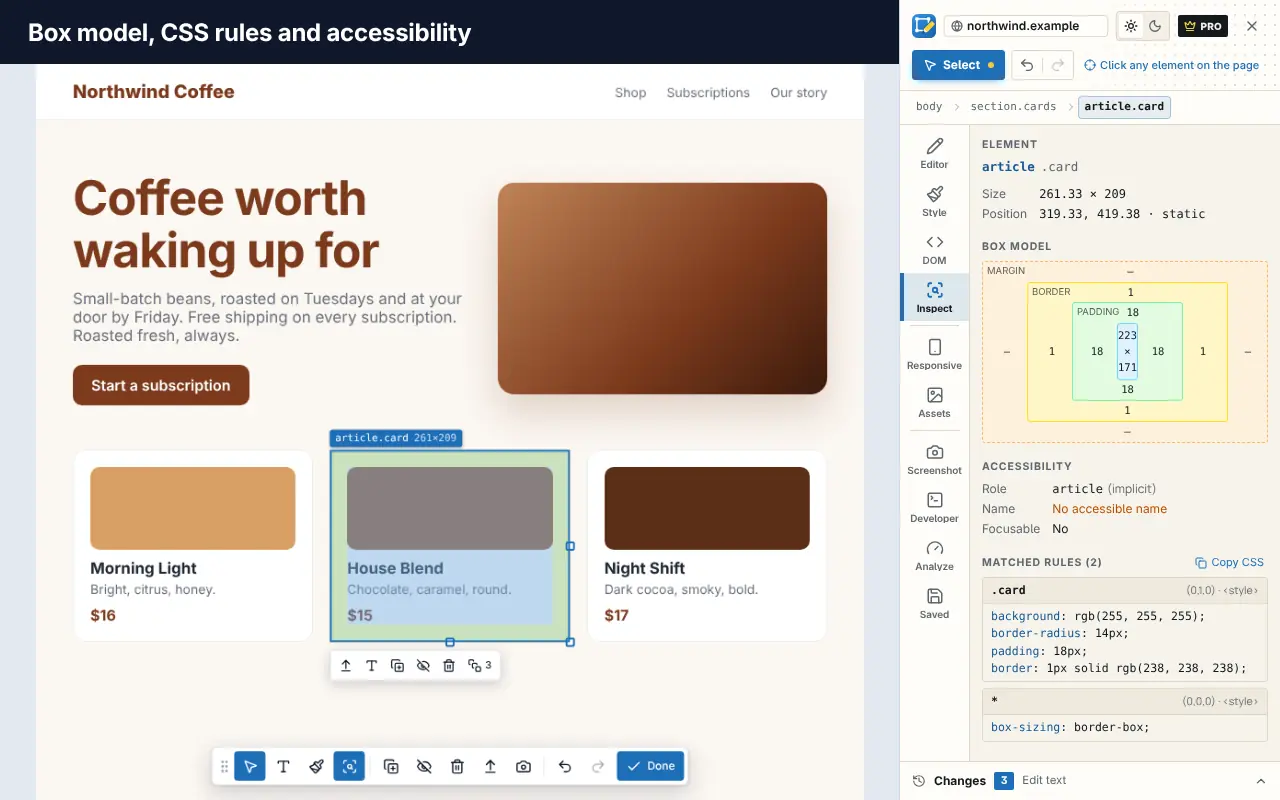
Edit Page is a visual editor that works on any page. Click text to rewrite it, change styles with visual controls, inspect the box model and matched CSS rules, see a page's colors and fonts, and run quick SEO and accessibility checks, all from a side panel. Unlike DevTools edits, you can save changes per website so they come back when you reload. It's free to add to Chrome, and you can try it on our home page first.
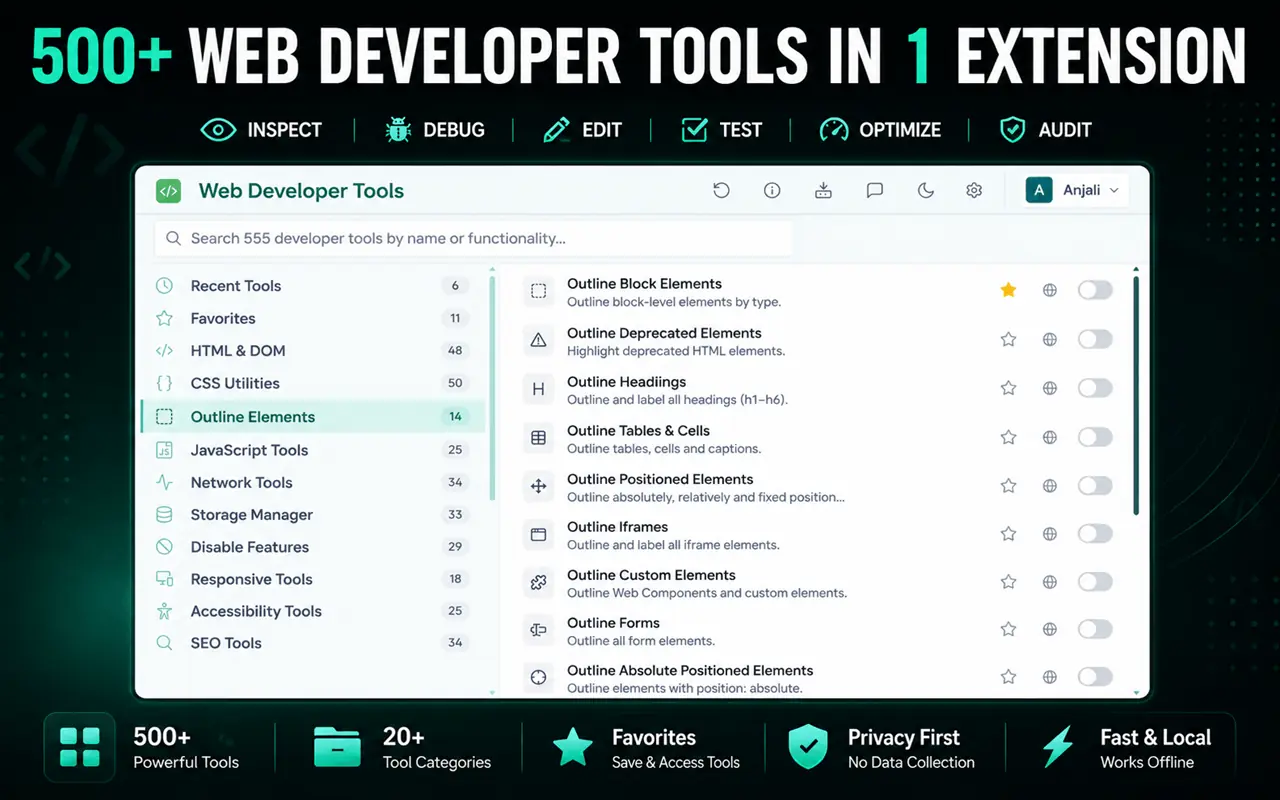
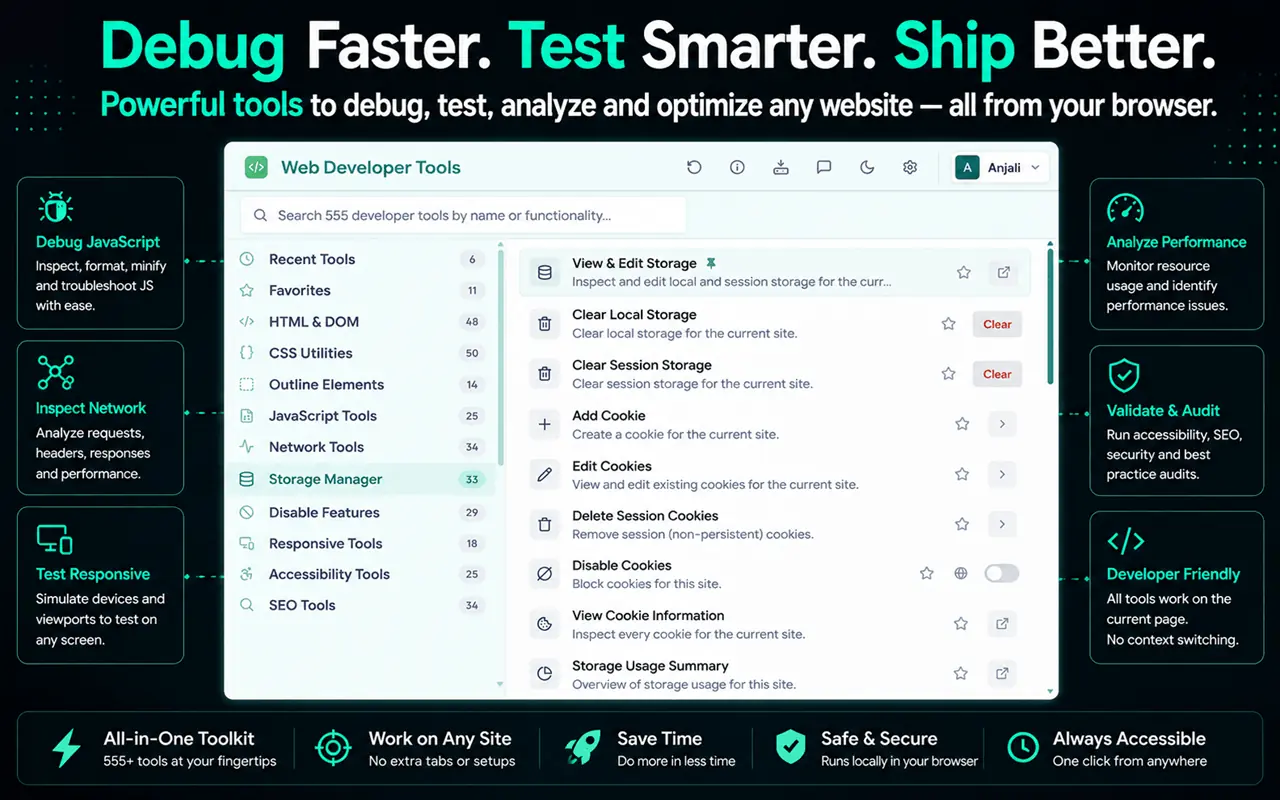
Web Developer Tools adds 500+ one-click tools that DevTools makes you dig for: outline headings or forms, disable JavaScript or styles, show alt text, edit cookies and resize the window to common sizes. Get it for Chrome, Edge or Firefox.
React Developer Tools adds component and profiler tabs if you build with React.
For a longer list, see the best Chrome extensions for web developers.
Don't forget the browser itself
Some of the most useful browser tools for developers aren't in DevTools at all:
- Profiles keep work, testing and personal browsing separate, each with its own extensions and logins.
- Incognito or private windows give you a clean state with no cookies and, by default, no extensions.
- Tab groups and sessions keep project research together. How to save and restore browser tabs and sessions explains the options.
More shortcuts and habits like these are in our browser productivity tips for developers.
Frequently asked questions
What are browser developer tools?
Browser developer tools are a set of panels built into browsers like Chrome, Firefox and Edge that let you inspect a page's HTML and CSS, run JavaScript, monitor network requests, debug scripts and audit performance.
Which browser has the best developer tools?
Chrome and Firefox both have excellent developer tools, and Edge shares Chrome's. Chrome's are the most widely documented. Firefox is often praised for its CSS Grid and Flexbox inspectors. Many developers keep both installed and test in each.
Do changes in DevTools affect the live website?
No. Edits in DevTools only change your local copy of the page in your browser. Nobody else sees them, and they disappear when you reload unless you use Local Overrides or a tool like Edit Page that saves changes per site.
Are browser developer tools free?
Yes. They're built into the browser at no cost, and there's nothing to install.