You can build, debug and ship a professional website without paying for a single tool. The hard part isn't finding free web developer tools, it's choosing the few that actually earn a place in your daily workflow.
This guide groups the best free web developer tools by the job they do: writing code, inspecting pages, testing quality, looking things up and filling the gaps with browser extensions. Every tool here has a free option that's useful on its own, not just a trial.
How we chose: we only list tools we know to be free to use for everyday web development, and we describe what they do without inventing usage numbers or rankings. Products change, so check each tool's own site for current features and pricing.
The short list
| Job | Free tool | Why it's on the list |
|---|---|---|
| Inspect and debug pages | Chrome DevTools, Firefox DevTools | Built into the browser, no install |
| Write code | Visual Studio Code | Free, extensible code editor |
| Track changes | Git | Free, open-source version control |
| Audit performance and SEO | Lighthouse, PageSpeed Insights | Built into Chrome / free web tool |
| Validate markup | W3C Markup Validation Service | Catches HTML errors early |
| Look things up | MDN Web Docs, Can I use | Trusted reference for HTML, CSS and JS |
| Edit pages visually | Edit Page (free plan) | Click-and-edit text, CSS and HTML on any site |
| Keep research tabs | Super Session Manager | Saves and restores sets of tabs |
The rest of this article explains where each one fits.
Browser developer tools: the tool you already have
The most powerful free web developer tool is already installed. Every modern browser ships with developer tools, and they cover most day-to-day debugging.
Chrome DevTools opens with F12 or Ctrl+Shift+I (Cmd+Option+I on a Mac). The panels you'll use most:
- Elements to see the live DOM, edit HTML and change CSS in the Styles pane.
- Console to run JavaScript against the page and read errors.
- Network to see every request, its status, size and timing.
- Sources to set breakpoints and step through scripts.
- Lighthouse to audit performance, accessibility, best practices and SEO.
Firefox DevTools offers the same core panels under slightly different names (Inspector instead of Elements, Debugger instead of Sources), plus some well-loved extras such as its CSS Grid and Flexbox inspectors.
If you're new to these panels, our guide to essential browser tools for web developers walks through each one, and how to inspect and edit HTML and CSS shows the editing workflow step by step.
Code editor: Visual Studio Code
Visual Studio Code is a free code editor from Microsoft and a common default for web development. Out of the box it understands HTML, CSS, JavaScript and TypeScript, and its extension marketplace adds linters, formatters and framework support.
A practical starter setup:
- Install a formatter (such as Prettier) and turn on "format on save", so style debates disappear.
- Install a linter for your language (ESLint for JavaScript and TypeScript).
- Learn the command palette (
Ctrl+Shift+P). It's the fastest way to any feature.
Version control: Git
Git is free, open-source and the standard way to track changes to code. Even on a solo project it gives you an undo button for your whole codebase. Commit small, write messages that say why, and push to a hosted remote so a dead laptop never costs you a project.
Testing performance, SEO and accessibility
Shipping fast, accessible pages matters for users and for search. These free tools make problems visible:
- Lighthouse runs inside Chrome DevTools and scores a page for performance, accessibility, best practices and SEO, with specific fixes for each issue.
- PageSpeed Insights runs Lighthouse from Google's servers and, for sites with enough traffic, adds field data from real Chrome users.
- W3C Markup Validation Service checks HTML against the spec and catches unclosed tags, duplicate IDs and invalid nesting.
Run Lighthouse in an incognito window: extensions can affect the results, and a clean profile gives you numbers that are easier to compare. For a deeper walkthrough, read how to check a website's SEO in your browser and how to check website accessibility.
Reference: MDN and Can I use
Two free references answer most "how does this work?" and "can I use this?" questions:
- MDN Web Docs documents HTML, CSS and JavaScript with examples and browser support tables.
- Can I use shows which browsers support a given feature, so you know when you need a fallback.
A neat trick: add MDN as a site search shortcut in your browser so typing mdn grid in the address bar searches it directly. Our browser productivity tips for developers explain how to set that up.
Browser extensions that fill the gaps
DevTools are precise but built around code. A few free extensions cover what they don't.
Edit Page: visual webpage editing
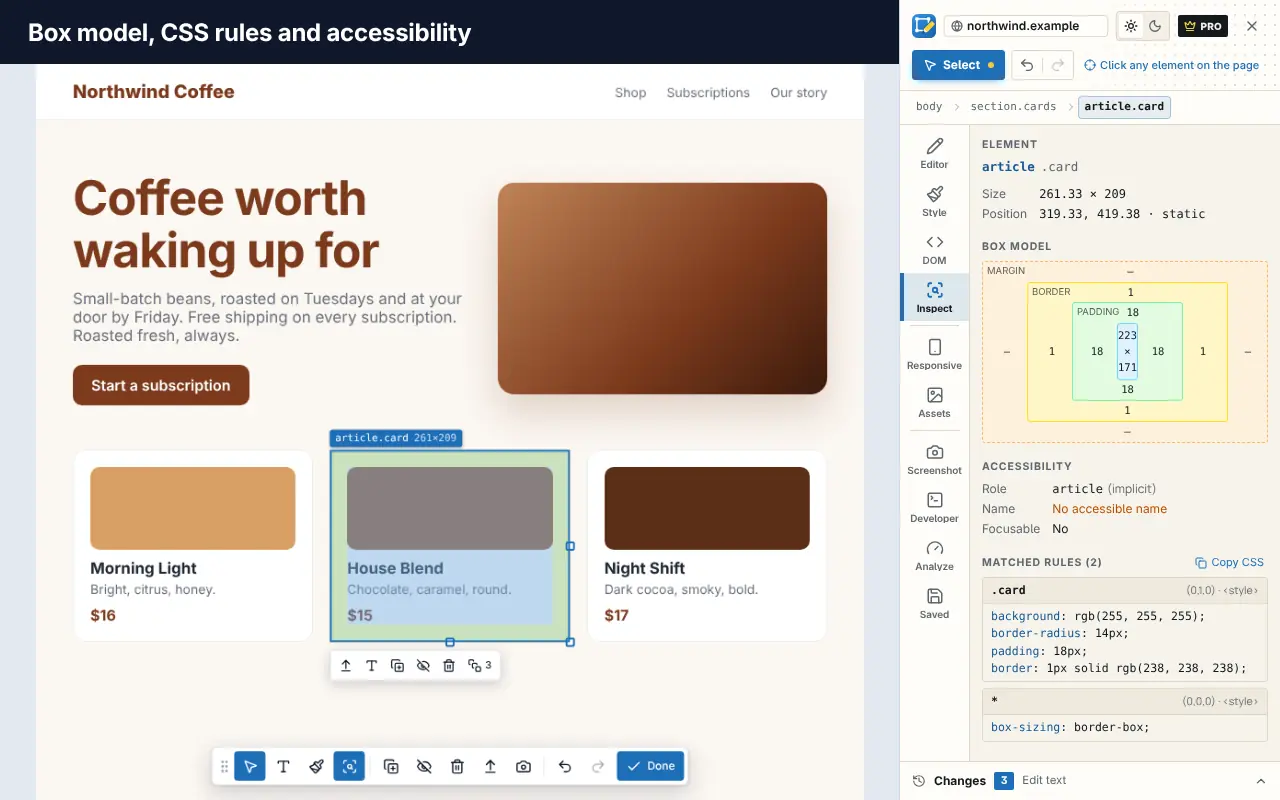
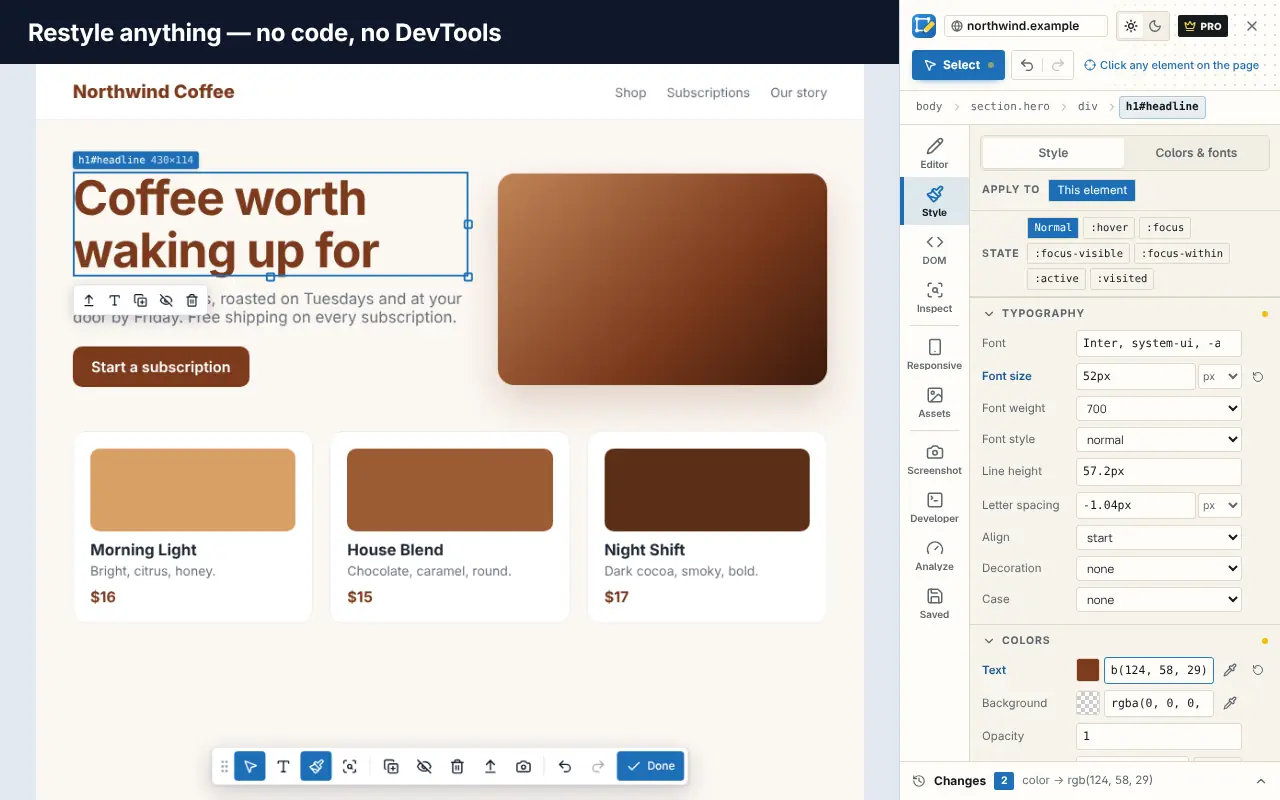
Edit Page is a free Chrome extension that turns any page into an editable canvas: click text to change it, adjust CSS in a visual style panel, edit HTML, inspect the box model and matched CSS rules, and remove clutter such as cookie banners.
The free plan includes inline text editing, the style and inspect tools, colors and fonts, page analysis with SEO and accessibility checks, and saved changes for one website. Pro adds things like unlimited saved sites, full-page screenshots and code export. You can try the editor on our home page without installing anything, or add Edit Page to Chrome.
It's useful when you want to mock up a copy or design change on a live site, show a client a quick "what if", or take a clean screenshot. Read how to edit a webpage in your browser for the full set of methods.
Web Developer Tools
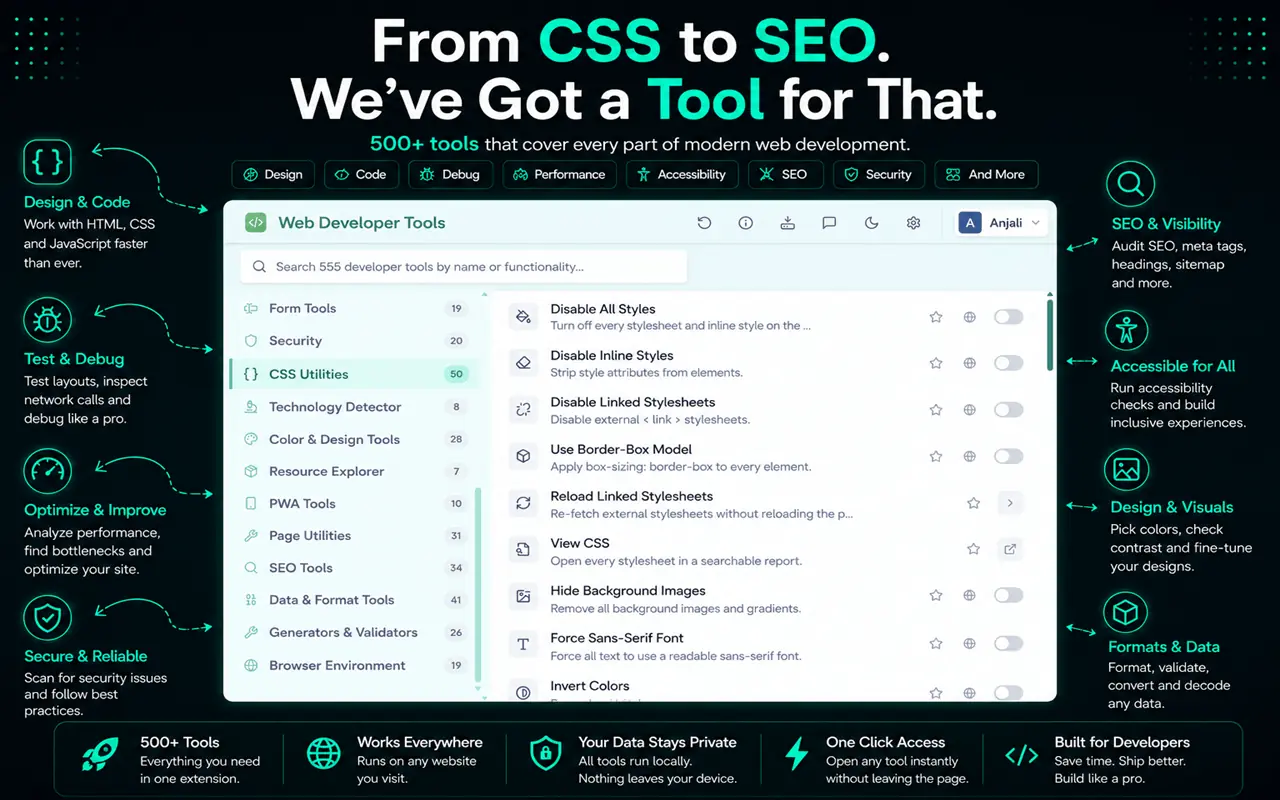
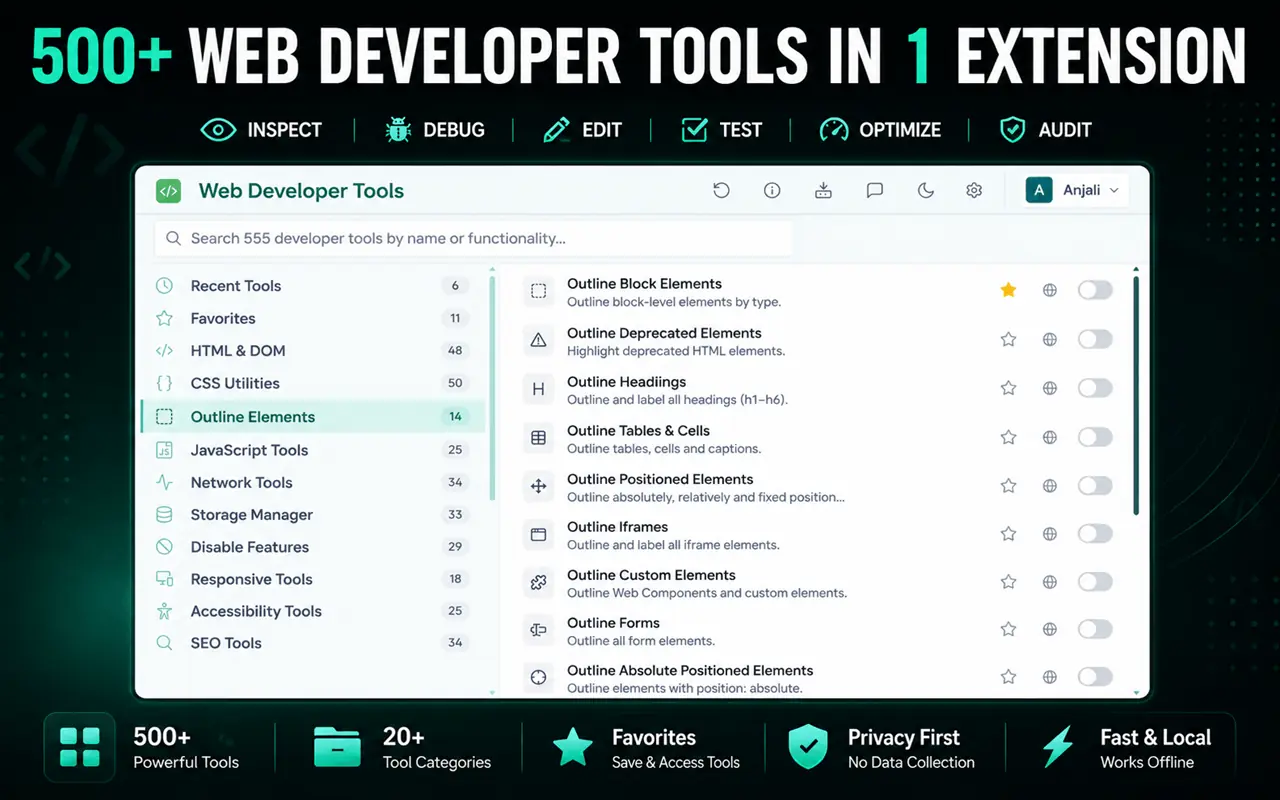
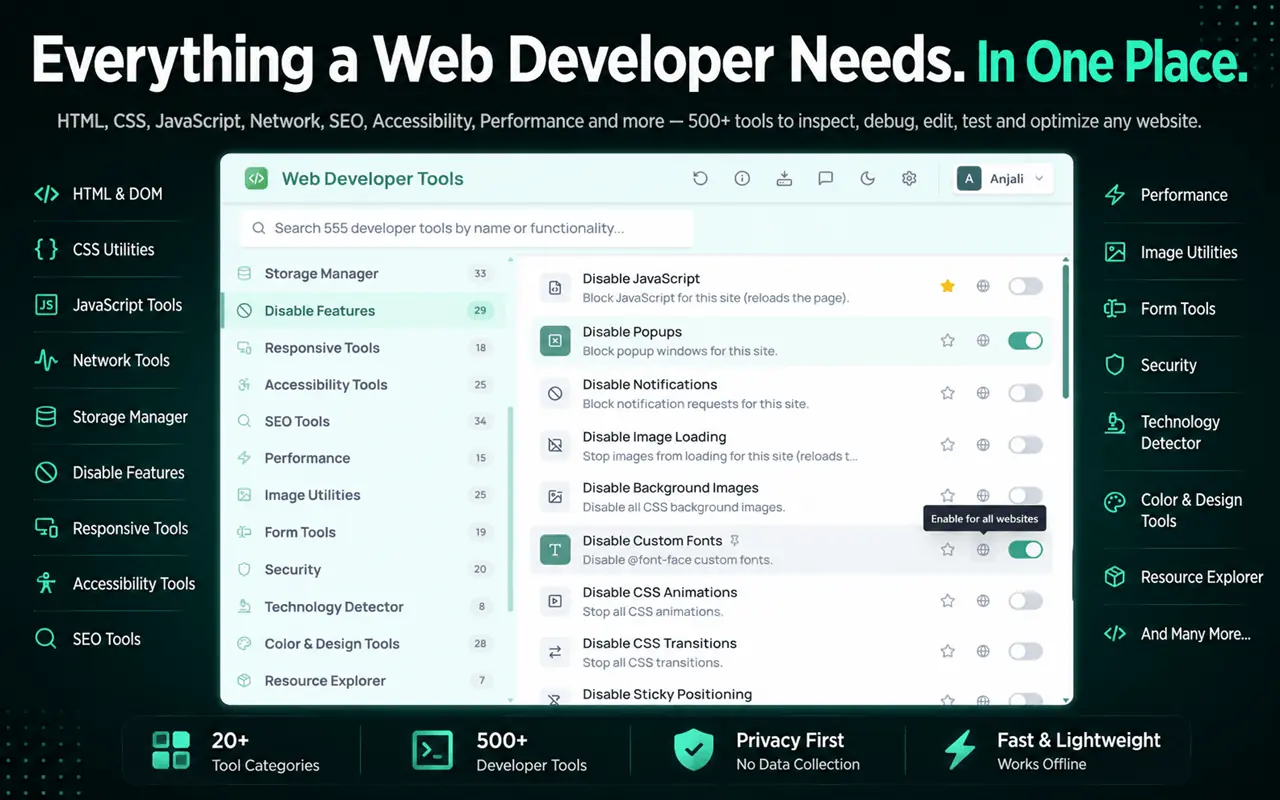
Web Developer Tools is a privacy-first toolbox with 500+ tools to inspect, debug, edit, test and audit websites: outline elements, disable JavaScript or CSS, check alt text, edit cookies, resize the window, run validators and more. Everything runs on your device. It's free for Chrome, Edge and Firefox.
Framework devtools
If you build with React, the official React Developer Tools extension adds Components and Profiler tabs to DevTools so you can inspect props, state and renders. Vue has an equivalent official devtools extension.
For more picks, including tools for colors, technology detection and accessibility, see our list of the best Chrome extensions for web developers.
Keep your research organized
Web development means dozens of tabs: docs, Stack Overflow answers, issue threads, the staging site, the production site. Losing that context when the browser restarts is a real productivity cost.
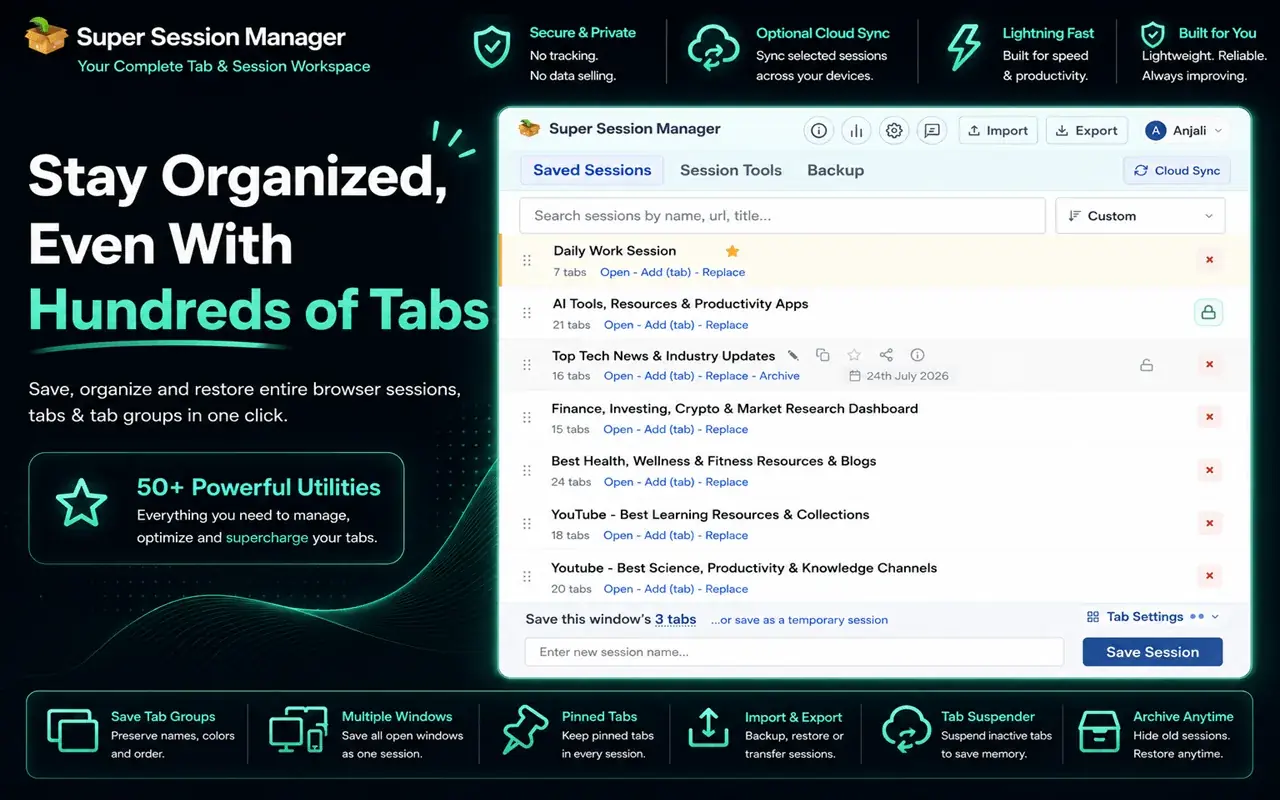
Super Session Manager saves your open windows and tabs as named sessions you can restore later, so each project's research is one click away. If tab overload is a constant fight, read how to manage too many open tabs.
A free toolkit you can set up today
Here's a complete, zero-cost web development setup:
- Browser: Chrome or Firefox with DevTools.
- Editor: Visual Studio Code with a formatter and a linter.
- Version control: Git with a hosted remote.
- Quality checks: Lighthouse before every release, the W3C validator for markup.
- Reference: MDN and Can I use, ideally as address-bar shortcuts.
- Extensions: Edit Page for visual edits and screenshots, your framework's devtools, and a session manager for research tabs.
Start with the browser and editor. Add the rest as you hit the problem each one solves; a tool you don't use is just clutter.
Frequently asked questions
What is the best free tool for web development?
For most people it's the browser's own developer tools. Chrome DevTools and Firefox DevTools let you inspect HTML, edit CSS live, debug JavaScript, inspect network requests and audit performance, and they're already installed.
Are free web developer tools good enough for professional work?
Yes. Many professional workflows run on free tools: browser DevTools, Visual Studio Code, Git, Lighthouse and MDN. Paid tools tend to add collaboration, hosting or convenience rather than core capability.
Do I need browser extensions for web development?
Not to start. DevTools cover the essentials. Extensions help with specific gaps, such as visual editing with Edit Page, framework inspection with React Developer Tools, or keeping research tabs with a session manager.
Is Edit Page free?
Yes, Edit Page has a free plan with no sign-in needed to edit. Some features, such as unlimited saved sites and code export, are part of Pro. See the pricing page for the current split.